
Find the right settings for page titles, search descriptions, domain connection, and your store's URL structure.
This guide applies to store administrators in Go, Plus, and Pro. Open Settings → Domains and SEO. There are several different tasks here: describing pages for search engines is not the same as pointing DNS or changing the addresses of all pages.
1. Choose the right tab and scope
Title and description: the home page's SEO text per language and the basic design of titles for products, product groups, and custom pages.
Domains: domain names connected to the store and their redirects.
URL settings: domain and path structure per language.
Certificates: HTTPS certificates for the domains.
2. Write the home page's title and description
On Title and description write a clear TITLE tag for the home page and a short META description in each language. Describe what the store offers and who it's for, using natural words that customers use. Write a coherent description, not a list of repeated keywords.
The title and description help the search engine understand the page, but you don't decide exactly how Google displays the search result. Google may choose another title or descriptive text from the page and shorten the text based on the search query and device. A saved text does not provide immediate indexing or a guaranteed placement.
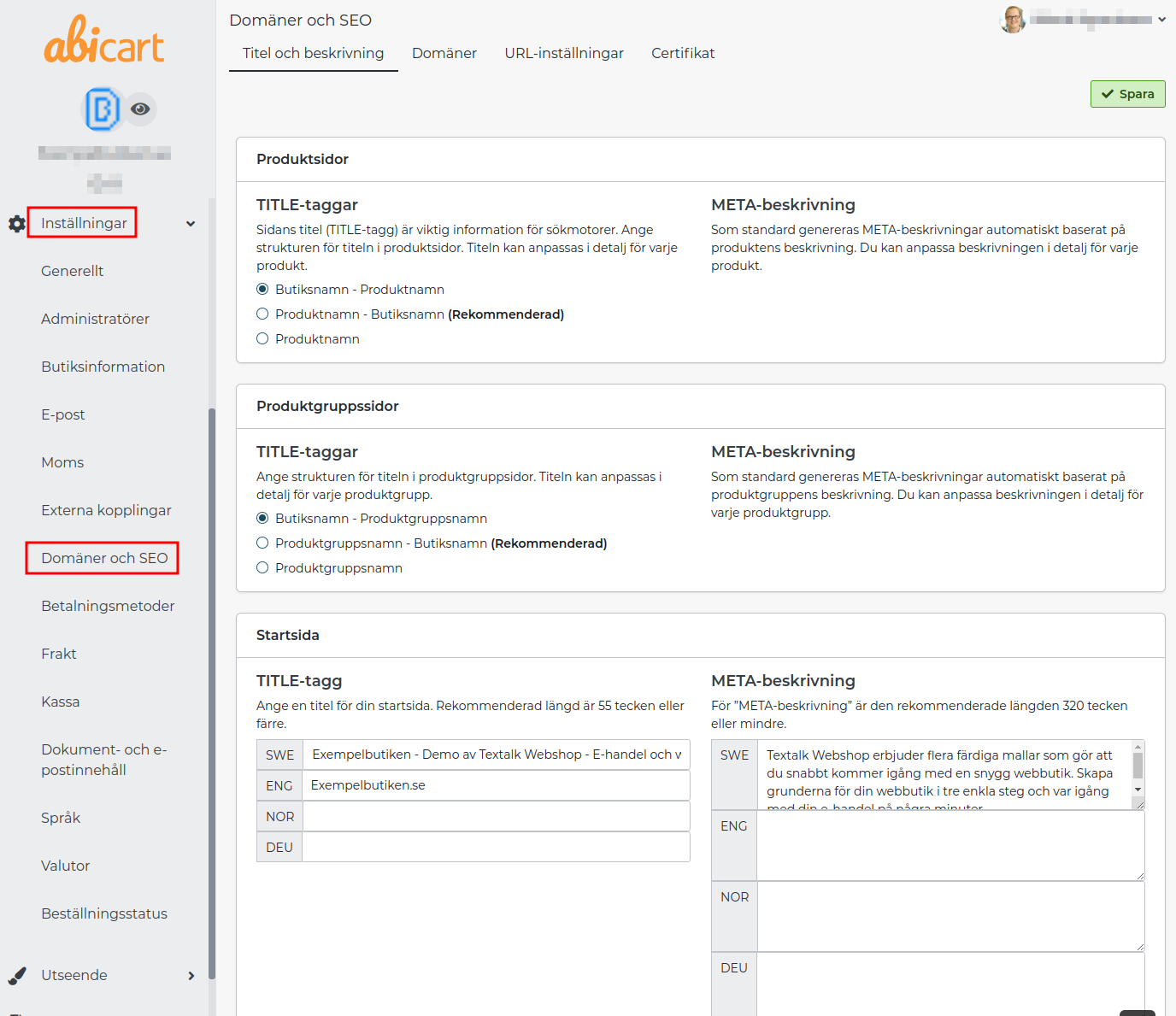
The image example shows where the fields are located. Older recommended character counts are not a guarantee of how much will be displayed in a particular search result.
3. Distinguish global patterns from individual page texts
Choose a basic format for product, product group, and page titles, for example, the page name followed by the store name. An individual product, product group, or custom page can have a manually entered title and META description on the tab labelled Search engine optimization.
If a product lacks its own META description, the store's general setting or a description generated from the product texts is used. Write your own description when you want to control the summary for that specific product. The introduction and product description both need to be accurate and useful; neither is a field that Google always prioritizes above all else.
If you see a field for Keywords/META keywords in an older or individual editing view, it may contain comma-separated words, but Google does not use META keywords for indexing or ranking. Special characters can be used naturally in the content. Prioritize the page's actual text, title, and description.
4. Connect the domain in the right place
A custom domain is purchased from a domain provider. You change the domain pointing there and then add the domain in Abicart. The store's subscription must be active and the store visible. Abicart's web hosting is included in the subscription; domain registration and email service are separate things.
For stores using Abicart’s Swedish hosting service, the usual setup points www with a CNAME to shop.abicart.se and the root domain with an A record to 192.121.104.141. Manage both hostnames and preserve the email's MX, SPF, DKIM, and DMARC records. Follow the entire domain connection guide before changing DNS. A nameserver change is not the same as domain pointing.
A functioning standard address from Abicart can also be indexed; a custom domain is not in itself a requirement to be shown in search results.
5. Change URL structure with care
Under URL settings you select the domain per language. If the same domain is used for multiple languages, their paths need to differ, normally through language prefixes. One language can have an empty prefix and another, for example, en. Two languages cannot have the same home page address.
Suffix: an optional extension like `html`. This does not make the page a different technical platform.
Folder structure: whether the product group's name should be included in the product's URL.
Folder for products, product groups, and custom pages: extra parts in the path from the respective fields.
Home page: any extra path for the home page.
Do not change an established structure just because it seems more “SEO-friendly”. A change can create new addresses for many pages and trigger regeneration. Update your own hard-coded links, ads, and external feeds, and check old important links. Do not rely on automatic handling of old addresses to replace a plan for permanent redirects.
6. Save and check
Save the change. Then check the home page, product, product group, and custom page in the correct language. Check the domain, HTTPS, title, and description on the actual page. URL generation and the search engines' subsequent indexing are different processes. If the store shows an actual error, you should troubleshoot it; do not assume that everything will automatically be correct after a certain number of hours.
Video walkthrough
The preserved video shows an older interface. Follow the text's current scope for DNS and email; do not delete other services' DNS records.
Quick start
Select the correct tab for SEO, domain, URL, or certificate.
Change the correct language and the correct scope: global pattern or an individual page.
Save and check the actual page.
Plan link and redirect management before major URL changes.
Subscription
SEO settings and a custom domain are available in Go, Plus, and Pro. Domain registration, email, and external search/analytics services may have their own agreements and fees.
