
Choose the right editing mode for product text, other content, and the theme's appearance without mixing up the settings.
This guide is for administrators working with custom HTML and CSS in Abicart Go, Plus, or Pro. The CSS path below applies to Diversity themes. TPL has a different theme editor. Check which theme is active before following a theme guide.
1. Select HTML mode for product descriptions
Open Catalogue → Settings.
Under HTML in product descriptions there is a limited mode, labeled Allow the tags BR, U, B, I, A, IMG, IFRAME and FONT, and Allow full HTML.
Select Allow full HTML when you need to work with more extensive HTML in the product description. Click Save.
Then open a product to work with its text.
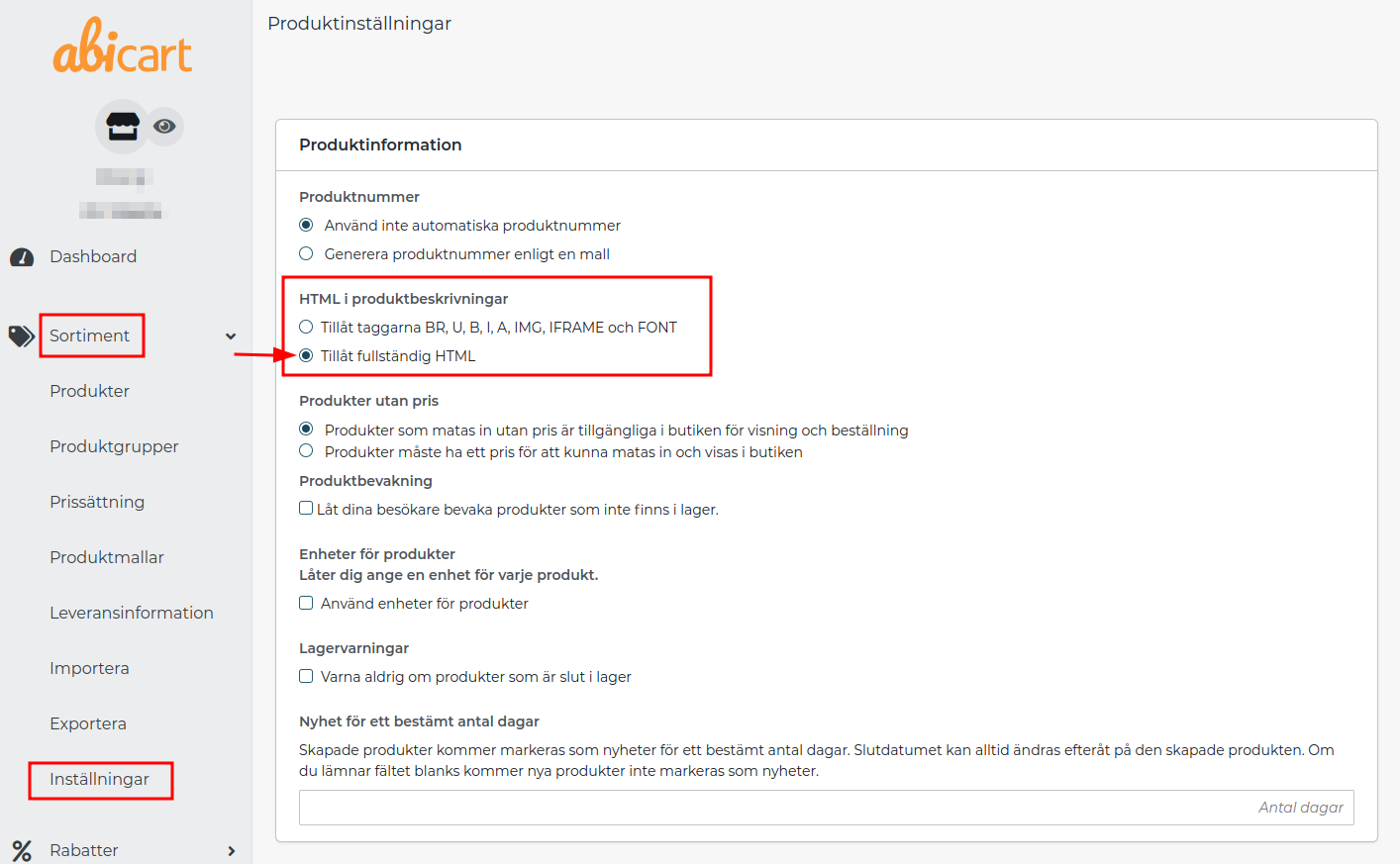
The setting changes the editing mode for product descriptions; it does not delete existing descriptions when you save the setting. Still, save a copy of the content before editing HTML. Later opening and saving advanced code in a different editing mode can affect the code's formatting or content.
In a multi-store system, the setting may need to be changed in the main store when it is locked in the sub-store. Full HTML is not the same as allowing any code to run on the server. Only add code from a trusted source; scripts can affect visitors, performance, and tracking.
2. Select the text editor mode
Open Settings → General → Text editing tool. When the box is checked, the visual editing tool is used in fields that support HTML. Uncheck it if you are going to edit raw HTML in these fields and save. If the visual editor offers a code button, you can also use it for the current field.
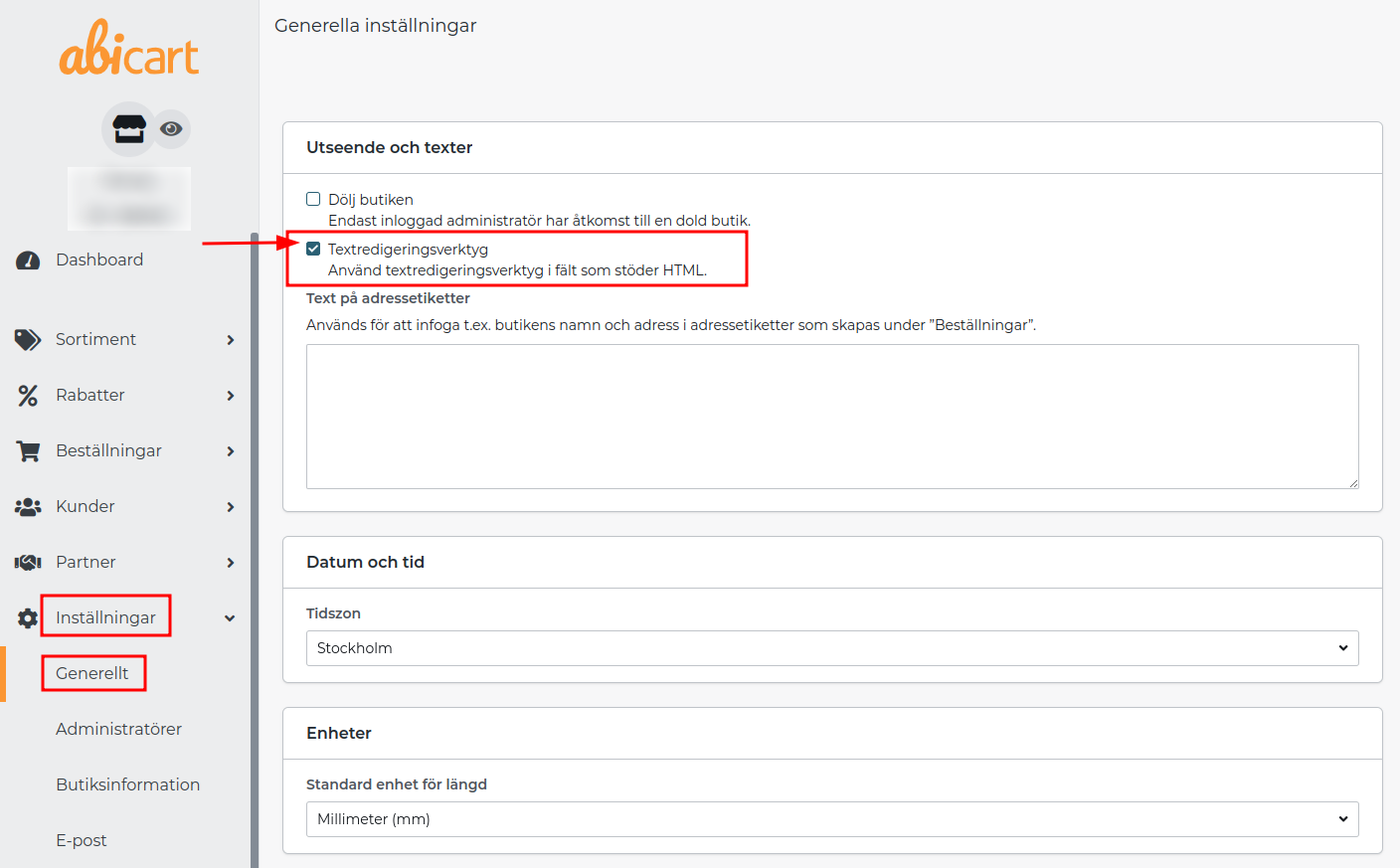
This choice applies to the editing tool and is separate from the product setting above. If you only want to change text, links, and images, the visual editor is often sufficient. Always check the result after switching modes.
3. Add custom CSS to your active Diversity theme
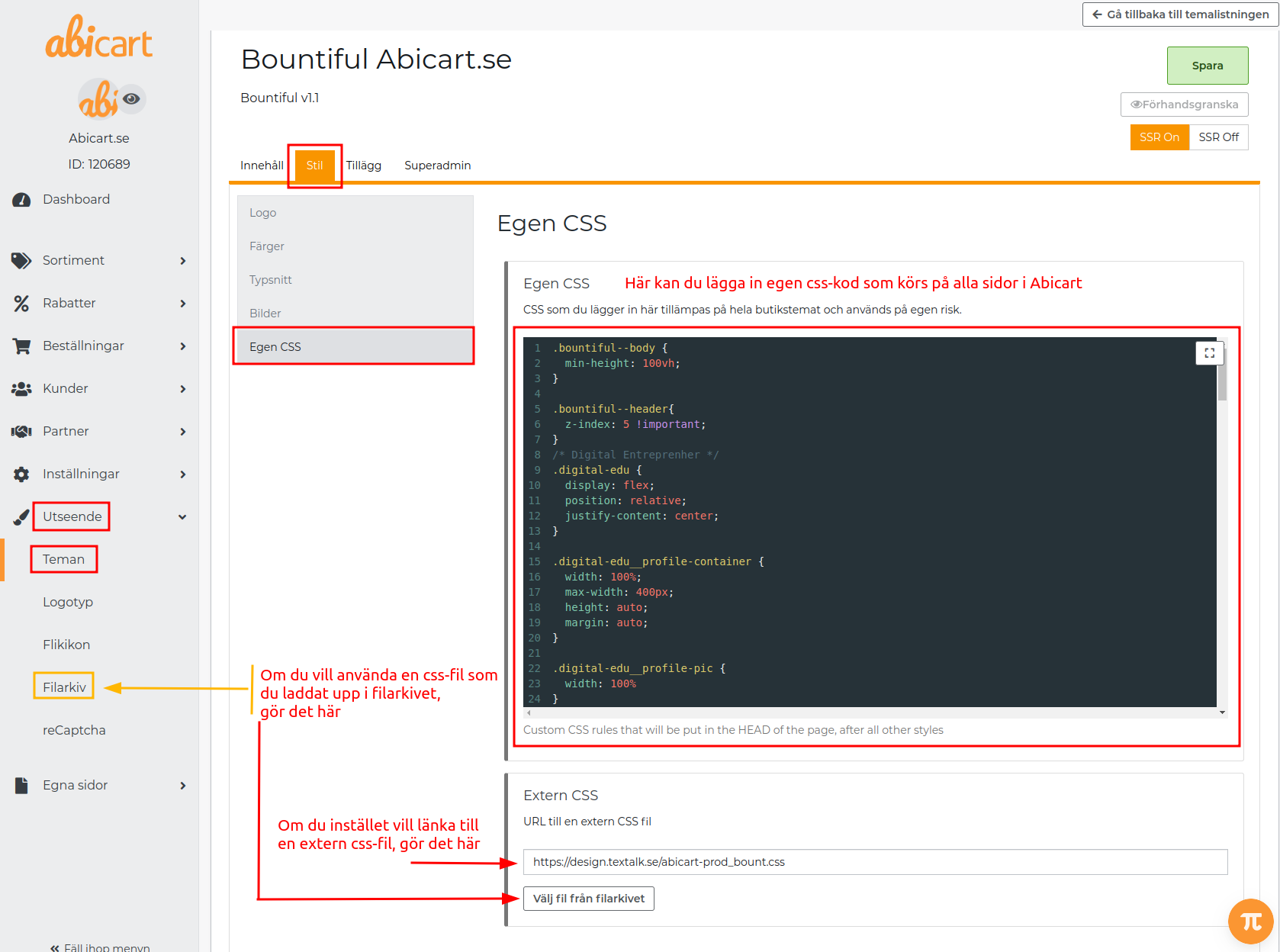
Open Appearance → Themes and choose to edit the active Diversity theme.
Open Style → Custom CSS.
Add your CSS there and save. Use rules that are as specific as possible so that other parts of the store are not changed by mistake.
Preview and check the affected pages on both mobile and desktop.
If CSS has no effect
Check that you have saved in the theme that the store is actually displaying, not just in another theme copy.
Check which part has the background or link style. A white background might be part of the image itself and cannot be removed with CSS on the container.
Check that the rule targets the correct element and is not overridden by a more specific rule or a setting in the component. Use the browser's inspection tool to see the rule that is actually being used.
Check if the setting already exists in the theme or block, for example for text color or link style, before adding more CSS.
Reload the preview and also check the hover/mobile appearance where relevant.
A broad rule for all links or all containers can affect menus, buttons, and the checkout. Limit the change to the part you want to change instead of adding general exceptions throughout the store.
Quick start
Product description: select HTML mode under Catalogue → Settings.
Text editor: select mode under Settings → General.
Diversity theme appearance: use Style → Custom CSS in the correct theme.
Save and check the result in the correct language and screen sizes.
Subscription and theme
Basic HTML support and Diversity themes are available in Go, Plus, and Pro. The theme's own fields and components determine where a specific change is made. Follow a TPL guide if the store uses TPL; do not activate another theme just to find a field from this guide.
