
The Fortnox integration transfers products, customers, and orders between Abicart and Fortnox. The connection is available in Abicart Pro, where one selected ERP system integration is included. You also need the right Fortnox plan and permissions. First, decide which system controls inventory, prices, and customer data; then, only activate the flows you need.
Check for unique item numbers, currencies, and which system owns each piece of data before you connect.
Distinguish between importing to Abicart and exporting to Fortnox. 'Import inventory balance only' and 'Export inventory balance only' do different things.
Configure what each payment method should create in Fortnox and when the order should be exported.
Test one item and one order according to your approved test plan. Check the content, payment status, and inventory before transferring the entire product range.
Get started in the right order
Ensure you have Pro, an activated integration, and Fortnox permissions. Check for a backup/export of existing data before a large transfer.
Open Settings > External Connections > Fortnox and connect the correct Fortnox company. Follow the connection images in the details section.
Choose which system controls inventory and the direction for product, price, and customer data. Match special items for shipping, discounts, and other payments.
Choose the resource type and accounting/payment handling for each payment method. Check accounts, price lists, and delivery/payment terms with the person responsible for finances.
Activate the intended events and execution modes. Check a limited result in both systems before the initial export of all items.
Choose direction and owner
Flow | Direction and important check |
Product export | Abicart → Fortnox. Can create items and overwrite names, prices, active status, and other exported fields. Limitations are described below. |
Product import | Fortnox → Abicart. Choose which fields can be retrieved and activate the import job separately. |
Order export | Abicart → Fortnox. The payment method's resource type and the order's status determine what should be created and when. |
Price lists and customers | Separate import/export settings. A limited product export does not automatically stop a separate price export or customer import. |
Choose one system to control inventory. If Fortnox controls it, sales excluded from order export also need a coordinated way to update its stock levels. If Abicart controls inventory, corrections must originate there. The 'Both' mode should not be used as a general shortcut; simultaneous changes and delayed transfers require special handling.
Inventory only: import and export
Import inventory balance only limits the product import from Fortnox to Abicart. It does not send any balances to Fortnox and does not start the import without an active import job.
Export inventory balance only limits the update of existing stock items in Fortnox when Abicart exports. The option applies to setups without Fortnox Inventory and where Fortnox does not control inventory. If the setting is missing, check the setup with support.
The limitation does not mean that a new item will receive only a stock balance: an item missing in Fortnox must first be created with item data. Non-stock items and other active jobs also need to be assessed separately. Check both an existing and a new item before using the setting for a larger product range.
Distinguish an order excluded from export from an unposted invoice
If Type of resource in Fortnox for a payment method is Ignore that order should not be exported via this selection. If the resource type is instead Invoice but Payment method in Fortnox is set to Ignore the invoice can be created without being posted. These are two different decisions. Also check whether the payment should be registered or only the invoice posted.
Connection and settings in detail
Things to consider before you activate the integration
Integration with Fortnox is included in the Abicart Pro subscription (One ERP system integration is included)
All products and each variant in the customer's choice need a unique item number and name. Check that the same number is used in both systems and that the characters are accepted by all connected systems. Do not change already used item numbers on a large scale without a coordinated plan.
Remember to activate the store's active currencies in Fortnox. If a currency is not activated in Fortnox, we cannot export an order placed in that currency.
If you have variants (customer's choice), they must be created in the store first and then exported to Fortnox for the sync to work. It is not possible to export variants from Fortnox to the store the first time.
Activate the Integration license in Fortnox
To connect Fortnox with Abicart, the Integration program license must be activated in Fortnox. If you don't already have the Integration license, you need to add it. Here's how:
Log in to your account in Fortnox.
Click on 'Administer users' as shown in the image below.
Activate the Integration license.

Connect the store to Fortnox
Under Settings -> External Connections -> Fortnox, you will find the settings for Fortnox.
The first thing you need to do is connect your store with your company in Fortnox.
Click the link shown in the image below:

Then log in to Fortnox with your Fortnox login credentials.
When this is done, it will say Connection + the company name, as well as a link to log out.
Settings in Abicart
Create items in Fortnox
The next step is to create three items in Fortnox. These will be linked to shipping fees, discounts, and other payment methods. Enter the exact same item numbers in the three corresponding integration fields.

For example, the item numbers shown in the image.
It is also possible to specify a specific shipping item for each delivery method.
Settings -> Shipping -> select delivery method, edit -> Fortnox
Item export

Export all items on next event
Check the box + save if you want to export the entire product range at the next event.
This setting exports the entire product range once and overwrites the information on the products in Fortnox (if the information differs). If you want to export products continuously when they are created/edited in Abicart, activate the event setting "Export item on add/change".
Include customer choice in item name
If you have items with customer's choice, each variant will be exported to Fortnox as a separate item. To be able to tell the difference between all variants, you should check this box, which adds the variant's name after the main item's name.
Deselect webshop products for products hidden in Abicart
When a hidden item is exported, it is deselected as a "webshop item" in Fortnox.
Important!
Do not set any product sales accounts
A setting to not set any product sales accounts on the products in Fortnox.
If this box is checked, we do not specify sales accounts on items in Fortnox but only set the sales account on the order/invoice in Fortnox.
If you use a different sales account for the products in Fortnox than the one you specified in Abicart, it is important to check this box before activating the integration.
Use item number as identifier
If the product range already exists in both Abicart and Fortnox, the matching needs to be configured so that the correct products are linked. With this selection, the item number is used for identification. Check for unique and identical numbers in both systems before the first export. If the products were first created in Abicart and then exported, existing connections can be used.
Item import

Webshop items only
The import only retrieves items that are marked as "webshop items" in Fortnox.
Import inventory balance only
This setting ensures that only the inventory balance is imported from Fortnox.
Do not import product name
This setting ensures that all properties are imported for the products except for the product name.
Note that you also need to activate the "Product import" event setting. Just checking one of these boxes is not enough to activate product import.
Inventory management
To prevent the systems from getting out of sync, choose which system will control inventory.
We recommend that you choose either Abicart or Fortnox; not both.

Customer export

Set customer number in external system
This setting causes the customer to be transferred from the customer registry in Abicart to Fortnox with the same customer number (own customer number) that the customer has in Abicart.
If this box is not checked, Fortnox will create its own customer number.
Activate custom mapping for customer fields
Set the priority for customer mapping by customer number, email, or organization number in the lists below.
Order export

Set order date to date of export
The date on the order in Fortnox is set to the date the order is transferred from Abicart to Fortnox. If unchecked, the date will be the same as the date the order was registered in Abicart. You can choose to transfer an order to Fortnox when:
The order is registered in Abicart
When the order is marked as paid in Abicart.
When the order is marked as delivered in Abicart.
Options 2 and 3 mean that the order can be transferred to Fortnox at a later date than when it was registered in Abicart.
Change delivery status to "delivered"
The order status in Fortnox is set to delivered even if it is not flagged as delivered in Abicart. If unchecked, the delivery status in Fortnox will be the same as in Abicart.
Do not reference items in external systems
If this box is checked, the products in the order are not linked to the item registry in Fortnox. This means, among other things, that Fortnox will not count down the stock quantity.
Export content of bundle items
If the box is checked, the contents of bundle products are "expanded", i.e., the products included in the bundle will be on the order in Fortnox. If the box is not checked, only the bundle product will be included in Fortnox (not the products included in the bundle).
Resource type in Fortnox

Select the resource type in Fortnox for each payment method.
Choose how the order should be created in Fortnox when it is transferred from Abicart: "Invoice", "Cash Invoice", "Invoice paid by credit card", "Order", or "Offer".
Depending on how the order in Abicart is paid, you can choose whether to create an Invoice or a Cash Invoice (which does not necessarily have to be paid with cash; it can be, for example, with a credit card).
Here is an example from a store with four payment methods: card payment, Swish, Ecster installment payment, and Invoice.

Email messages
The settings above are for if you want to send emails from Fortnox.

Accounting accounts
Under Sales and operating income accounts specify the accounting accounts for sales depending on whether you are selling a product or a service, and which VAT rate applies. If you use the Standard BAS chart of accounts, it could look like this:

Price list
Settings for selecting the default price list to be used and for syncing specific price lists in Abicart with price lists in Fortnox.

Payment terms
Settings for specifying payment terms for new customers and specifically for each payment method.

Payment methods in Fortnox
Setting to activate "Register invoice payments per payment method".
There is also a setting for how each payment method should be recorded and/or linked to a specific account in Fortnox.

Delivery terms
Settings for selecting "Default delivery terms for new customers".

Delivery methods in Fortnox
Settings for selecting the default delivery method for new customers.

Event settings
Under the "Event settings" heading, you activate what should be exported/imported.
For "activation", there are three settings:
xxx is registered
xxx is paid
xxx is shipped
For "execution", there are two options:
Inactive
Update immediately
The most common choice is "registered" and "Update immediately". This will cause orders/products/customers/price lists to be updated immediately when they are created/changed.
Note that you must select an option for both Activation and Execution. If one of them is left as "Inactive", the event setting is not activated.

Export order - Here you specify what should happen when an order is registered in Abicart. In our example, we specify that as soon as the order is registered in Abicart, it should be transferred to Fortnox (it may take a minute even if it says Update immediately).
Custom logic is an advanced setting. Only change it in consultation with the person responsible for your integration. It is not needed for a standard connection. Fortnox API documentation is a technical reference for an agreed-upon special integration.

Export product on add/change transfers products from Abicart to Fortnox. Check which data the export is allowed to change. Do not simultaneously activate an opposite product import that writes back the same data without an explicit plan for who owns the name, price, and stock.

Product import retrieves product information from Fortnox to Abicart according to the selected schedule. The import limitations control which data is changed. Import and export are different directions; avoid having the same field written from both sides.
Export customer list transfers customers from Abicart to Fortnox. First, determine which system owns the customer data and how customer number, email address, and organization number should be matched. Do not activate the opposite customer import for the same data without a coordinated mapping.
Import customer retrieves new and changed customers from Fortnox. Check mapping and matching before using both import and export; otherwise, the wrong customer may be linked or data may be overwritten.

Export price lists - Exports all of the store's price lists to Fortnox.
Import price lists - Imports all price lists from Fortnox to Abicart.
VAT per country and OSS
If you use VAT per country or OSS, the settings in Abicart and Fortnox need to match your actual setup. Ask your financial manager to determine the countries, VAT rates, and accounts. The examples below are configuration examples, not general tax advice.
Start by activating "VAT per country" in the store.
1) Settings -> VAT -> Price handling.
Previously, prices excluding VAT were required, but now it is just as well to have prices including VAT selected. If you have prices excluding VAT in the admin, you can still display the prices including VAT in the storefront. You manage this under "Presentation" just below this setting.
2) When the setting above is as you want it, set "VAT per country" at the bottom of the page.
Add the EU countries that should pay VAT, for example, Germany and Spain, and then enter the percentage rate for these countries. Save.
When this is done, log in to Fortnox and create the VAT rates to be used in Fortnox:

Then, create sales accounts for each country in Fortnox. Instructions for this can be found in the Fortnox manual: https://support.fortnox.se/produkthjalp/bokforing/oss-one-stop-shop
When this is done, you will be able to select a sales account per country under Settings -> External connections -> Fortnox in Abicart:

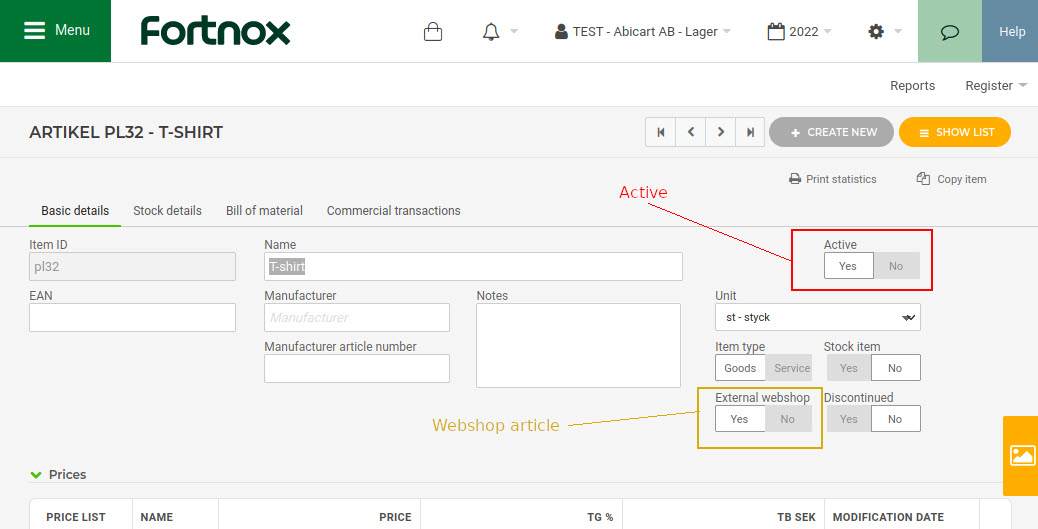
The products must be marked as active and "webshop product: yes" in Fortnox to work.
If the export is rejected due to a VAT number: compare the customer type, country, address, and registered VAT number with the correct customer data. Do not delete a real VAT number to get past the error. Correct the underlying data or let support investigate the error message with your financial manager before a targeted retry.
F.A.Q. - Frequently Asked Questions
I want to export orders as unposted invoices to Fortnox, how do I set this up?
Under "Resource type in Fortnox", you should select "Invoice" for the payment method(s) you want to export as an "Invoice".

Under "Payment methods in Fortnox", you then control whether the order should be posted or not.

Ignore - The invoice is registered in Fortnox but not posted.
Post - The invoice is registered in Fortnox and posted but not marked as paid.
The other options (which ones are available here depends on which payment methods have been created in Fortnox) mean that the invoice is registered in Fortnox, posted, and marked as paid with the selected payment method.
How are customers handled?
If you are a logged-in customer in Abicart:
First, we check if the customer in Abicart is already linked to a customer in Fortnox. If so, that customer in Fortnox is used.
Second, we check if there is a customer in Fortnox with the same customer number (custom customer number) as in Abicart. If so, that Fortnox customer is used.
Third, we check if there is a customer with the same email address. If so, that Fortnox customer is used.
If none of the above are met, a new customer is created in Fortnox.
If you are not a logged-in customer in Abicart:
We check if there is a customer with the same email address in Fortnox. If so, that Fortnox customer is used.
If none of the above are met, a new customer is created in Fortnox.
Which properties are exported during a product export from Abicart to Fortnox?
The following product properties are exported to Fortnox from Abicart.
Name/Description
Active/hidden
Product number
StockGoods - whether the product is a stock item or not
StockWarning - level for stock warning
Type - set to "STOCK" or "SERVICE" depending on the product type
EAN
Manufacturer's product number MPN/SKU
Unit - set to the product's unit (often pieces)
WebshopArticle - set to true if the product is displayed in the store
Quantity in stock is set for stock items
Sales accounts are set unless you have checked that you do not want this.
Price
Purchase price
Which properties are imported during a product import from Fortnox to Abicart?
The following product properties are imported from Fortnox to Abicart.
Product number
Active/hidden
Stock balance
Weight
EAN
Manufacturer's product number MPN/SKU
VAT rate, percent
Unit
Name/Description
Price
Purchase price
If an order or update is missing
Check the correct company and if the corresponding product, order, or invoice already exists in Fortnox.
Check the order's payment method, resource type, and whether the triggering status has been reached. If the resource type excludes the order from export, do not troubleshoot it as if automatic export had been requested.
Check the connection and both Activation and Execution. Update immediately means a transfer is initiated; it does not guarantee immediate successful delivery.
Read the visible error message. Compare the currency, product number, customer type, address, country, and VAT number with the correct underlying data.
Correct the root cause and check existing objects before a targeted retry. Do not use Export all as the first troubleshooting step.
Contact support with the store, transfer direction, system controlling inventory, order/product number, time, and error message if the discrepancy persists. Specify what has already been corrected manually so that the same order, invoice, or stock movement is not handled twice.
