
A great benefit of using Golf Shop is the ability to manage your demo clubs and components (e.g., heads, shafts, range finders, etc.) within the software or on the mobile app. By entering your demo clubs or components (and their information) into your inventory, you can easily track and maintain your demos from season to season.
In this article, we will discuss how you can manage demos with Golf Shop in a web browser. For details on issuing demos, Click Here.
Overview
Golf Shop has an area dedicated to managing your demo club orders (as shown below).
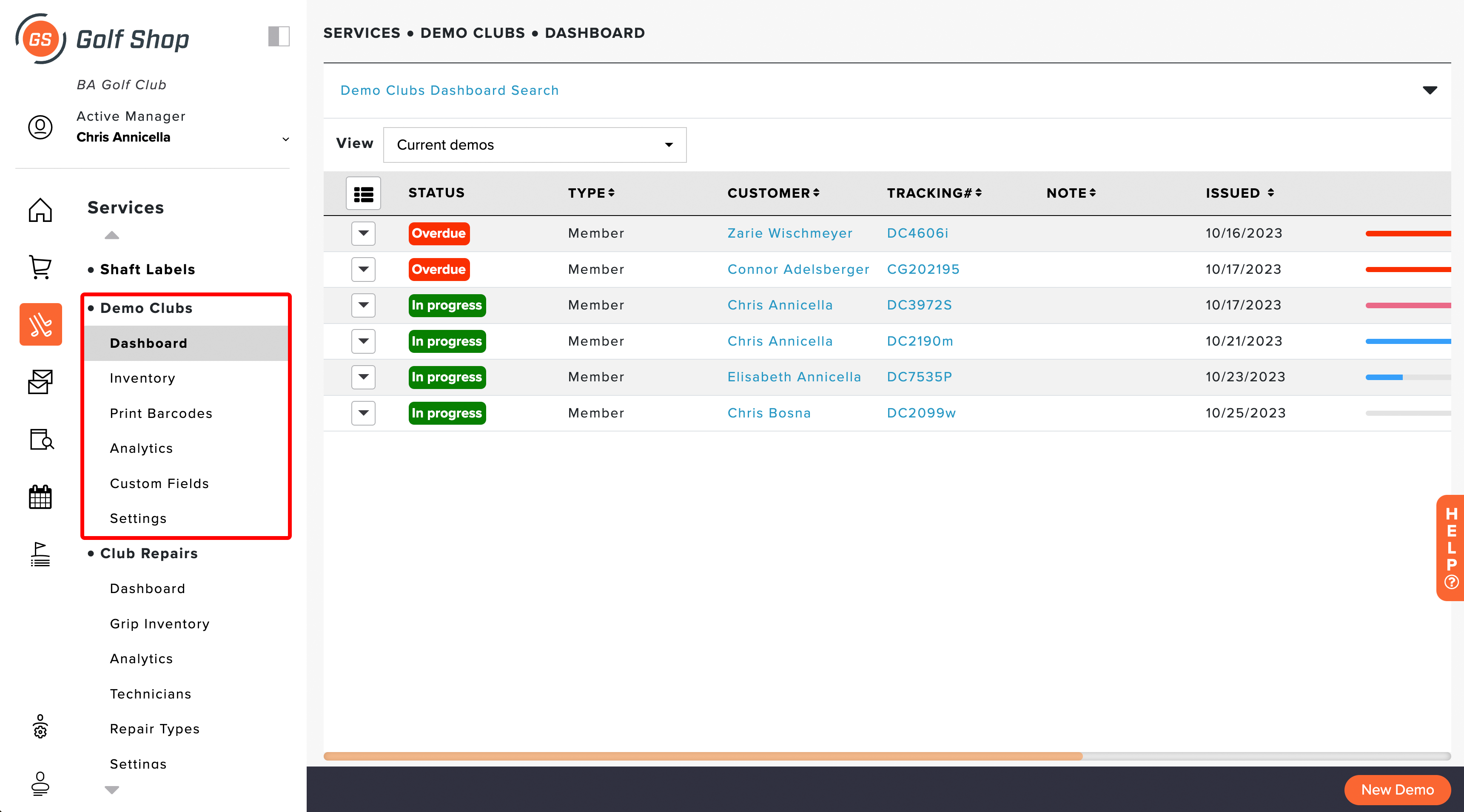
The following options are available:
Dashboard: All your issued demo clubs in one convenient location. For details, Click Here.
Inventory: View and manage your demo inventory. For details, Click Here.
Print Barcodes: Print barcodes for your demo clubs to quickly check them in and out of inventory using the mobile app. For details, Click Here.
Analytics: An interactive dashboard with detailed analytics and statistics for your demo club orders. For details, Click Here.
Online Order Form: Quickly reach a large number of members on your Golf Shop roster and place orders with vendors. For details, Click Here.
Custom Fields: The club and component attributes (e.g., Type, Make, Model) that make up the demo club form. For details, Click Here.
Settings: Before entering demo club orders, define the settings that affect checking out demo clubs. For details, Click Here.
Demo Club Form
The details for every club and component in your inventory are contained in your demo club form. Your demo club form can include a combination of standard fields (already made available) and custom fields (created by you). These fields are organized into three categories (as shown below):
Club
Shaft
Grip
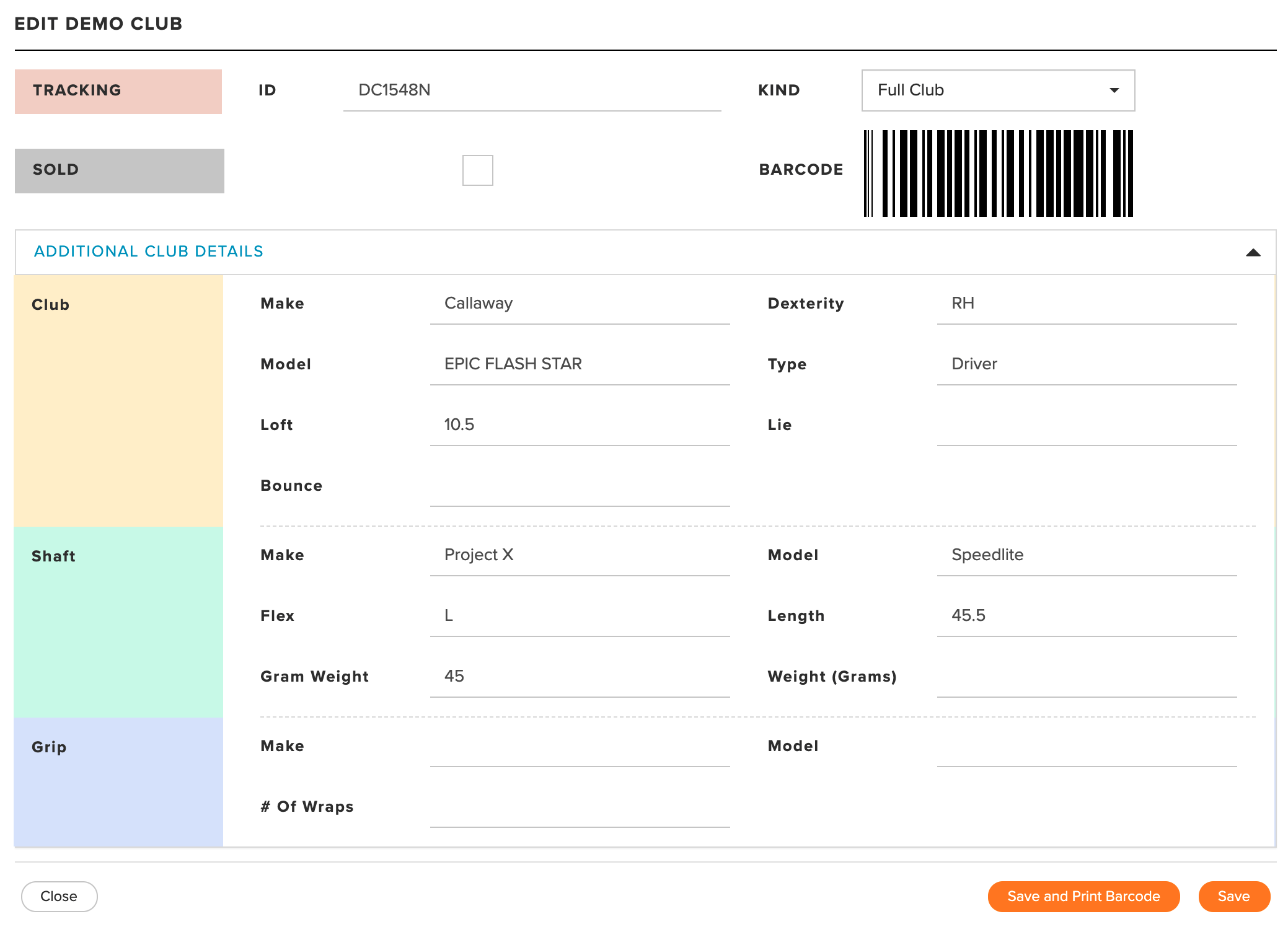
You can rename and reorder the custom fields within each category to fully customize your form. For instructions on managing custom fields, Click Here.
Adding Demo Clubs and Components to the Inventory
After setting up your demo club form, you can then start adding demos to your inventory. There are three ways to accomplish this:
Via Spreadsheet: Upload a spreadsheet containing your demo inventory. This is the suggested method when uploading a large inventory. For details, Click Here.
AI Demo Inventory Assistant: Upload a vendor's PDF confirmation or invoice, and the assistant extracts each club, head, and shaft for you to review before adding them to your inventory. This is the suggested method when adding new inventory from a vendor. For details, Click Here.
Manually: Enter demos into your inventory one at a time. For details, Click Here.
As a best practice, if you have modular equipment (i.e., the head and shaft can be separated), enter both items into the inventory individually. This way, you can issue the head or shaft to a member or guest without having to issue the other component.
Adding Barcodes to Demo Clubs
When adding new demo clubs, label the inventory with barcodes so your staff can use the mobile app to check inventory in and out.
Demo Club Order Process
Every demo club order issued to a member or guest goes through the following process:
Issuing a Demo Club Order: When a member or guest wants to try a demo club, issue it on the web or the mobile app. When issuing a demo order, you will be able to tie it to a specific demo, capture member or guest information, and identify an expected return date. The return date drives automated email and text notifications to help ensure the club is returned on time. For more details on this step, Click Here.
Finalizing a Demo Club Order: Once a demo club is returned, it goes through the process of being finalized (returned). The club is put back into inventory and marked as returned so it is removed from the dashboard. For more details on finalizing orders, Click Here.
Following Up with the Member or Guest: Follow up with a member or guest about their demo order with an Automated Email and Automated Text Message. This allows you to have one more "touch" with your members and guests to ask for feedback, ask if they need additional assistance, and possibly convert the order to a sale. For more details on following up on a demo order, Click Here.
Converting Past Demos to Special Orders: If a member or guest checked out and returned a demo club but would like to purchase it later, you can convert past demos to special orders. For more details, Click Here.
Editing Issued Demo Club and Component Orders
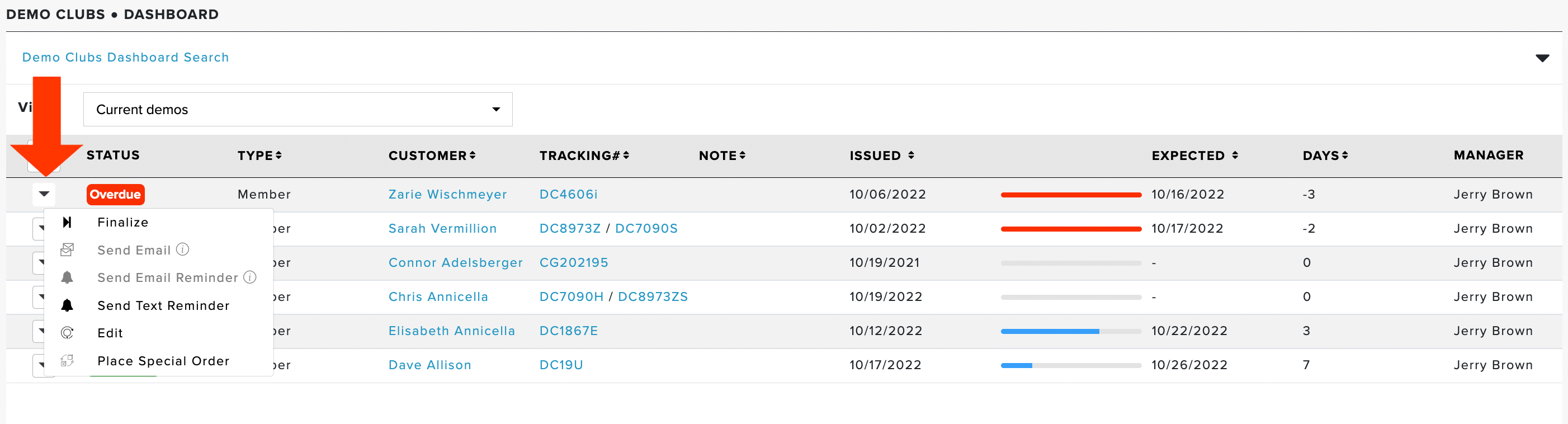
There may be cases where you need to edit the information for issued demos. For instance, you may extend the return date for a demo club. To edit an issued demo club, click the action drop-down for the demo and select "Edit" (as shown below).
Demo Club Reports
Several demo reports are available to download. To access the reports, navigate to the Report Center and select the "Demo Club" category (as shown below).
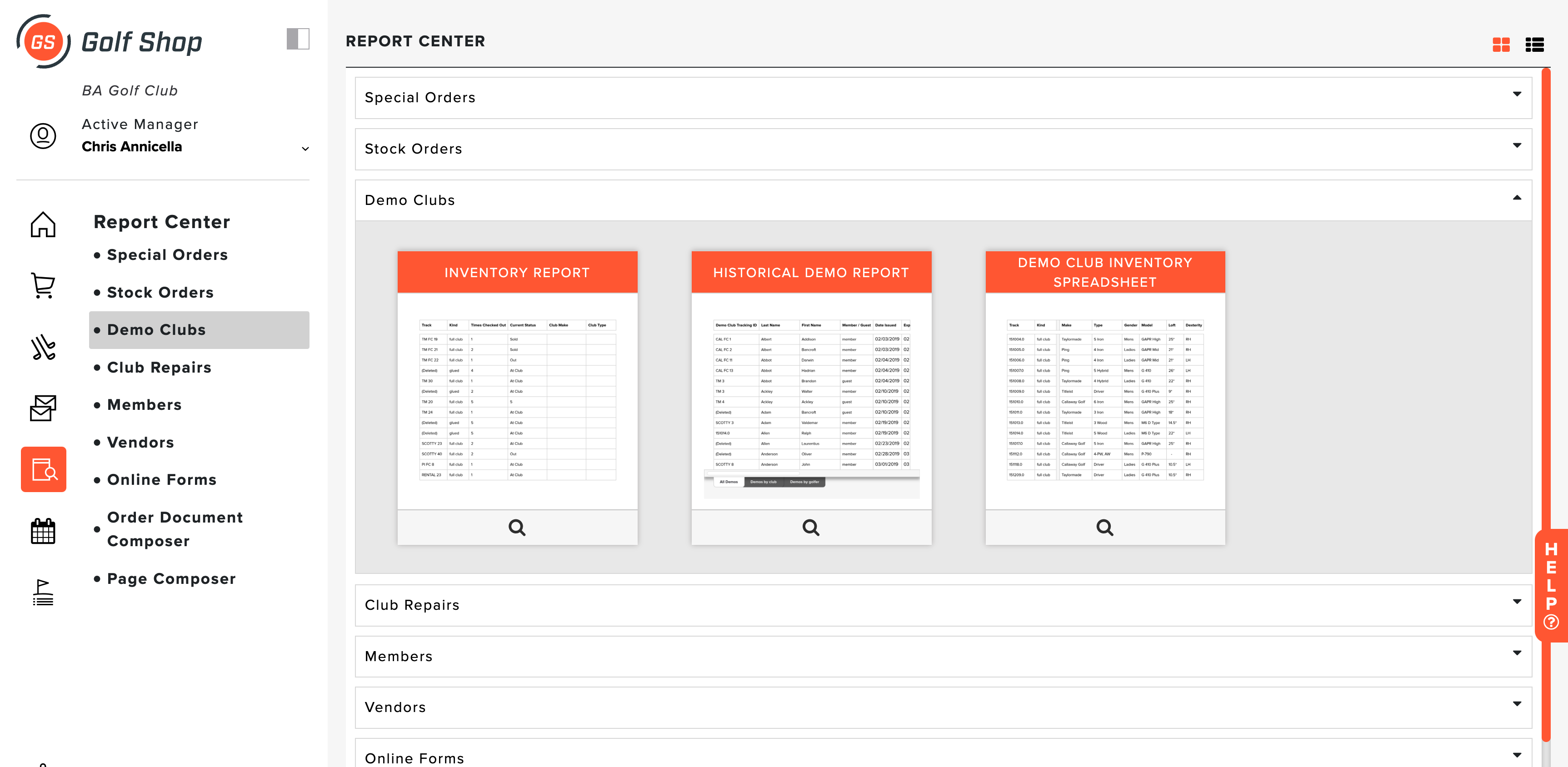
For more details on the available reports, Click Here.
Daily Snapshot
The Daily Snapshot is an email summarizing activity tracked in Golf Shop that every Manager can receive daily or at their chosen frequency. This email can include updates for demo clubs and other features. To manage your daily snapshot, navigate to Manager Details > Snapshot. For complete details, Click Here.