Q: My member needs assistance filling out their Online Order Form. Can I fill out the form for them?
A: You can fill out an Online Order Form on behalf of your member by following these directions:
Navigate to Orders > Special Orders > Online Order Forms.
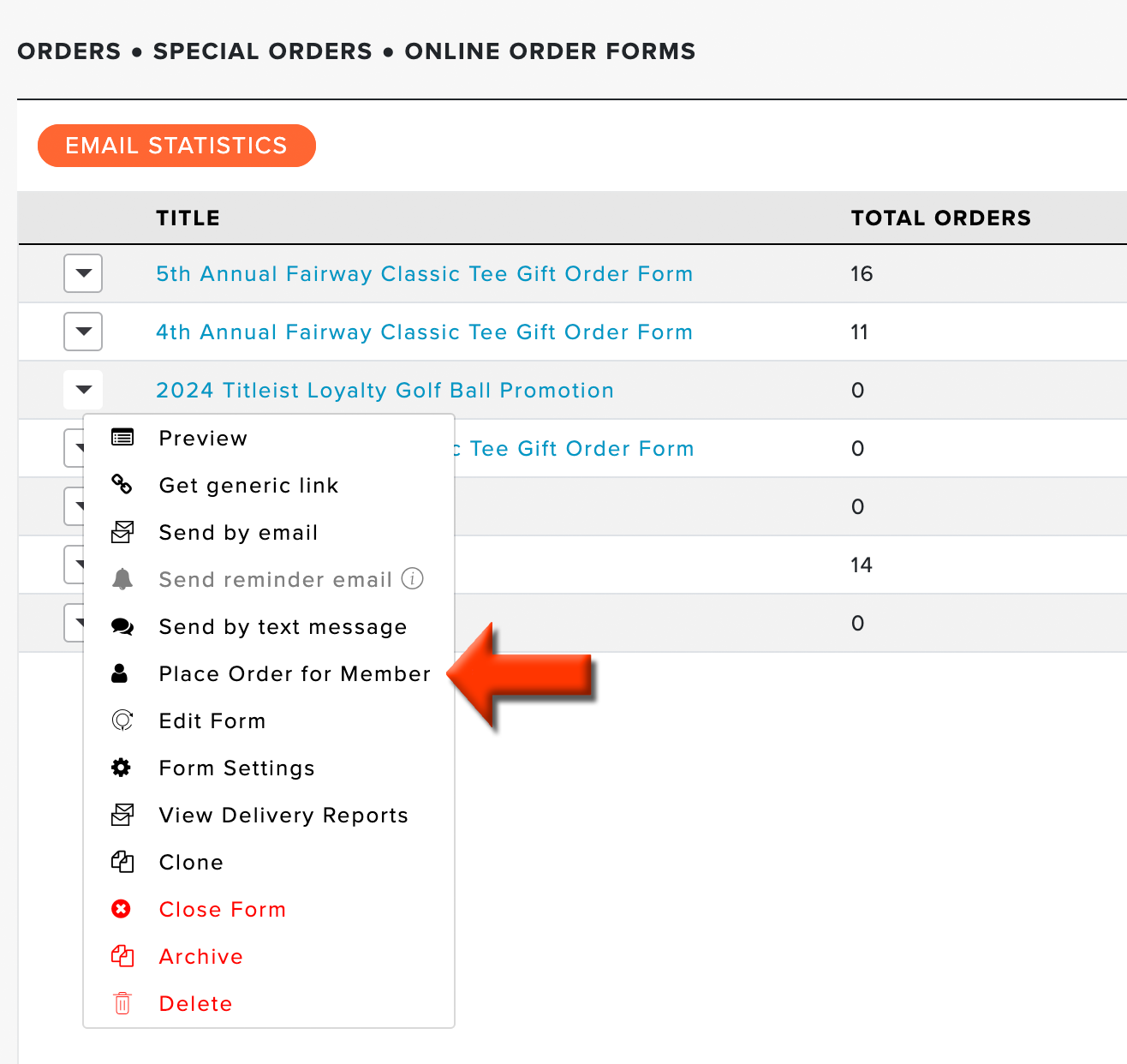
Click the Action drop-down for the proper Online Order Form.
Select "Place Order for Member" (as shown below).

Select the member.
Click "Start Placing Order."
Select the items. As items are added, quantity and stock levels are checked in real time:
If a Quantity Limit Per Customer has been set on an item and the amount entered exceeds it, a message displays: "The quantity limit for this item has been reached." The "Add to Order" button is disabled, and an info icon shows the limit (e.g., "Limit: 3 per customer").
If an item's available stock is exceeded, a message displays: "Stock exceeded." The "Add to Order" button is disabled, and an info icon shows the remaining count (e.g., "Available items: 5").
If all remaining stock for an item has been added to the cart, the item switches to an "Out of Stock" state.
Once items are already in the cart and either limit is reached again, a confirmation message "Item(s) added to the cart" displays alongside the limit warning, so it's clear the items went through.
Removing items from the cart clears these warnings and resets the quantity field.
Category field values for each item (such as size or color) are listed in the same order they appear on the order form, not the order they were selected in.
View the Shopping Cart and click "Submit Order." If a quantity or stock limit is exceeded from within the cart, an error message explains the issue and highlights the affected row in red until the quantity is corrected or the item is removed.
The order will be added to the Special Order Dashboard.