
Before building and managing online order forms, review the Online Order Form Dashboard. This is where you create, manage, and view your order forms.
In this article, we will discuss the available options on the Online Order Form Dashboard. You can also create and manage online order forms on the Golf Shop mobile app. For details, Click Here.
For more details on managing online order forms, Click Here.
Dashboard View
Golf Shop has an area dedicated to managing your online order forms. To access it, navigate to Orders > Special Orders > Online Order Forms (as shown below).

The Online Order Form Dashboard has two views:
Online Order Forms (Default): Data about order totals and open/close dates.
Email Statistics: Data about the number of recipients, order rate, and send details.
To switch between the two views, click "Email Statistics/Online Order Forms" near the top of the page (as shown below).

Online Order Forms
The Online Order Forms view opens by default when you access the dashboard (as shown below). Forms are sorted by date created, with the newest forms on top.

The table shows the following:
Action Drop-down: Actions you can take on the form. More details are below.
Title: Title given to the form when it was created.
Icon: One of the following icons may be displayed after the title (as shown below):

Envelope Icon (TM Event Roster Sync Only): This icon is displayed when emails for Automated Communications have been enabled when using the Golf Genius TM Event Roster sync. Note: This icon displays only when the online form is open.
Message Icon (TM Event Roster Sync Only): This icon is displayed when text messages for Automated Communications have been enabled when using the Golf Genius TM Event Roster sync. Note: This icon displays only when the online form is open.
Mobile App Icon: This icon is displayed beside forms created on the Golf Shop mobile app as a reminder to review their settings. Hover over the icon to see "Limited settings options in the App. Please review form settings." Forms created on the mobile app start closed, so review the settings and open the form when it is ready for customers (as shown below).

Total Orders: Total orders placed by members and guests.
Member Orders: Number of orders placed by Golf Shop members from the emailed form.
Guest Orders: Number of orders placed by guests. Guests can place orders when you share the generic link to the form.
Status: The status of the form (e.g., Open, Closed).
Open Date/Time: The date the order form was opened.
Close Date/Time: The actual date the form was closed or the date the form is expected to close.
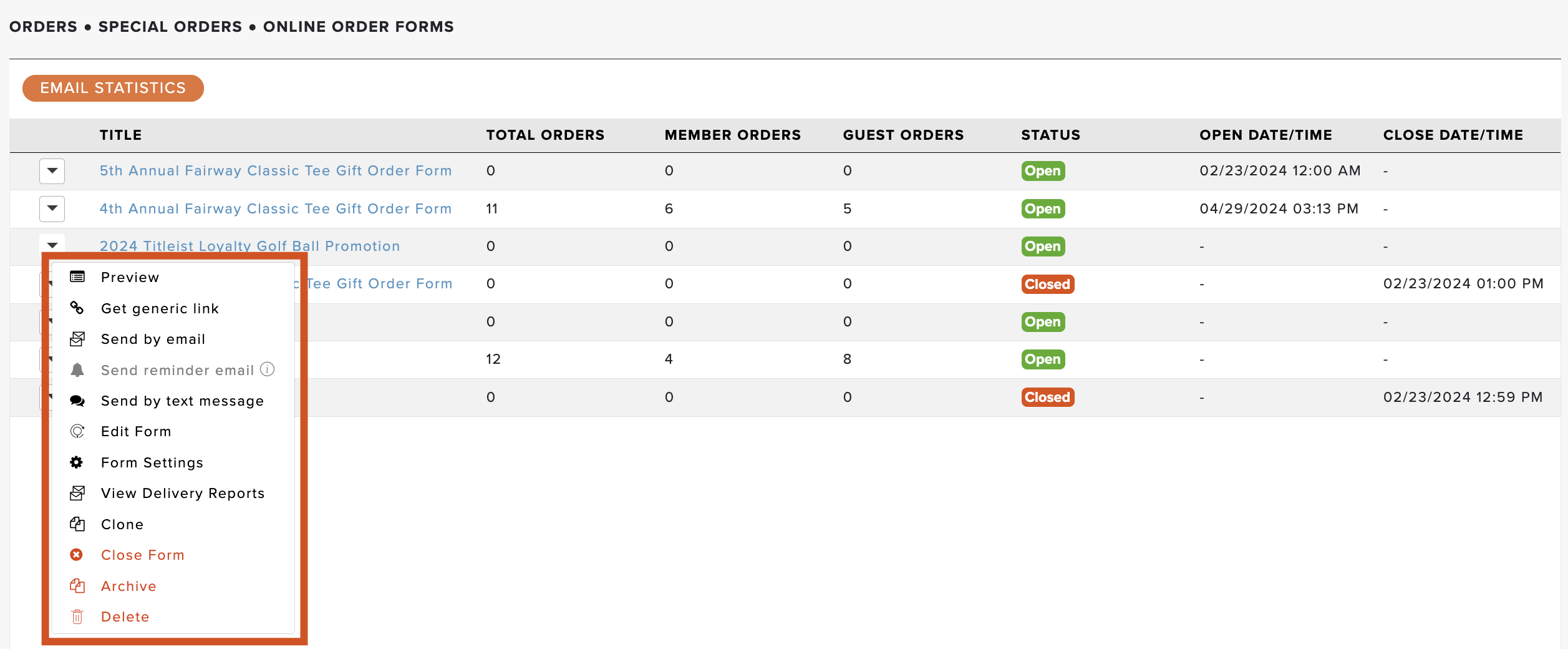
The "Actions" drop-down includes the following options (as shown below):
Preview: Preview the order form as your members see it, without sending it by email.
Get Generic Link: Share online order forms outside of Golf Shop (e.g., club website, social media, club bulletins) with members and guests. For more details about sharing a form with a link, Click Here.
Send by Email: Email the online order form to members on your Golf Shop roster. For more details about sending the order form, Click Here.
Automated Communications (TM Event Roster Sync Only): Send automated emails and text messages about the online order form to players on event rosters when using TM Event Roster Sync. The first message is sent to everyone on the roster when the form opens or, if the form is already open, as soon as this feature is enabled. Anyone added to the roster later also receives the message automatically. For complete details, Click Here.
Send Reminder Email (Member Forms Only): Send the online order form to members who have not placed an order. For more details about sending the reminder email, Click Here. Note: An email must first be sent to members using the "Send by Email" option.
Send by Text Message: Send the online order form by text message, along with email. For more details about sending the order form, Click Here.
Submit Order for Member: Fill out an online order form on a member's behalf. For more details, Click Here.
Submit Order for Player (TM Event Roster Only): Fill out an online order form on behalf of a player from a TM Event Roster. For more details, Click Here.
Edit Form: Edit the online order form at any time, whether it is open or closed. For more details about editing the order form, Click Here.
Player Order Status (TM Event Roster Sync Only): If your form is synced to a Golf Genius TM Event Roster, view the event roster and each player's order status, and take additional action. For more details, Click Here.
Form Settings: Adjust the settings defined when the form was created, such as the name, open and close dates, form type (e.g., items for purchase, with points or credit, or at no cost), and more. For more details, Click Here.
View Delivery Reports: View the status of the email. For more details about delivery reports, Click Here.
Clone: Create a new Online Order Form by cloning an existing one. This is convenient for online orders that occur regularly.
Close/Open Form: Open or close the online order form for members to place and edit orders.
Archive: Archive an online order form when it is no longer used.
Delete: Remove the online order form. Note: Use caution. This action is permanent, and the online order form cannot be recovered. Archiving may be a better option.
Email Statistics
The Email Statistics view shows email data for your online order forms (as shown below). Forms are sorted by date created, with the newest forms on top.
Note: Forms that have not been sent by email are not listed on this page.

The table shows the following:
Title: Title given to the form when it was created. Note: Click the title to edit the form.
Recipients: The total number of members the form was emailed to directly from the form.
Order Rate: The percentage of emailed members who placed an order.
Closing Date: The actual or expected closing date of the form.
Last Sent Date: The last time an email was sent for the form.
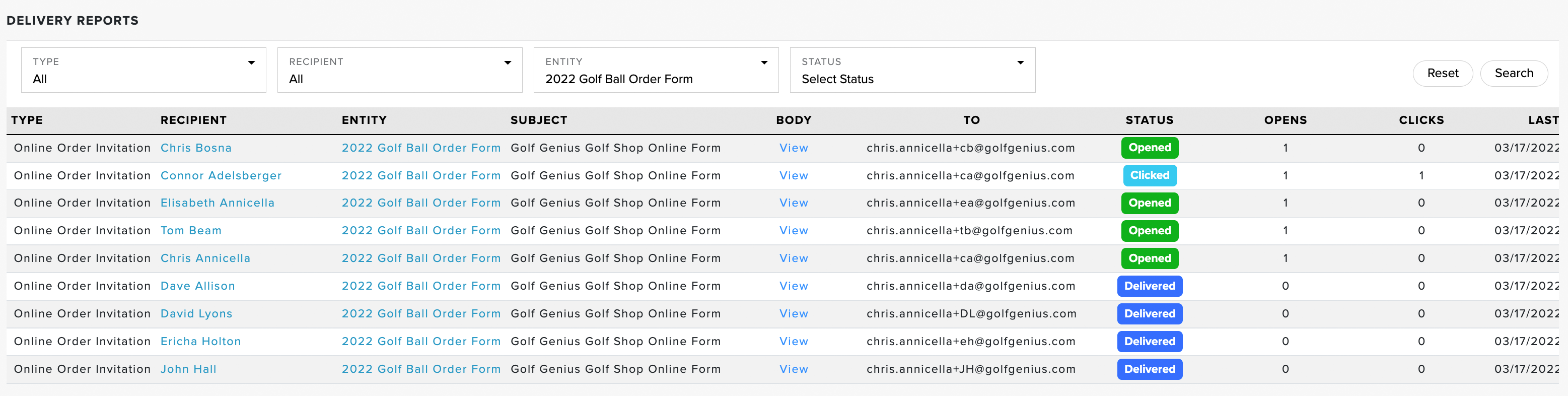
Click the number of recipients to open the Delivery Report for that form (as shown below). For more details about email delivery reports, Click Here.
Archiving Forms
Archive an online order form when it is no longer used. To archive a form, follow these directions:
Navigate to Orders > Special Orders > Online Order Forms.
In the "Actions" drop-down for the form, select "Archive" (as shown below).
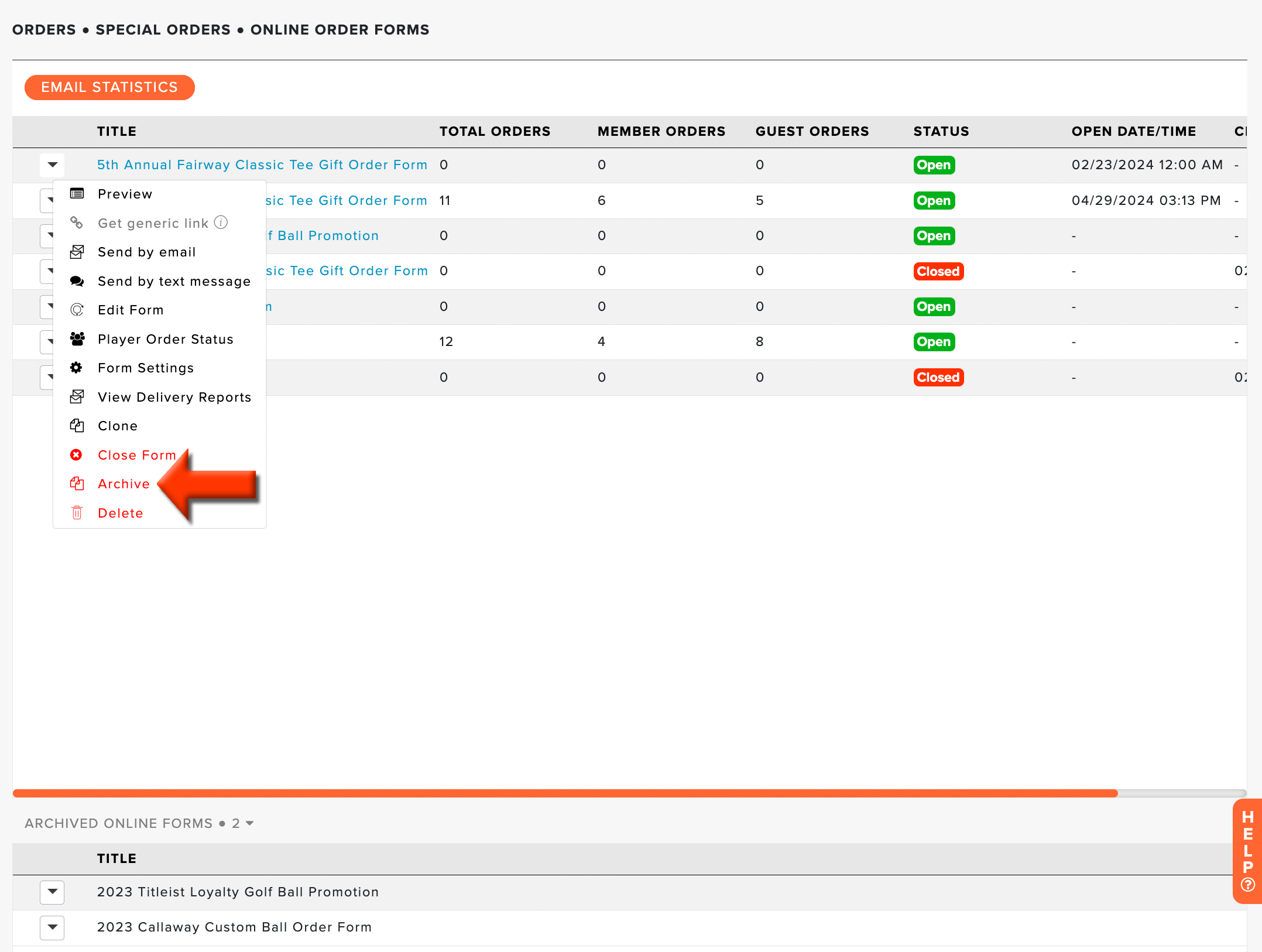
You can take the following actions on archived forms:
Preview: Preview the order form as your members see it, without sending it by email.
Clone: Create a new Online Order Form by cloning an existing one. This is convenient for online orders that occur regularly.
Restore: Set the form to active.
Delete: Remove the online order form. Note: Use caution. This action is permanent, and the online order form cannot be recovered.
