
Once a task has been completed, encourage your staff members to mark the task as completed so the Task Dashboard stays clean and free of previously completed tasks. Staff can mark a task as completed from one of the following locations:
Notification (Email or Text Message)
Task Dashboard
In this article, we will discuss how to mark a task as completed.
Marking a Task as Completed from Notifications
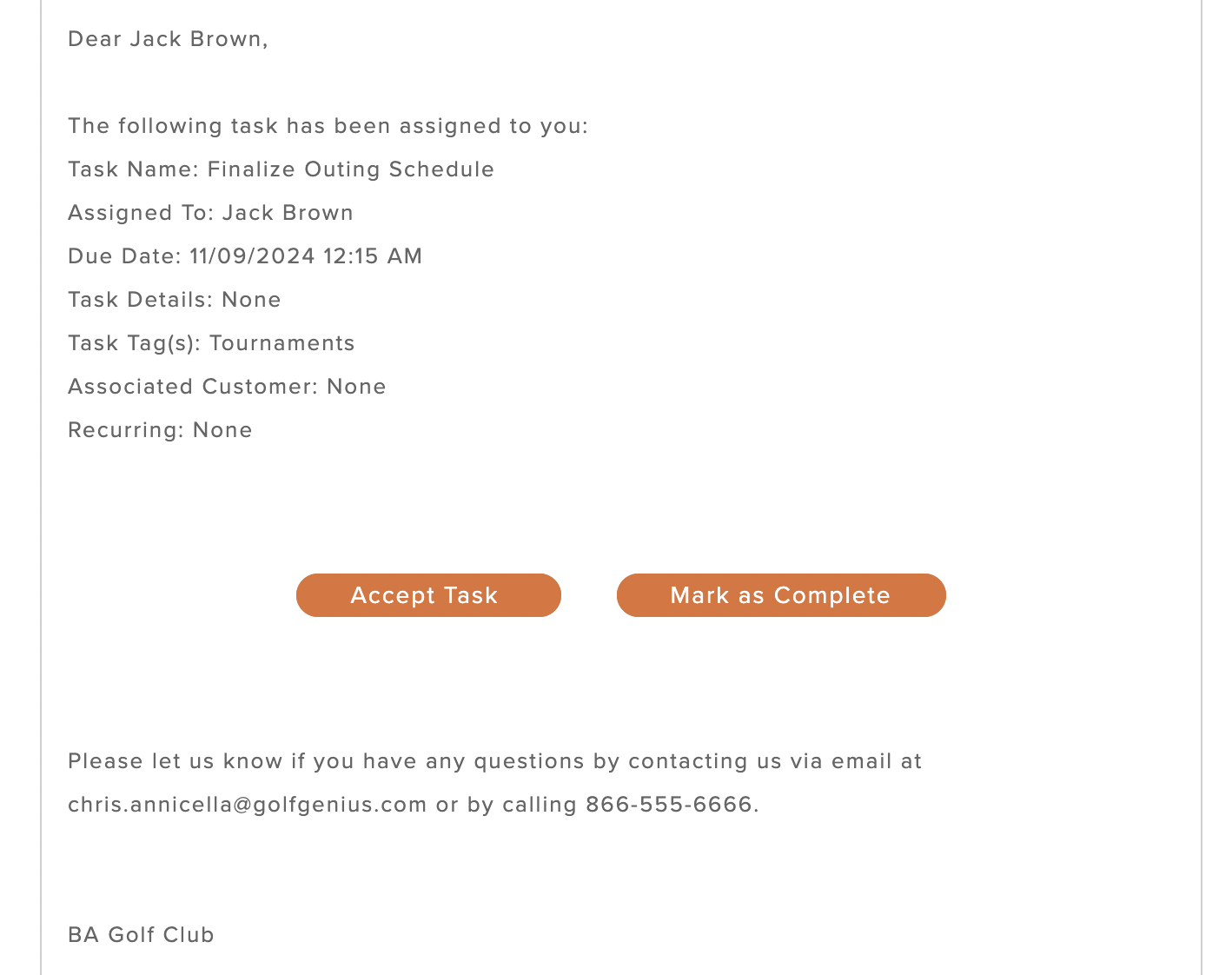
After completing a task, each staff member should mark the task as completed. Staff members will be able to mark the task as completed using the "Mark as Completed" button from the original task assignment email and text message notification (if enabled) they received (as shown below).
Completing Multiple Recurring Tasks
If a recurring task has accumulated multiple overdue instances on the dashboard, you can mark all of them as complete in a single action. To complete multiple instances of a recurring task at once, follow these directions:
Navigate to Staff > Tasks > Dashboard.
Locate the recurring task with multiple instances.
Click the action dropdown for the task.
Click Complete All Tasks to Date (as shown below).

All past occurrences of that task will be marked as complete and the next occurrence will be automatically scheduled for the first valid date in the future (as shown below).

Notes:
Complete All Tasks to Date is only available for recurring tasks that have more than one occurrence on the dashboard.
A single completion notification will be issued for the entire batch to avoid multiple notifications for the same task.
Marking a Task as Completed from the Task Dashboard
In addition to marking a task as completed from the email or text notification, staff can also mark the task as completed from the Task Dashboard. To mark a task as completed from the Dashboard, use one of the following options:
Option 1
Go to Staff > Tasks > Dashboard.
Find the task you wish to complete and click the circle on the left side of the task (as shown below).

The Task will be marked as completed.
Option 2
Go to Staff > Tasks > Dashboard.
Find the task you wish to complete, and click the action dropdown.
Then select "Mark as Completed" (as shown below).

The Task will be marked as completed.
Tasks Marked as Completed
Once a task is marked as completed, the task will move to the "Recently Completed" stage on the Task Dashboard (as shown below). The task will stay in this stage for 24 hours. At this point, they will be moved to the completed stage and can only be found by searching for tasks.
