
Administrators have the option to disable SAML Single Sign-On (SSO) for their whole organizations if necessary. However, it’s crucial to understand the consequences before proceeding, as it significantly impacts how users access the platform.
🚨 Disabling SSO will have the following immediate effects:
Users will no longer be able to sign in or sign up using your organization’s identity provider via SAML SSO.
Automatic user provisioning via SSO will cease. You will need to manually invite users to join your organization (if other automatic methods like Email Domain Authentication are not enabled).
Users who previously relied solely on SSO will need alternative login methods. They may need to set a password for their account (often possible via a password reset flow if they have a verified email) or be re-invited if they cannot log in otherwise.
Steps to disable SAML SSO
If you need to disable SSO, follow these steps:
1. Navigate to access settings
Open the Admin Console and click Access under the Administration section in the left-hand navigation menu.
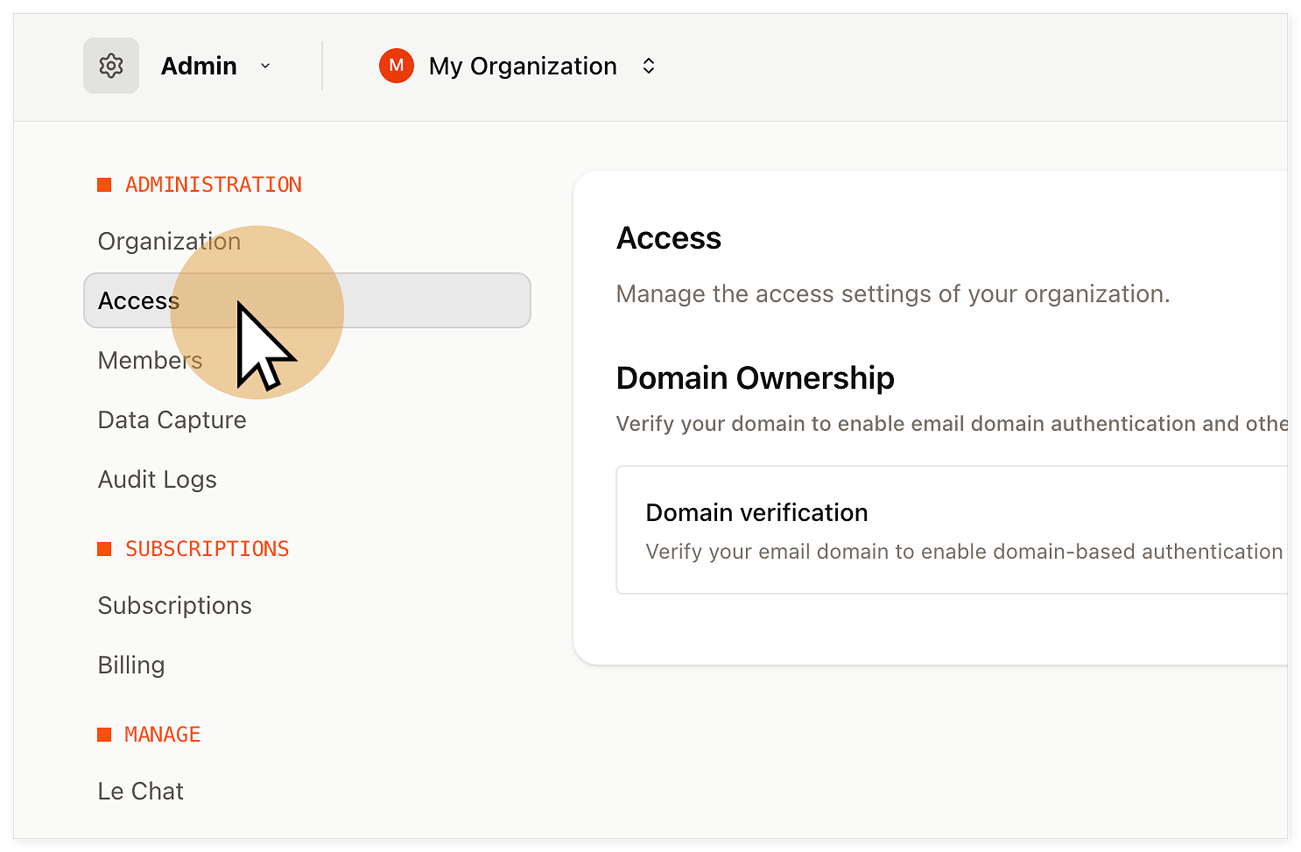Click Access in the administration settings menu
2. Initiate SSO deactivation
On the Access settings page, locate the Authentication section. Find the Single Sign-On (SAML SSO) option (which should indicate SSO is currently active) and click the Disable SSO button.
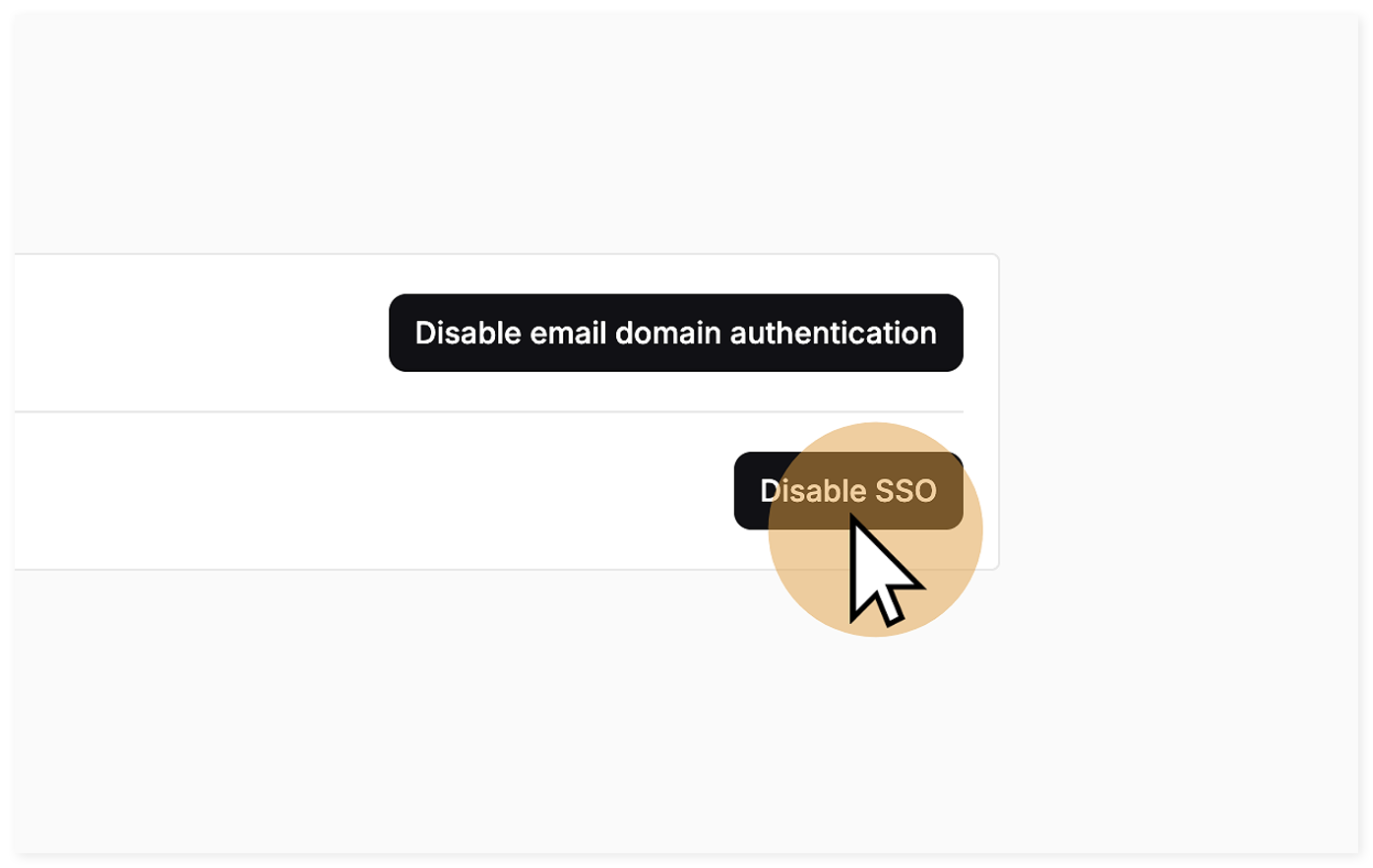Click on the Disable SSO button
3. Confirm deactivation
A confirmation dialog will appear, summarizing the consequences. To proceed, carefully review the warnings presented in the dialog and click the final confirmation button (e.g., Disable SSO).
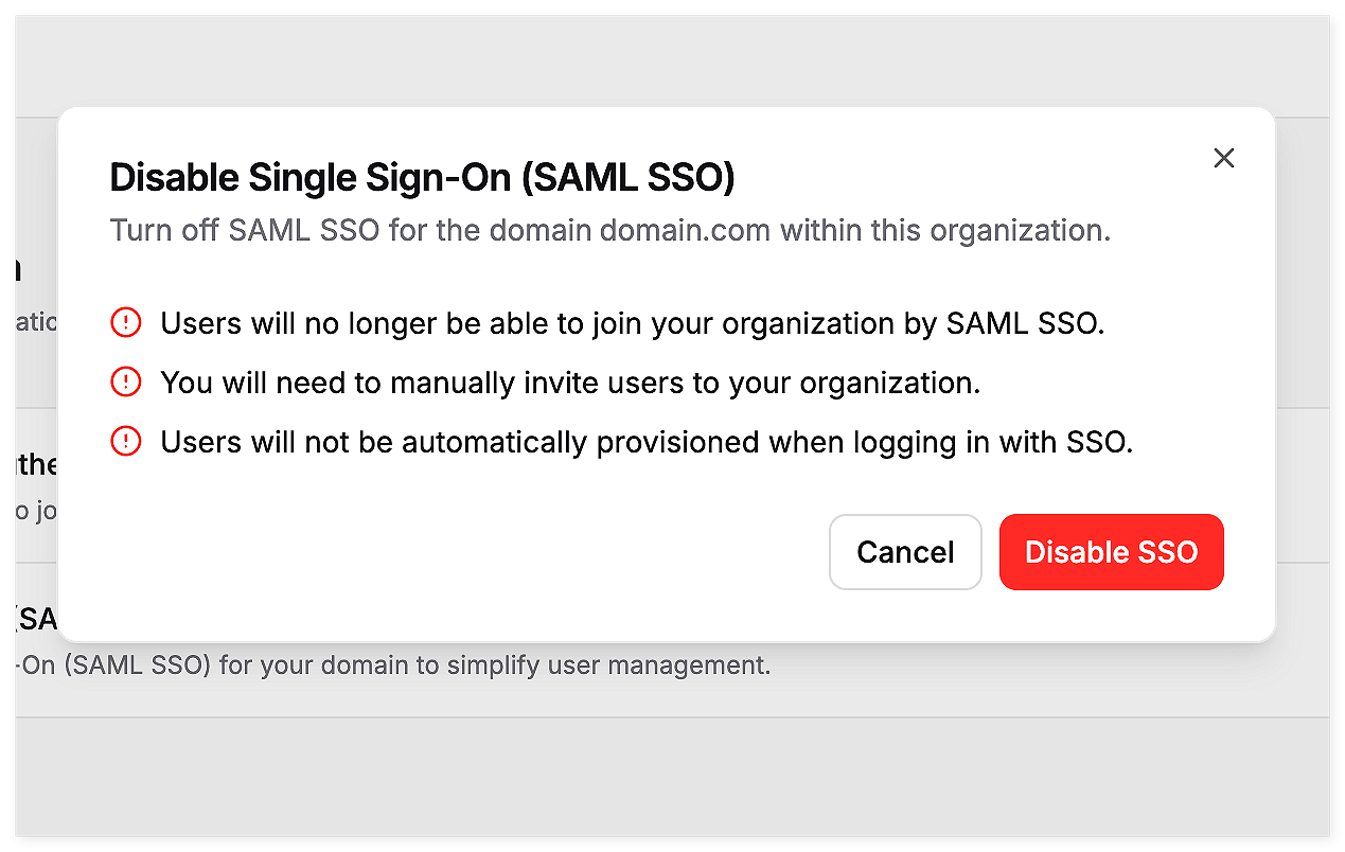Confirming the decision to disable SSO in the dialog window.
Upon confirmation, SSO will be immediately disabled for your organization.