
How do I change my email address?
🔑 Before updating your email, make sure the new address isn’t already linked to another Mistral account. If it is, delete the other account first.
1. Open the Profile section
Within le Chat, click your Organization name at the bottom-left of your screen (1) then click Profile (2).
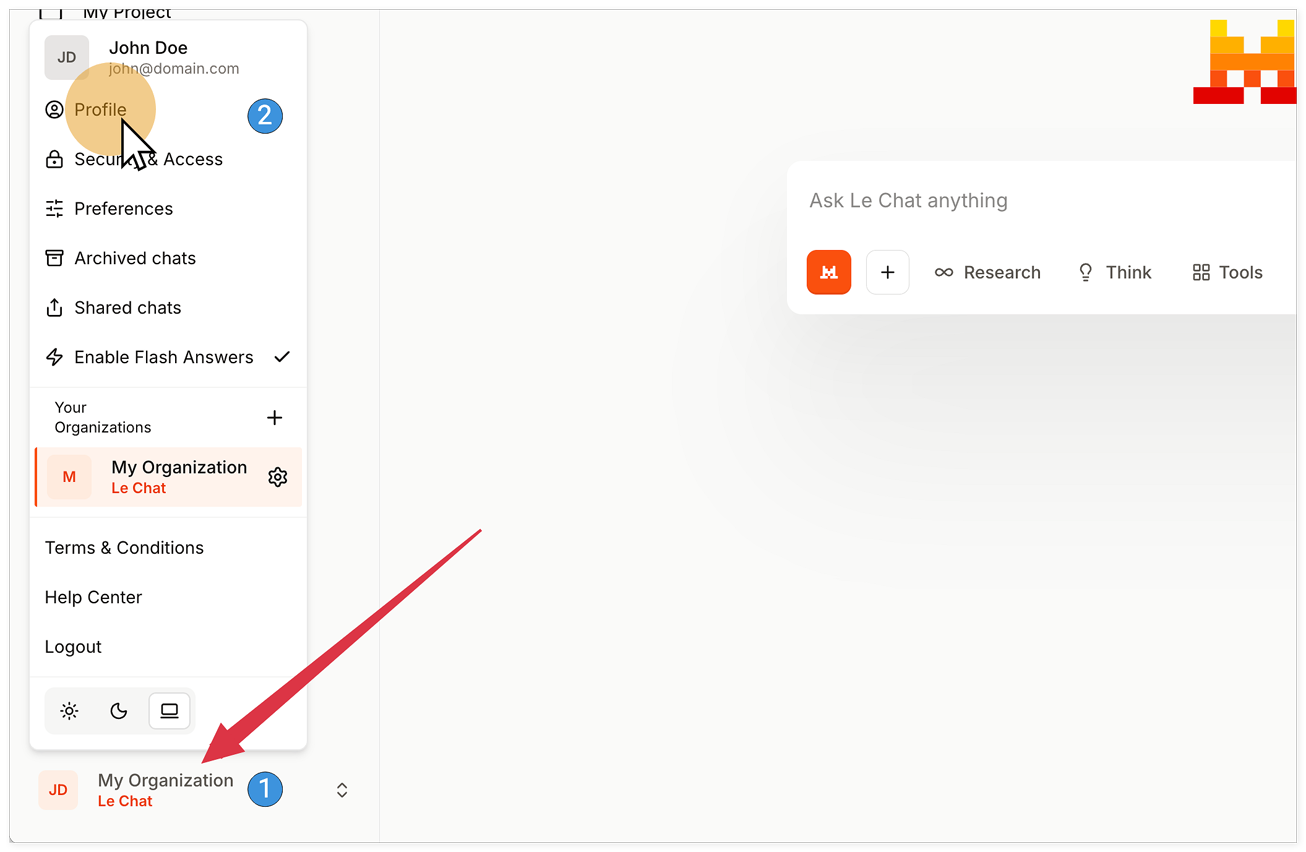Click your Organization name then Profile
2. Update your email address
Enter your new email address under the Email section and click Update profile to save the changes.
📌 You can also update your first name and last name in this section.
3. Verify your new email address
Confirm the update with the verification code sent to your new address: your email changes take effect as soon as verification is complete.
How do I change my password? (desktop only)
🚨 Changing your password from the mobile app is not yet available.
1. Open the Security & Access section
Within le Chat, click your Organization name at the bottom-left of your screen (1) then click Security & Access (2).
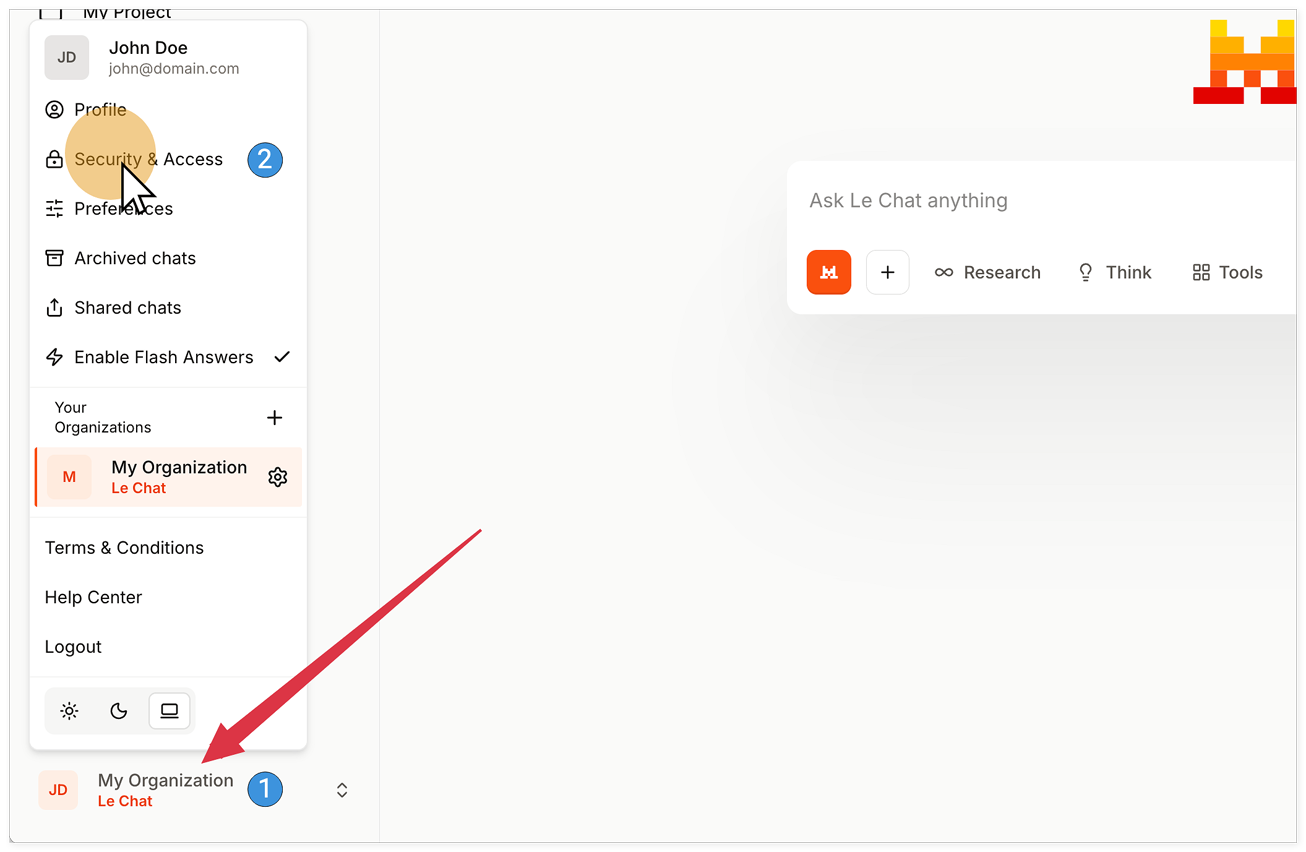Click your Organization name then Security & Access
2. Update your password
Click Set new password under the General section. This opens a modal where you can enter your new password.
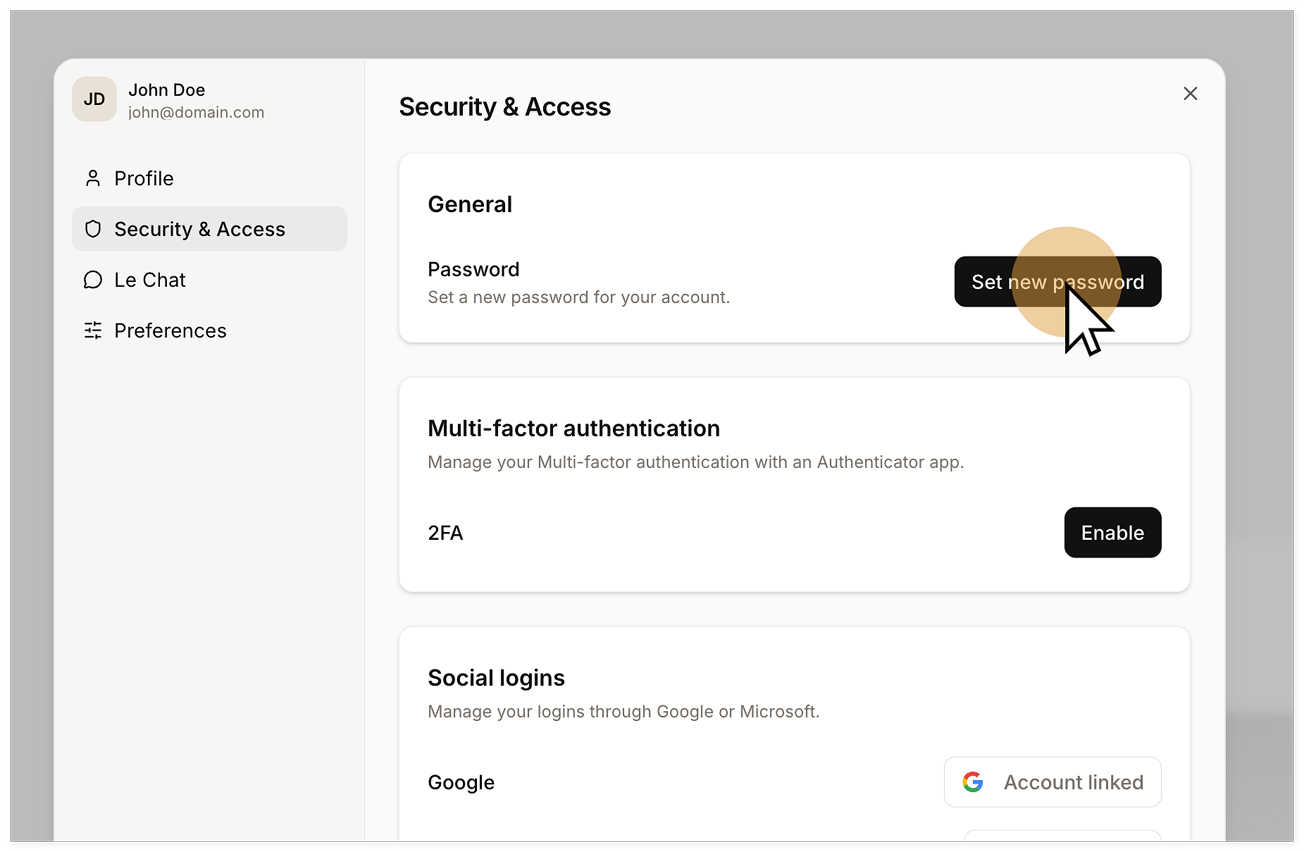Click Set new password to update your password
Click Update password to save the changes.
📌 Once confirmed, you may be logged out and redirected to the login page (for example, if you were previously signed in with Google, Microsoft, or Apple). Use your new password to log back in.
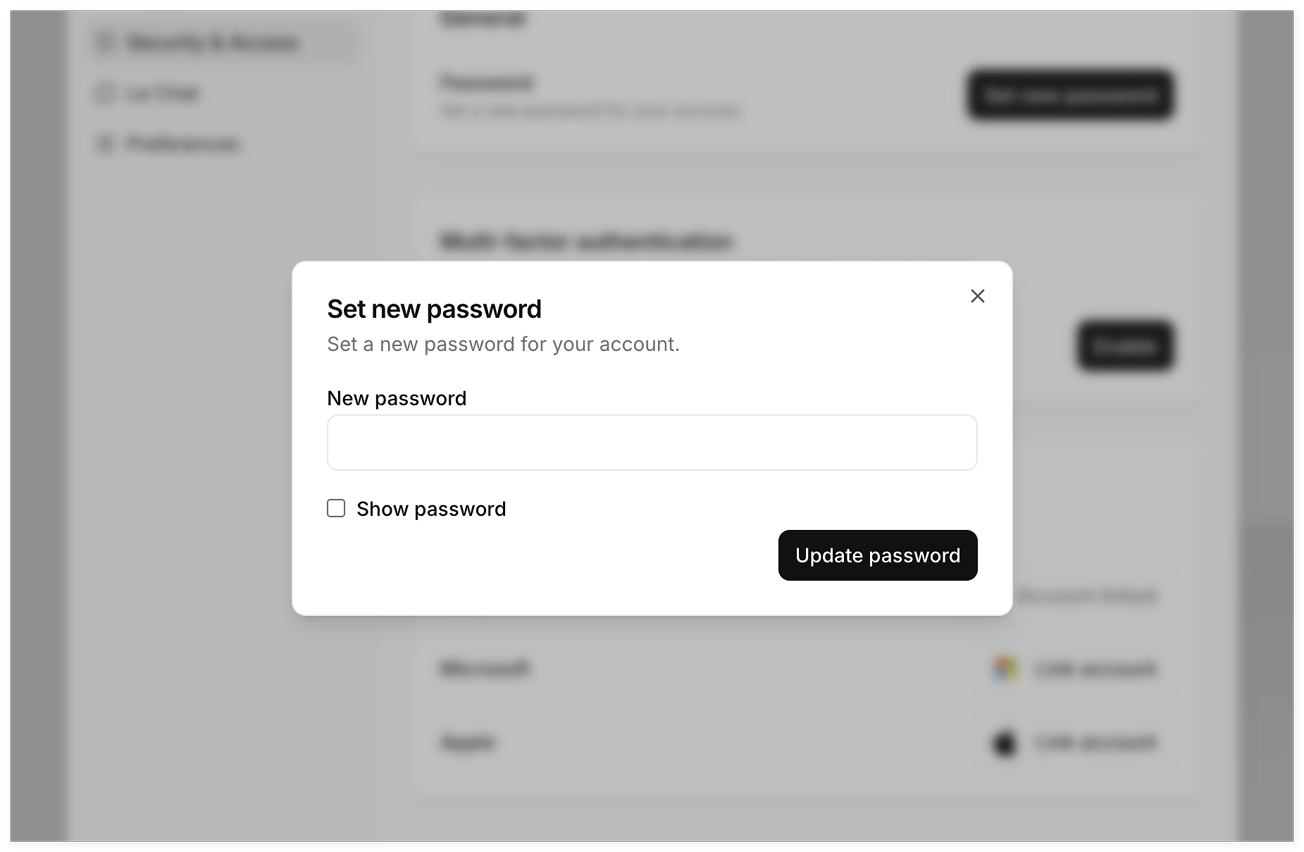Confirm your new password
🙋 Quick question: I’ve entered a new password but you don’t accept it. What’s wrong?
🙋 Quick question: I’ve entered a new password but you don’t accept it. What’s wrong?
Passwords must be at least 8 characters long and not be identical to your previous password. Additionally, we may reject passwords that have been previously compromised in data breaches (e.g., password123) for security reasons.
I’ve forgotten my password, what should I do? (desktop only)
1. Reset your password
From the login page, select Forgot password? to reset your password.
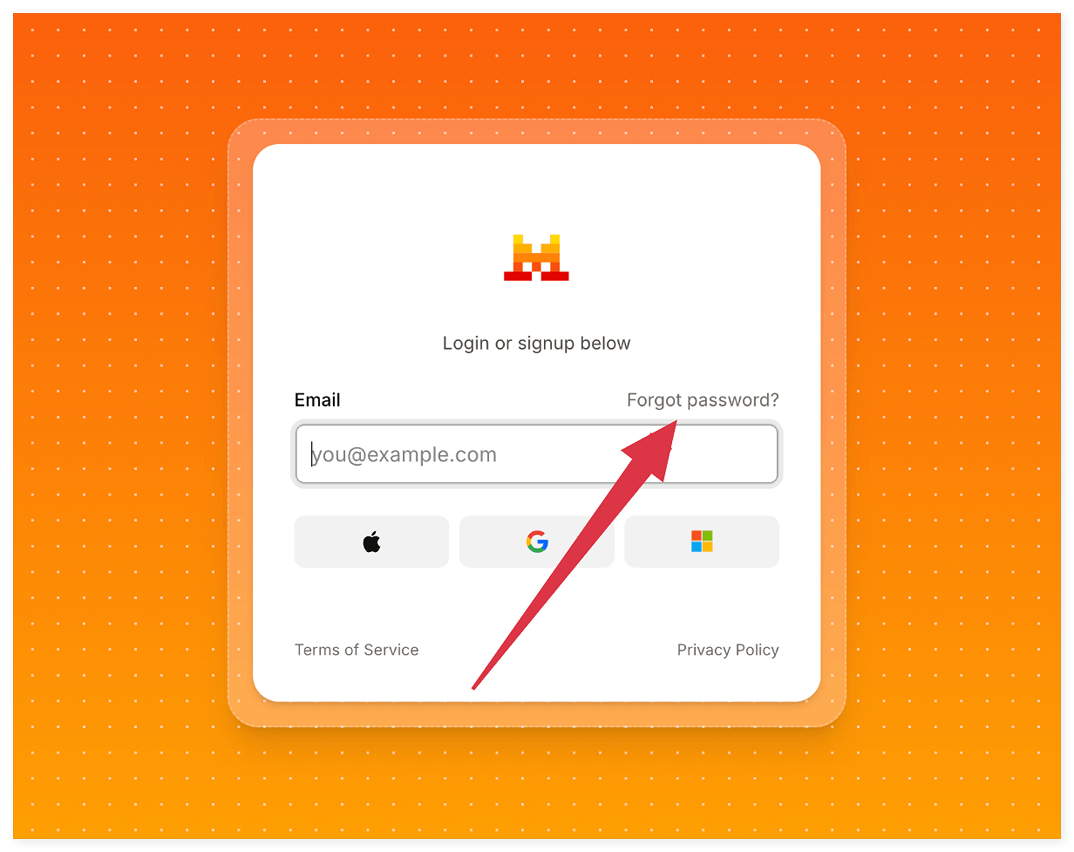Click Forgot password?
Enter your email in the modal, then click Send me a code by email to receive a 6-digit recovery code in your inbox.
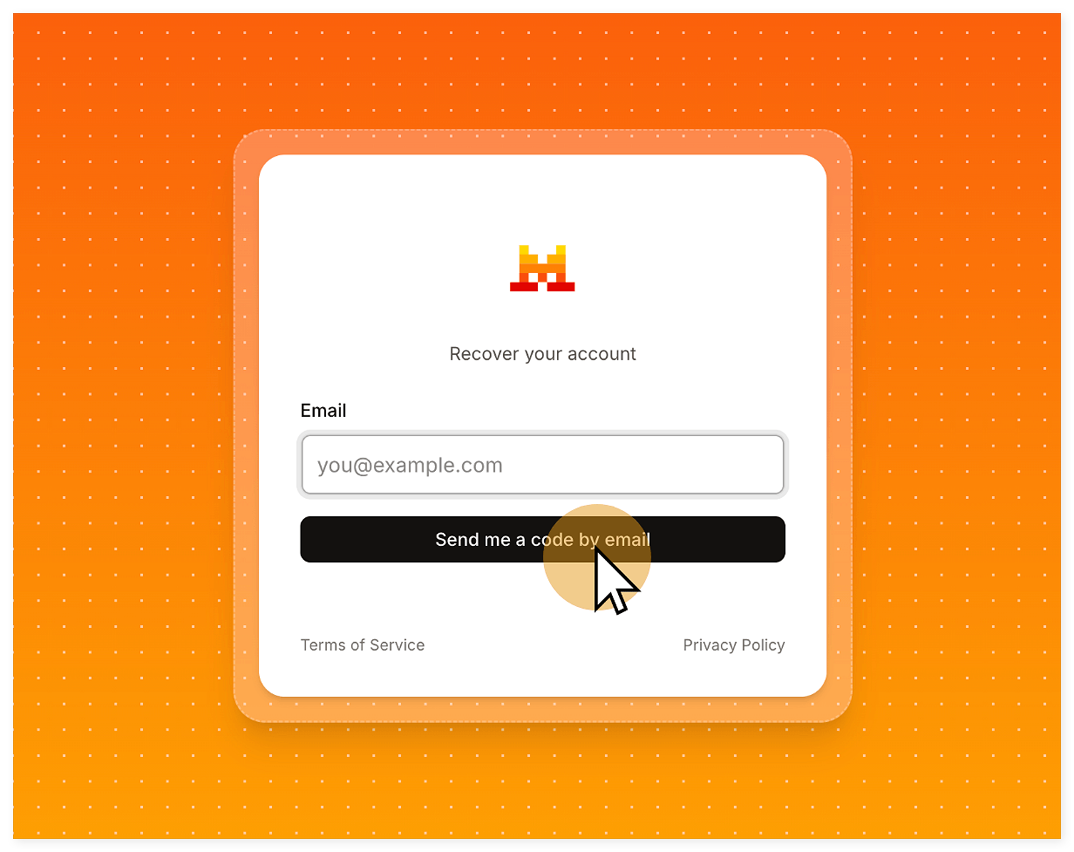Enter your email and click Send me a code by email
🚨 Don’t close the login page while you’re waiting for the email. You will need it to enter the recovery code.
2. Create a new password
Check your email for the recovery code, then return to the login page.
🙋 Quick question: I didn’t receive the email, what should I do?
🙋 Quick question: I didn’t receive the email, what should I do?
Recovery emails are sent from no-reply@emails.mistral.ai and may take from a few seconds to a few minutes to arrive. Check your spam folder. If you still can’t find it, contact our Support team using the email address linked to your account.
Return to the login page and enter the code. You will be prompted to create a new password.
Click Change password to save your new password.
That’s it, you’re all set!
How do I update or remove my phone number?
To update or remove your phone number, contact our Support team using the email address linked to that phone number.
🙋 Quick question: What if my phone number is already linked to another account?
🙋 Quick question: What if my phone number is already linked to another account?
A single phone number can’t be used across multiple Experiment subscriptions (for example, le Chat’s free plan). You can:
Option 1: Cancel the subscription on the second account and switch to the free plan on your main account.
Option 2: Upgrade to a paid Scale plan, which supports multiple accounts.
Option 3: Use a different phone number for the second account.
📩 Need help? Reach out to our Support team using the email address associated with your account.