Once you've completed the setup process, the final step is to make your returns portal accessible to your customers by publishing it on your website. This guide will walk you through the steps to seamlessly integrate your returns portal with your online store, ensuring a smooth experience for your customers.
To publish your returns portal, you can either direct customers to the default returns portal URL or customise and embed the returns portal directly into your webpage.
Include the default returns portal URL to your existing returns policy page
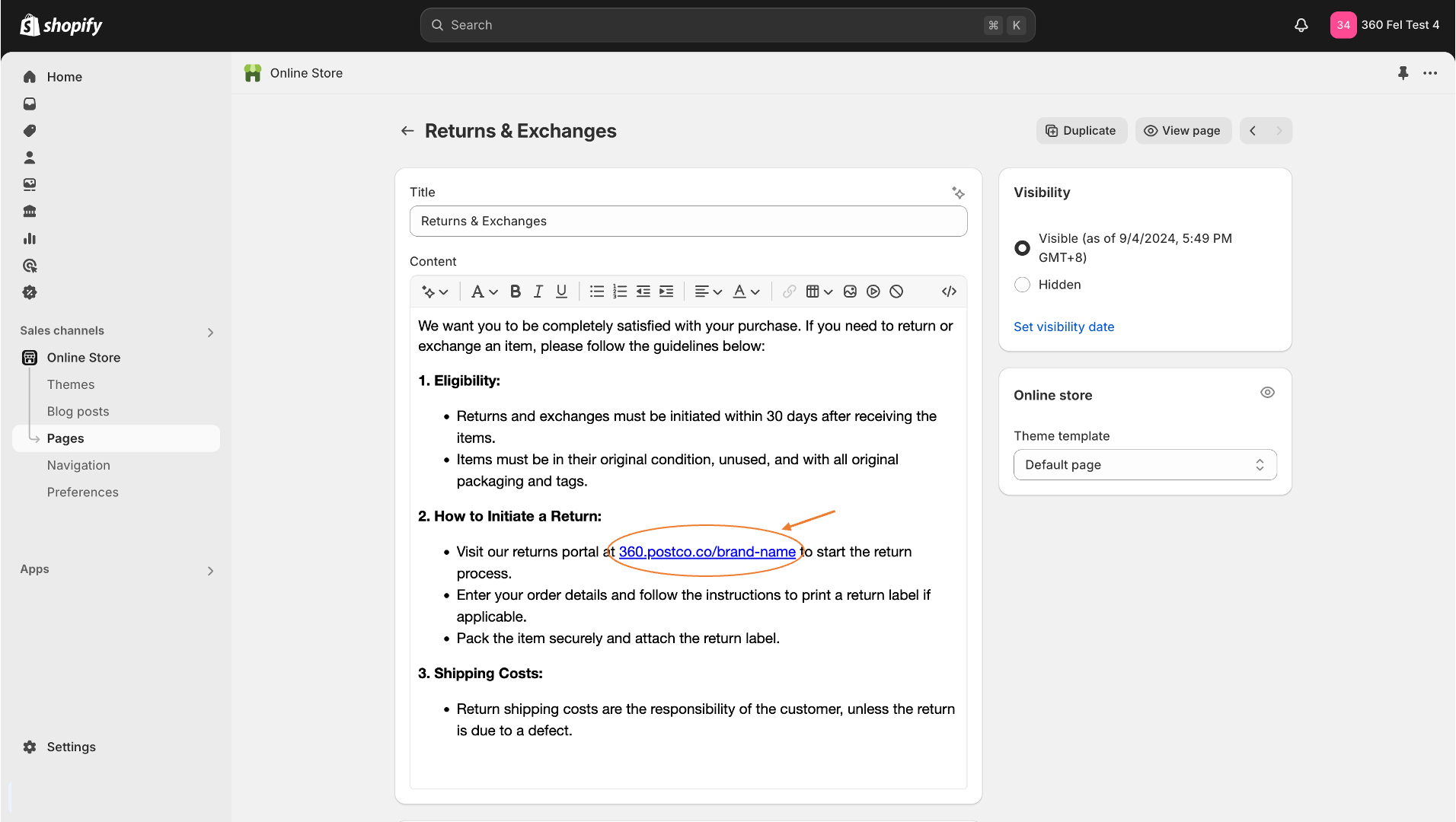
By default, all returns portal URL starts with "360.postco.co/" followed by your preferred name (usually your store's name). Once you have decided on the URL, copy the link for next step.

Note: You can find your returns portal URL by navigating to the Branding section in your PostCo Dashboard.
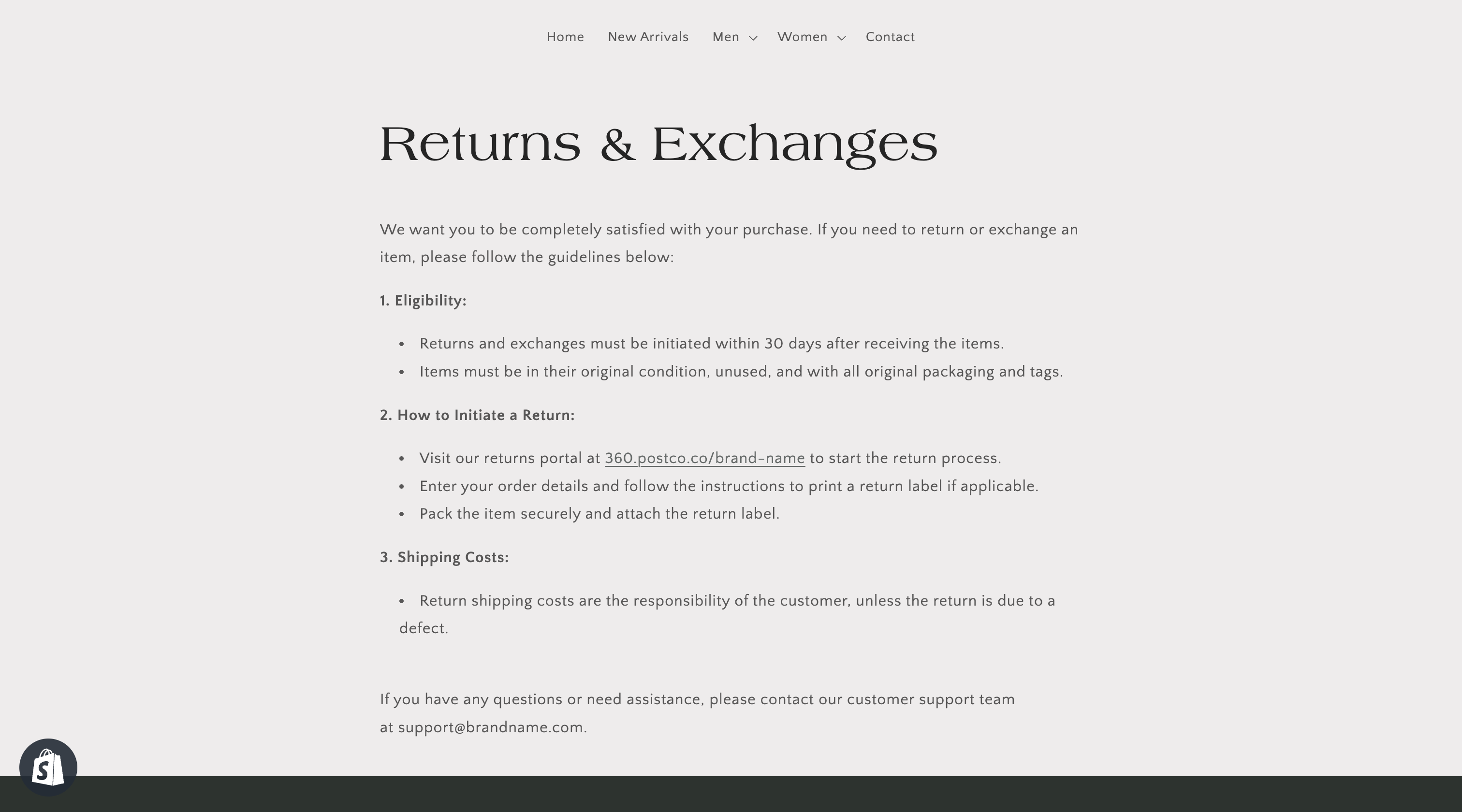
Next, head over to your Return Policy page in Shopify to include the returns portal URL as part of the return instructions.
Customer experience
This is how it will appear on your website after updating your return policy page in Shopify. Clicking the returns portal URL will open up your branded returns portal in a new tab, providing a seamless experience for your customers.
Embed the returns portal directly to your webpage
Alternatively, PostCo can set up a custom domain for your returns portal so it can be embedded into your Shopify page. The custom domain will follow the format of "www.brandname.com/pages/..." followed by your chosen page title.
To do this, please contact PostCo support or your account manager. Once our team sets up your custom domain, you can create a new Shopify page and include the custom return URL.
What your customers would see
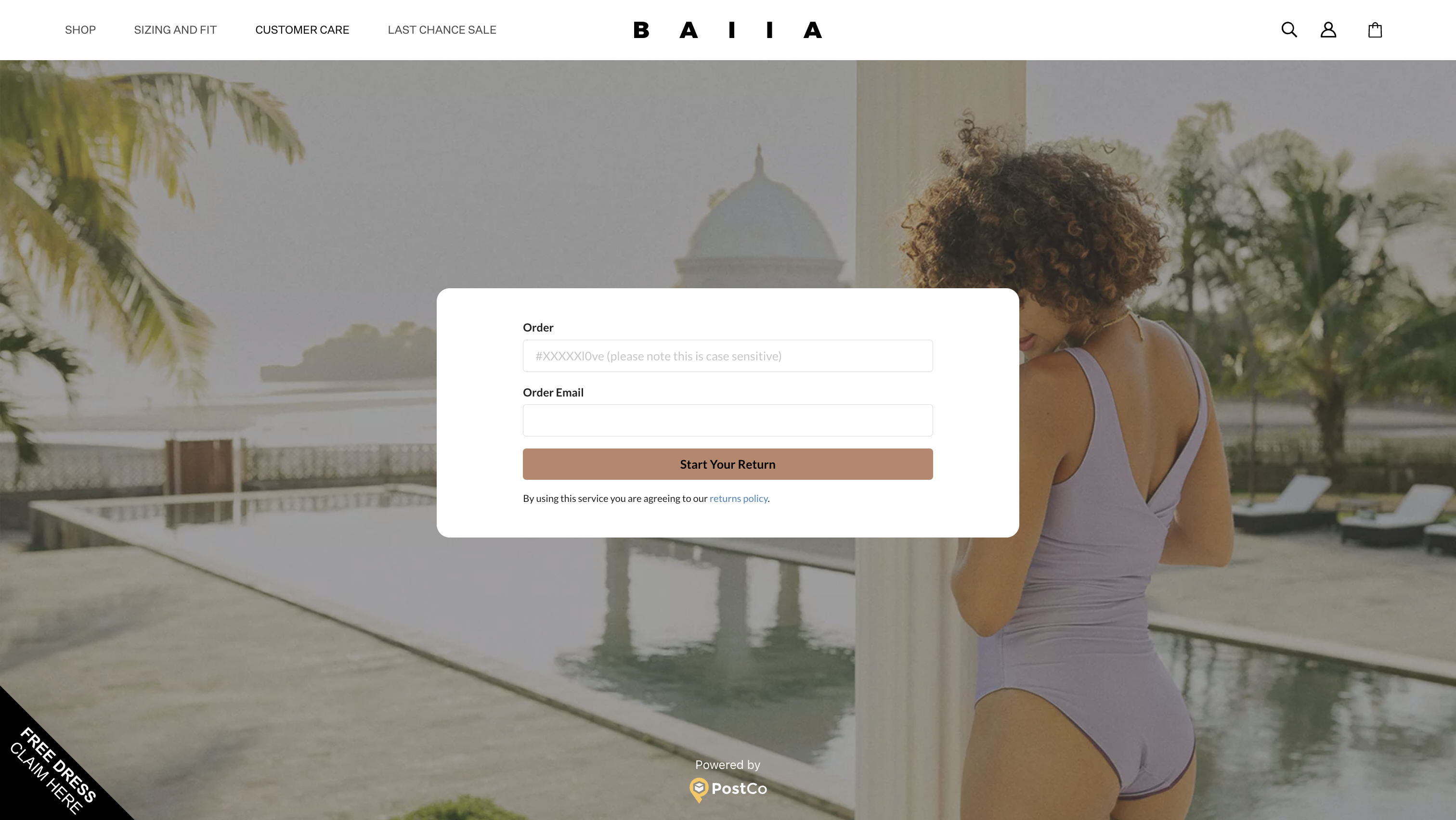
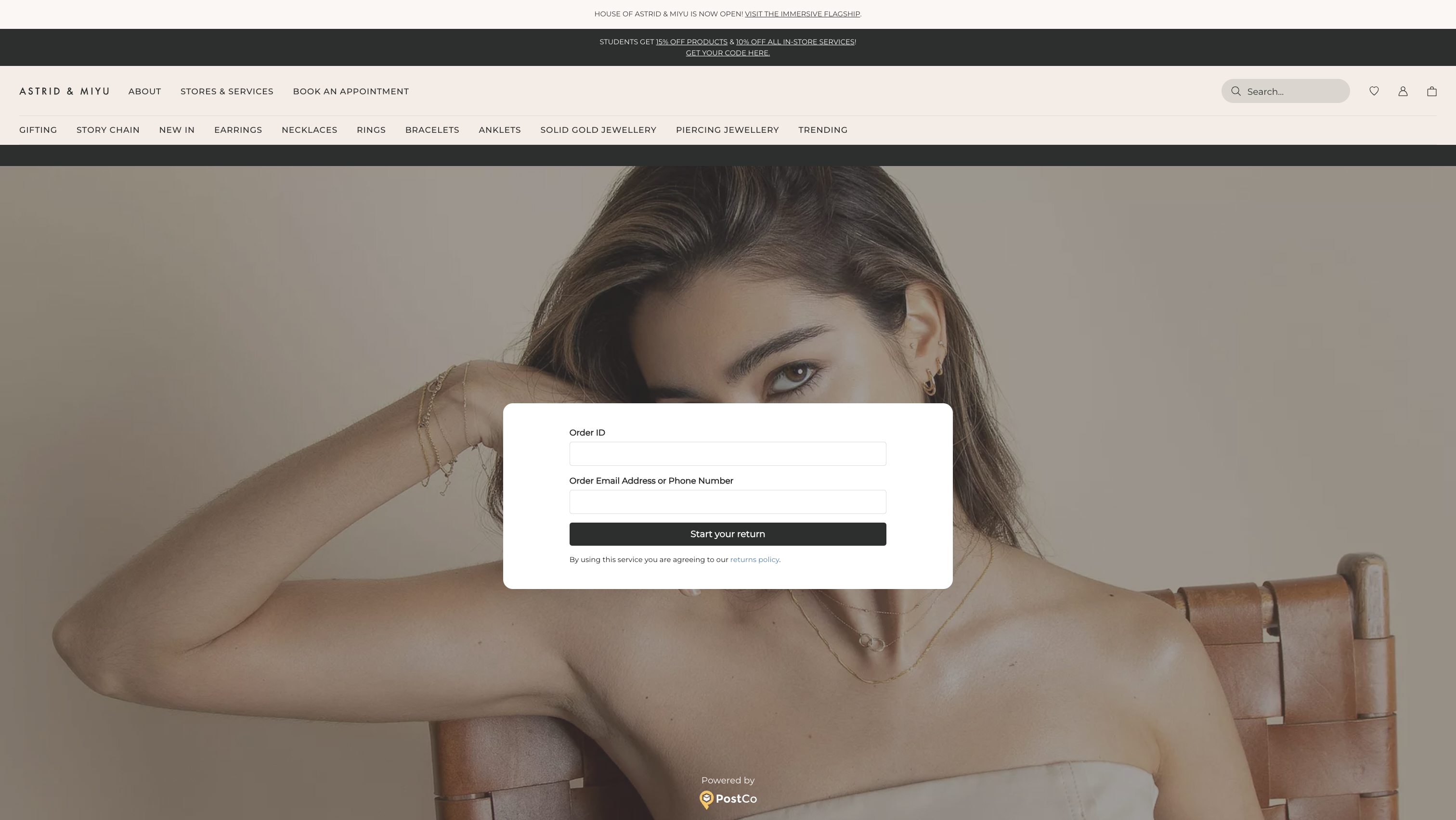
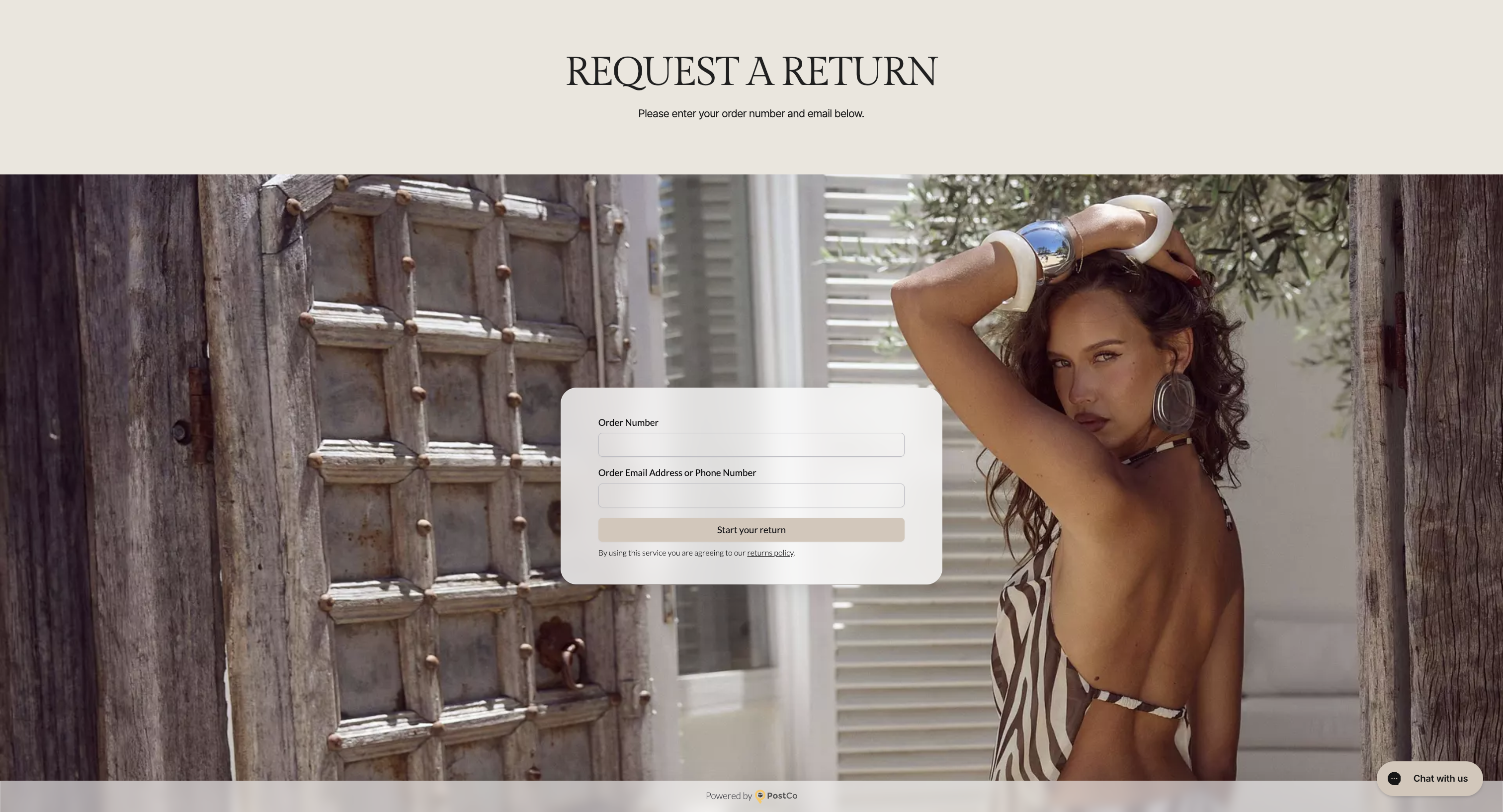
Here are some examples of how it could look, showcasing how other leading brands have seamlessly integrated their returns portals to keep their brand experience consistent.