
Show short, clear selling points in the right place in your shop, such as delivery information or how customers can get help.
This guide is for administrators with Go, Plus or Pro and a Diversity theme offering USP fields. Settings belong to the theme being edited. First check which theme is active. TPL has a different editor and does not use these menu paths.
1. Choose a location and check the message
USPs can appear on the homepage, in the site header, on product pages and in checkout. Available locations depend on the theme. A header message does not automatically change the product page's or checkout's separate list.
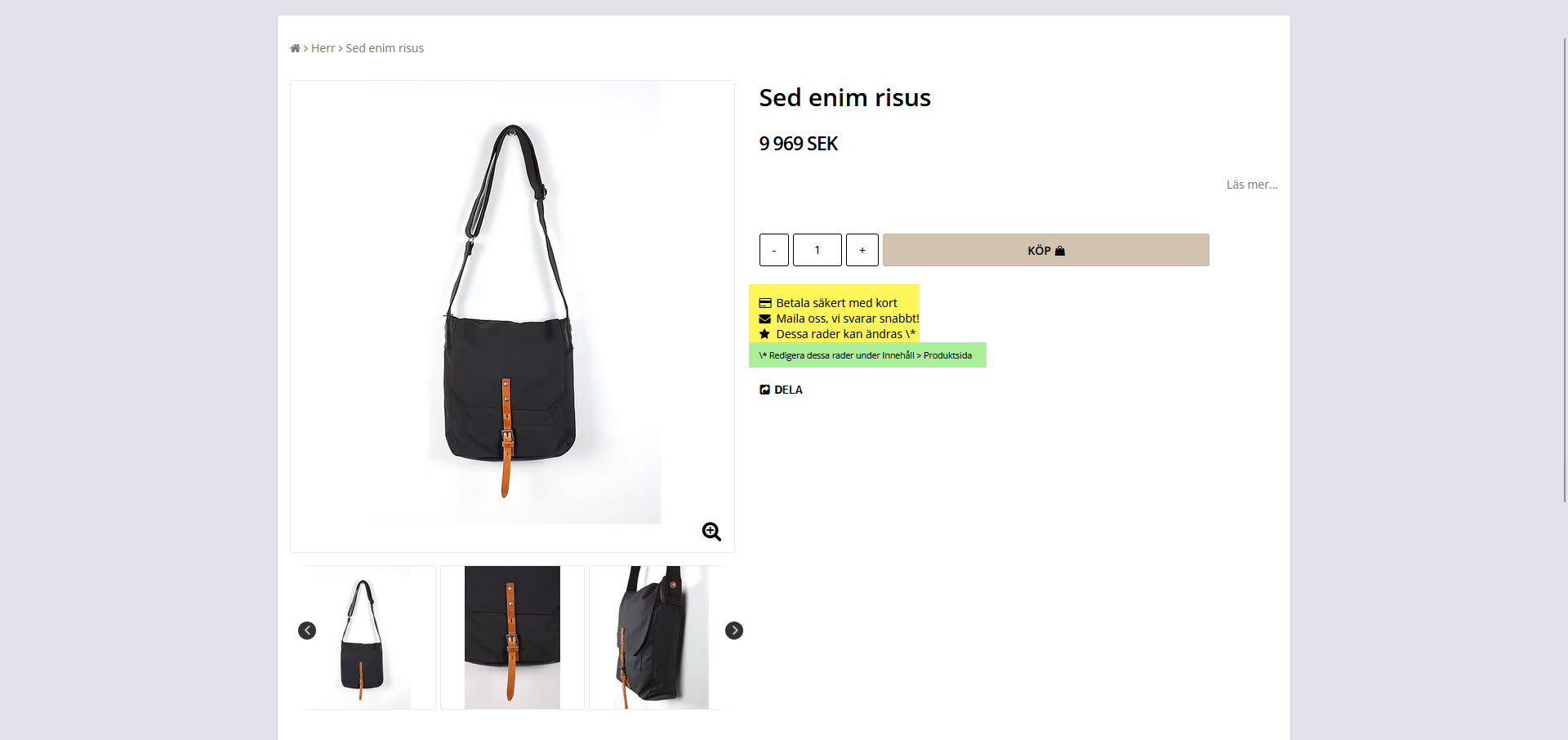
The image highlights selling points in yellow and the separate explanatory text in green. Check that each statement applies to the products, customers and delivery countries where it appears. For example, do not show “free shipping” as a general message if it only applies above a certain amount or within one country.
2. Open the correct theme setting
Open Appearance → Themes.
Click Edit for the theme you intend to change.
Under Content , choose Homepage, Site header, Product page or Checkout according to the location.
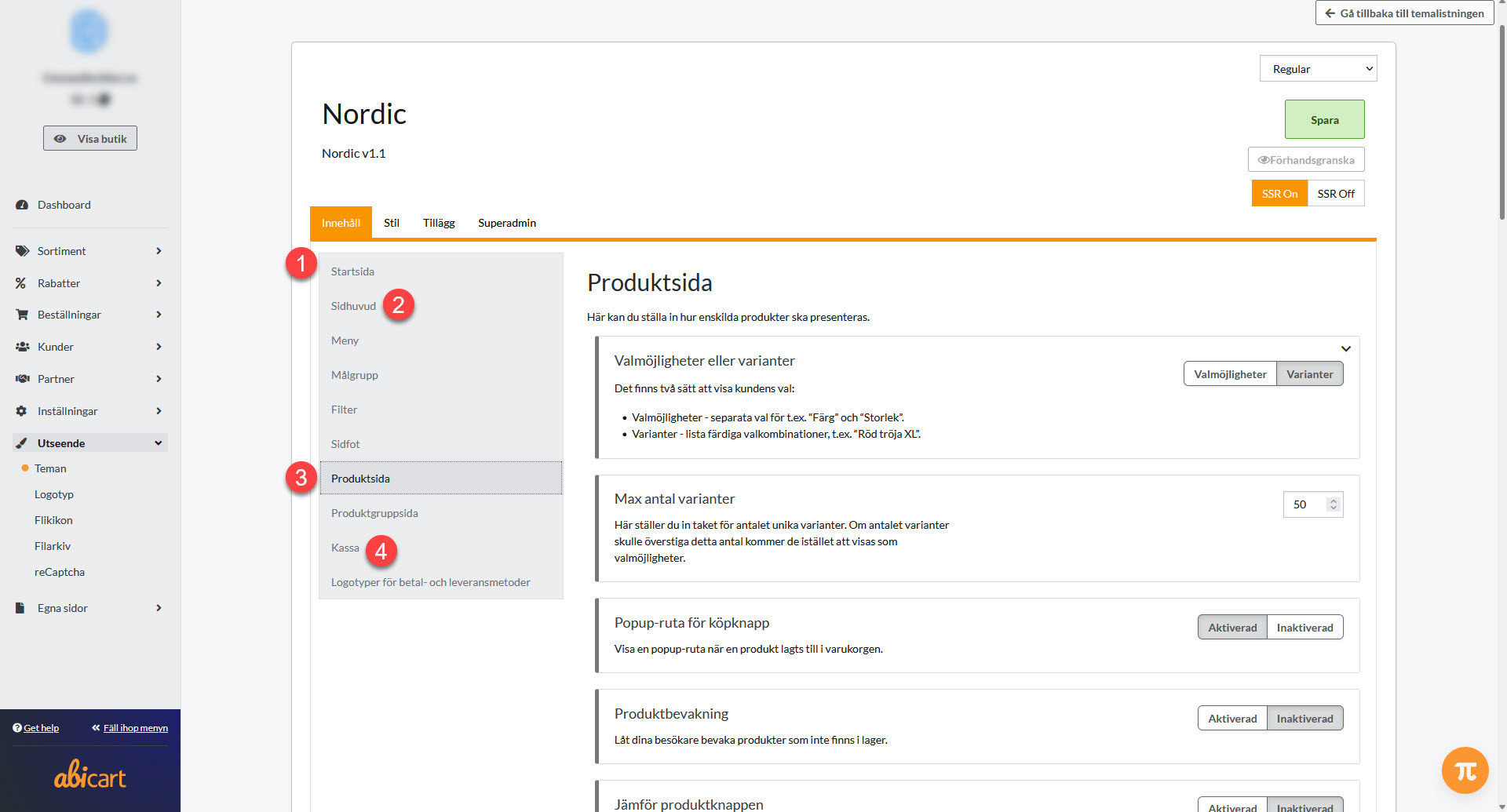
Homepage
If the theme offers a Unique Selling Points homepage block, add or open that block in homepage content. Edit its text and icon.
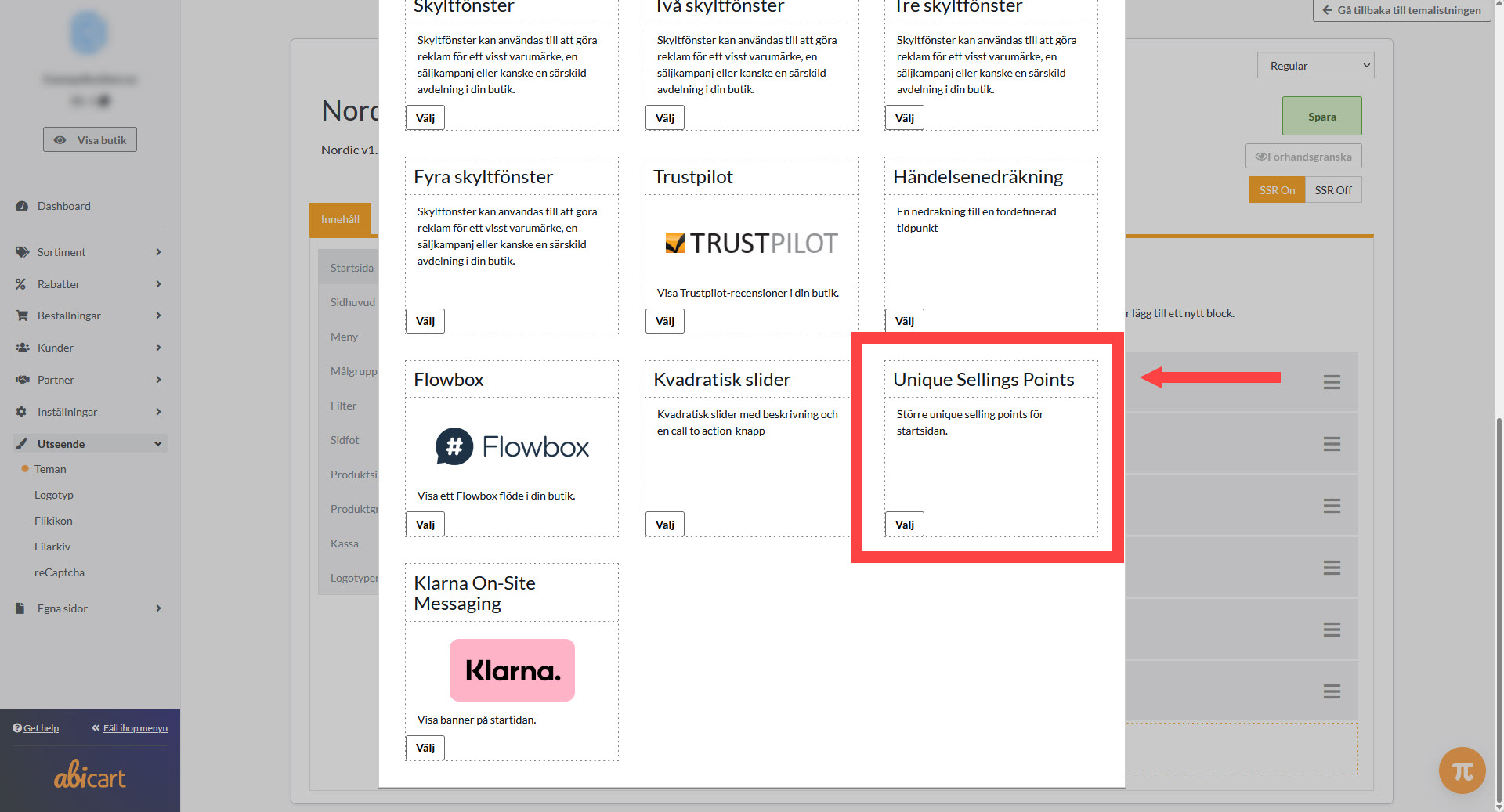
Site header
Open Site header and find Unique Selling Points. In themes with Top bar custom content , first select Unique Selling Points as the content type. Do not edit a separate HTML row when you intend to change the USP list.
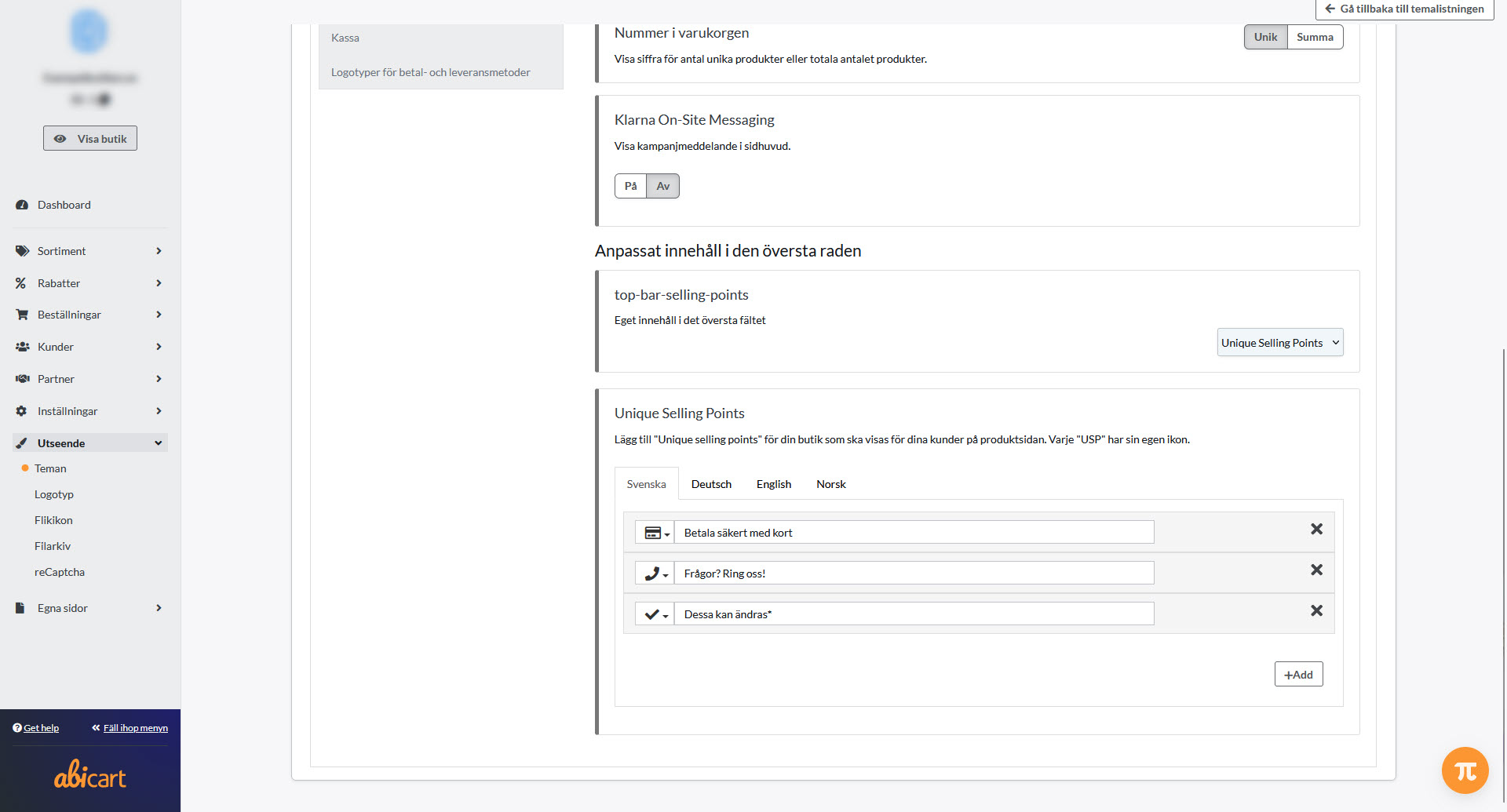
Adding several USP rows does not itself create a rotating slideshow. If you need a carousel or image banner, check which blocks the actual theme offers and where they can be placed.
Product page
Open Product page and its Unique Selling Points section. The Disclaimer field is a separate explanation of the selling points, rather than another USP row.
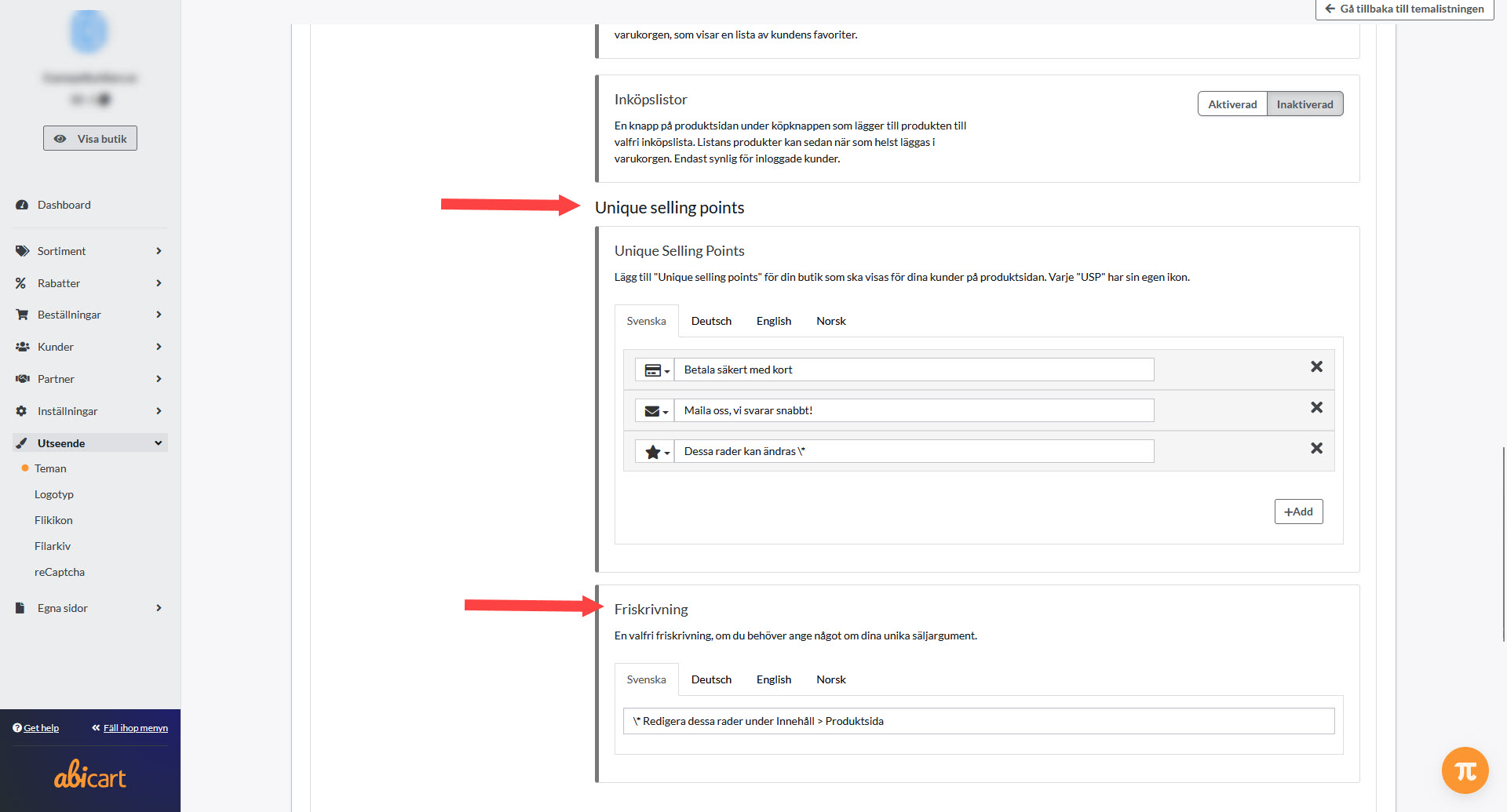
Checkout
Open Checkout and its Unique Selling Points list. Read the separate disclaimer before changing it.
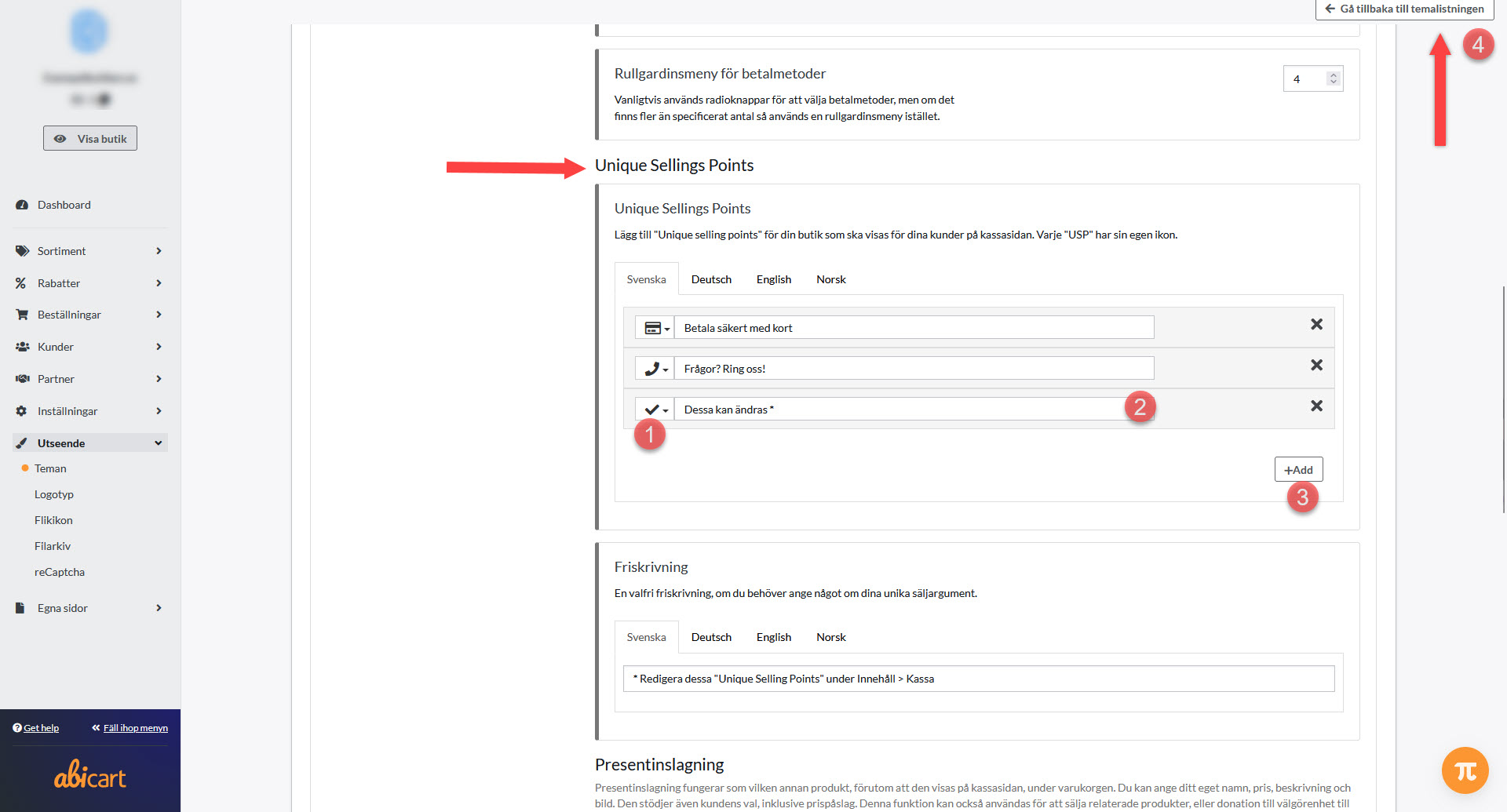
3. Edit, save and check
Select the correct language tab. Edit the text and choose an icon where offered.
Use Add or the corresponding control for a new row. Remove an unwanted row using its removal control.
Check and replace any example text in the USP list and disclaimer. Do not remove a real limitation or condition merely because it is in the disclaimer field.
Click Save and open the shop to check the affected location on desktop and mobile.
Check every shop language. Filling in Swedish does not automatically translate the text into other languages.
If the text does not change
Check the active theme, location and language. A product description, footer block or image banner is separate from the USP list. If your theme has no USP field, do not guess using instructions for another theme. Check the available theme blocks before choosing a different location.
Quick start
Choose the location and write an accurate selling point.
Open the correct theme and content section.
Edit the language, text, icon and any disclaimer.
Save and check desktop, mobile and other languages.
Subscription and theme
Theme editing is available in Go, Plus and Pro. The location and availability of USP fields depend on the theme. Recheck selling points when delivery terms or the active theme change.