
Add a short decorative text before an existing element without hiding its real content.
This guide is for administrators familiar with HTML and CSS using a Diversity theme in Go, Plus or Pro. ::before is a pseudo-element, not a CSS class. The examples apply only when the theme uses the specified classes. TPL and other components may have a different structure.
1. Check whether to edit the actual content
Correct product names, descriptions, prices and ordinary theme text in their own fields. CSS using content only creates an additional visual text. Do not use it as the sole source of important information, because generated content is not reliably accessible to all screen readers. Prices, discount conditions, stock status and purchase terms must be real content.
If unexpected text appears on a product, investigate product fields, imports and integrations before hiding anything. Text is not automatically a CSS problem.
2. Find the correct element
Open the shop page, right-click the text and choose your browser's inspect element function. In the example, the discount label uses tws-article-labels--special-offer and tws-article-labels--label-text. Check that your theme has the same structure.
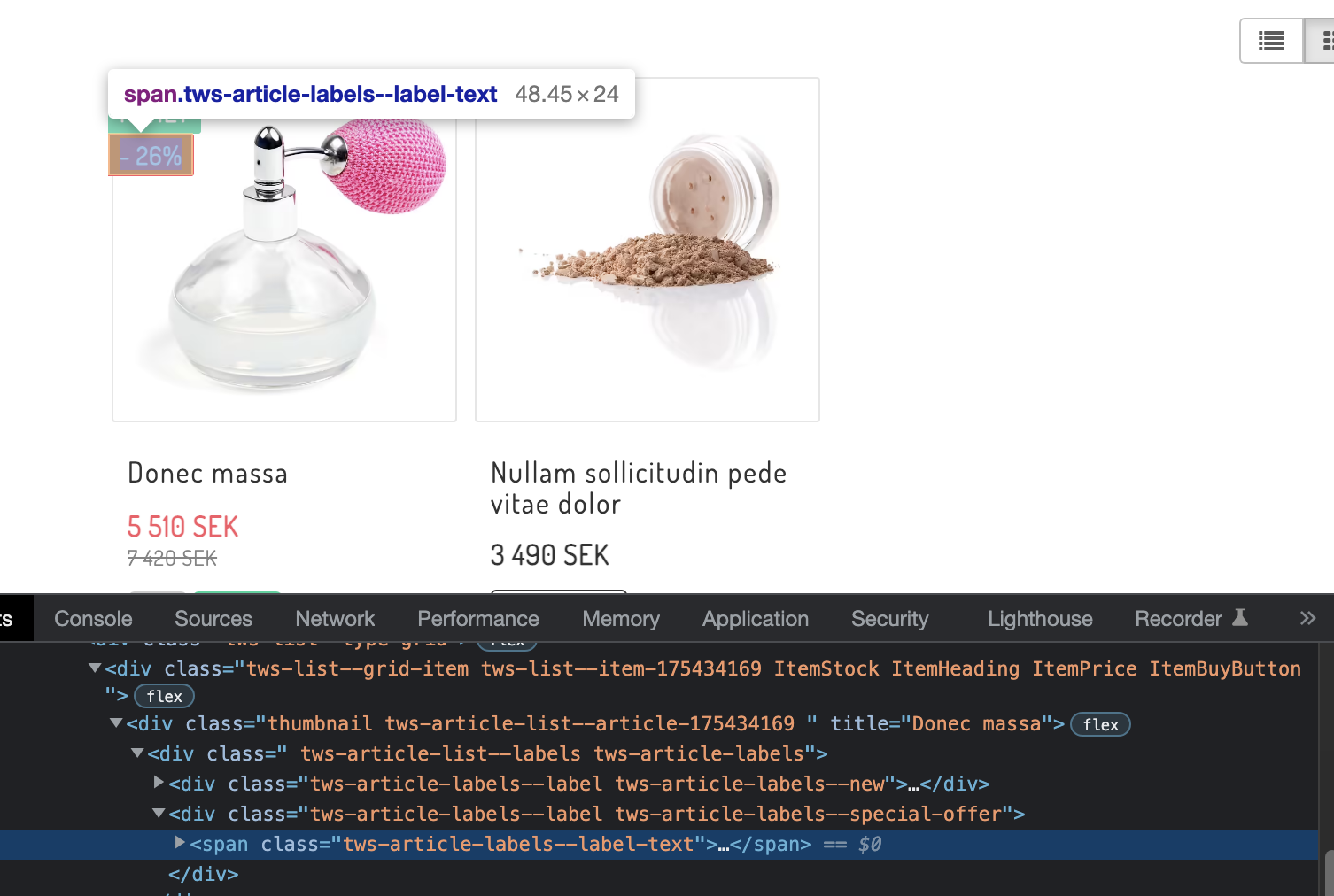
The image shows an older label with a calculated discount. That information must remain visible; do not use the discount label as a general label for products without an actual discount.
3. Add text and retain the discount
Keep a copy of the existing CSS. Open Appearance → Themes → Edit for the correct theme, then Style → Custom CSS. This rule adds text before the discount:
.tws-article-labels--special-offer .tws-article-labels--label-text::before {
  content: "Erbjudande ";
}
For different languages, use these rules instead:
:lang(sv) .tws-article-labels--special-offer .tws-article-labels--label-text::before {
  content: "Erbjudande ";
}
:lang(en) .tws-article-labels--special-offer .tws-article-labels--label-text::before {
  content: "Special offer ";
}
:lang(sv) and :lang(en) match the element's language, which can be inherited from the page. Add rules for the languages you actually use. This does not translate product data or text inside images.
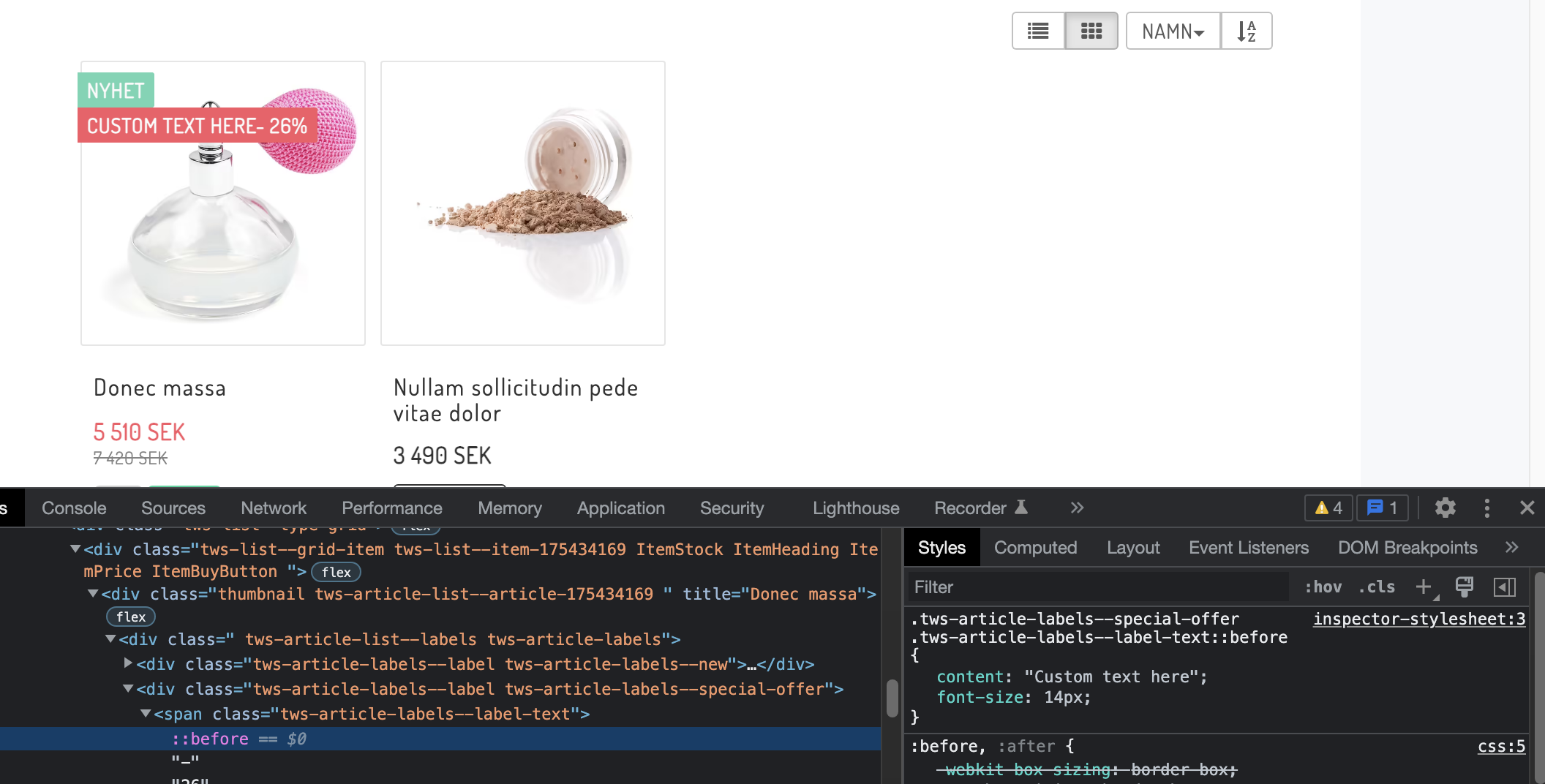
The older image above illustrates adding text before the discount value. Save and check the finished page, rather than only the temporary change in browser developer tools.
4. Avoid hiding the original text
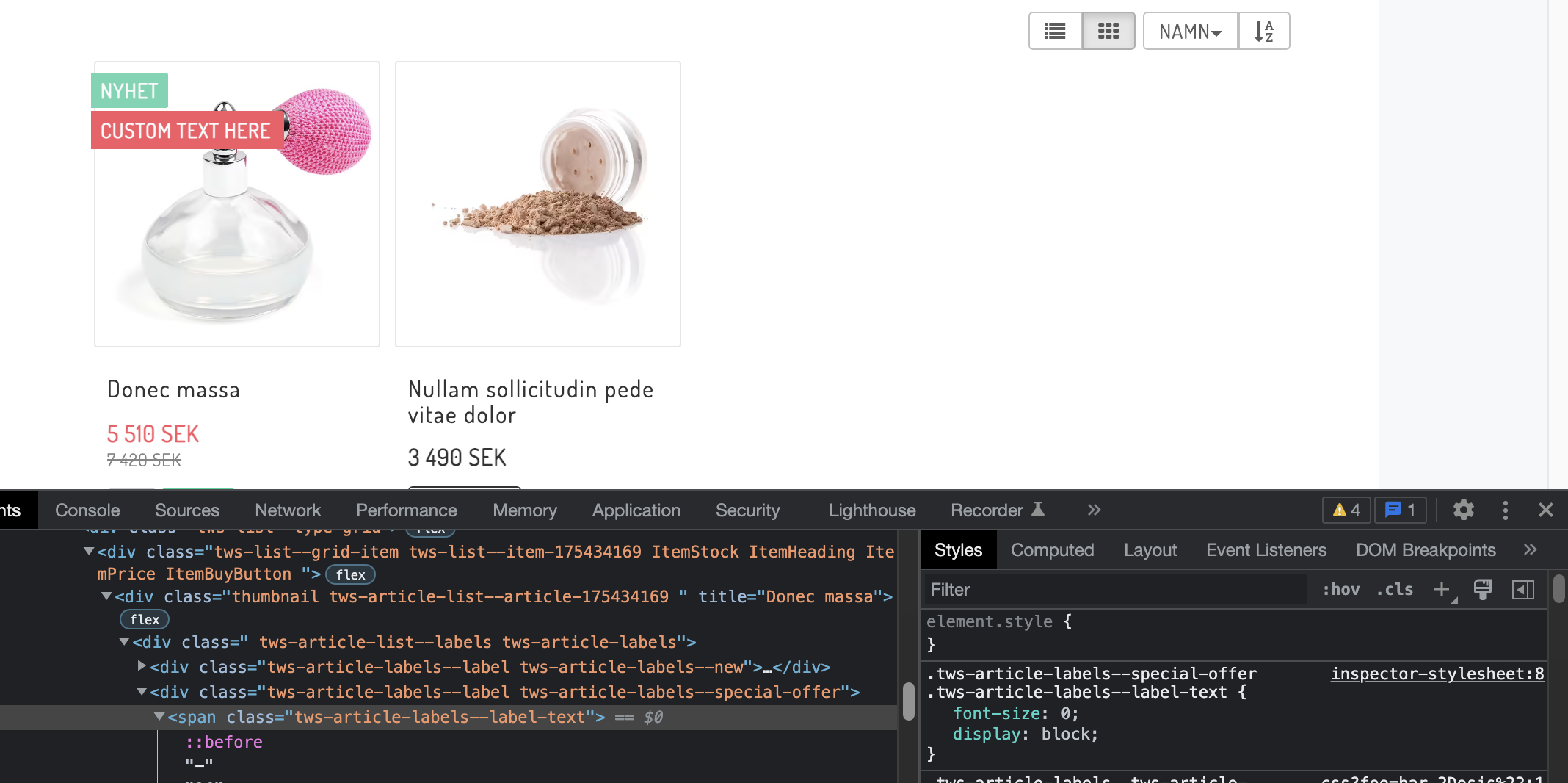
This older illustration shows font-size: 0 on the original label. Do not follow that step to replace discount information: the rule also hides the discount value. Keep the original text and change only the intended addition. To change a discount, edit the actual price setting.
Check and restore
Check product lists and product pages on mobile and desktop, with and without discounts and in the shop's languages. Ensure the actual discount remains readable. If the addition is missing, check the selector, content, language and the rule winning in the cascade. If the result is wrong, remove only the added rule or restore it from your copy. Do not delete all custom CSS. Repeat the check when changing themes.
For more detail, see the introduction to pseudo-elements and the description of :lang.
Quick start
Check that the task is decorative rather than a correction to content fields.
Inspect the real element and keep a copy of the CSS.
Add a limited ::before rule without hiding the original text.
Save and check discounts, languages, mobile and desktop.
Subscription and theme
Custom CSS is available in Go, Plus and Pro. The example's classes and menu paths apply to Diversity and must be checked against the shop's active theme.
