
Choose the right product descriptions, groups and market before connecting a product feed to an external catalogue.
Product feeds are available in Abicart Go, Plus and Pro. You need administrator access to Settings → Apps → Product feeds and an account with the receiving service. These settings control the shop’s data feed; they do not automatically activate advertisements or an agreement with the recipient.
Choose the service and correct feed URL
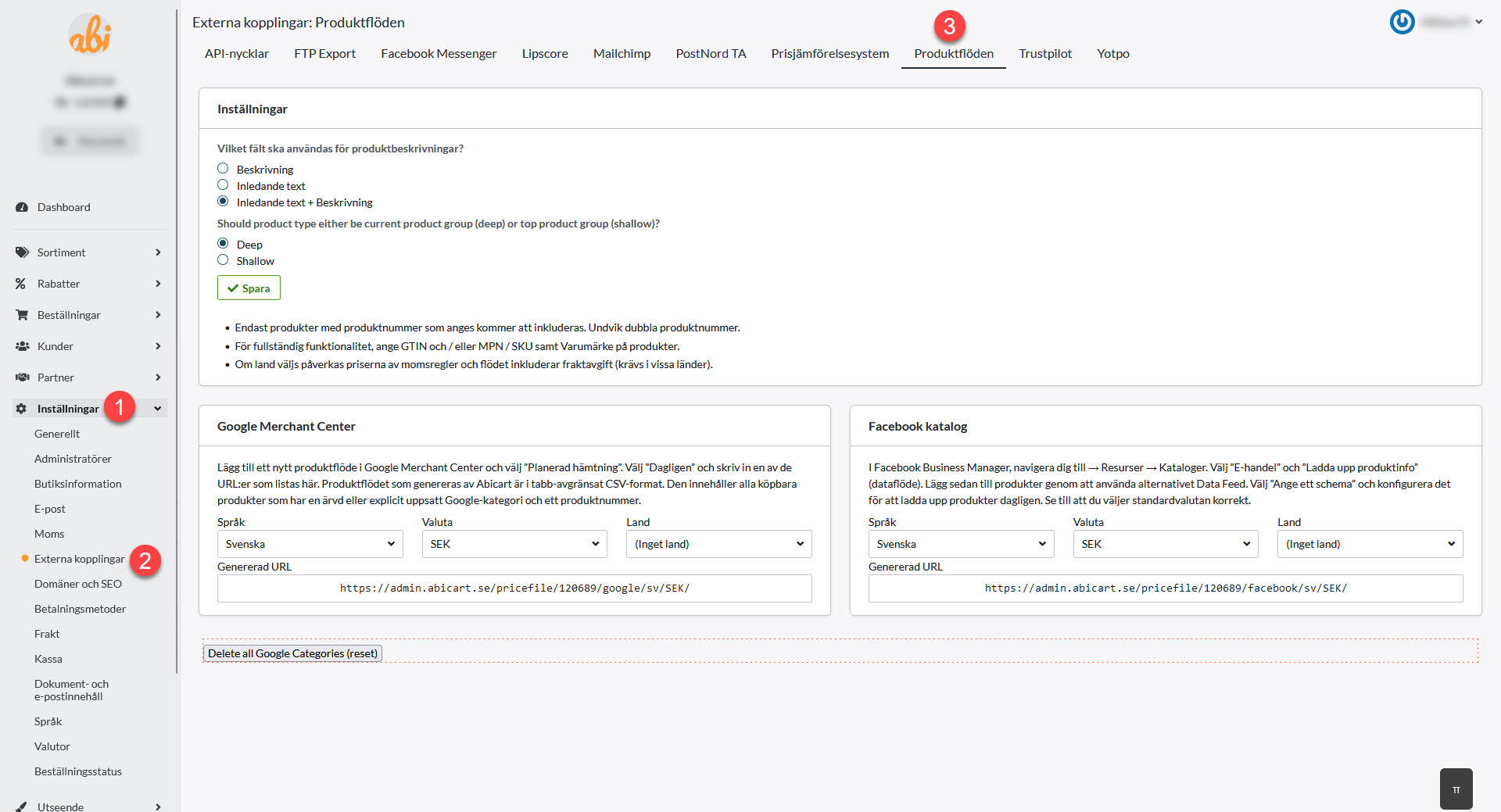
Open Product feeds in the correct shop. Choose the service you use, such as Google Merchant Center or Facebook Catalog, and copy its displayed feed URL. Select the correct language, currency and country where these options are available. A country selection can affect VAT and shipping information; compare the price with the same market in the shop.
Choose the description field
Choose Description, Introductory text or Introductory text + Description. Check that the field contains text in the feed language. Changing this selection does not rewrite product descriptions or automatically fill a missing translation.
Choose the product-group level
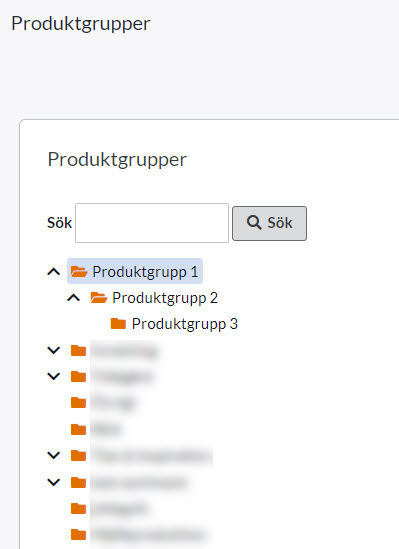
Deep uses the deeper product group, while Shallow uses the top group. If a product is in group 3 below groups 2 and 1, use Deep for group 3 and Shallow for group 1. This controls the product-group type in the feed, rather than the shop navigation or Google’s own product classification.
Check products and customer choices
Products need product numbers to be included in the feed. Abicart’s Google feed also skips products without a Google product category. Check the product classification; selecting Deep or Shallow does not replace the Google product category. Avoid duplicate numbers, and check visibility, product data and a valid image URL if a product is missing or rejected. Follow the recipient’s requirements for prices, availability and product identifiers.
If you enable customer choices as separate products in the Google Merchant Center feed, choices with independent properties can have their own rows. Check each intended variant’s number, price, stock and link. The feed then reads directly from the database, which can take longer for large assortments; normally use daily fetching. This does not automatically apply to every other feed. Do not change the variant model merely to remove an error message.
Save and check the recipient’s result
Save the settings.
Open or fetch the selected feed URL and check a representative product and any variant.
Connect the URL in the external service. Follow the Merchant Center guide or Facebook Catalog guide for your recipient.
Check its latest fetch and diagnostics. A working feed does not mean that every product is approved or that advertisements are displayed.
Quick start
Choose the service, language, currency and country.
Choose the description field and Deep or Shallow.
Check product numbers and any variants.
Save, connect and inspect the recipient’s diagnostics.
Product feeds are included in Go, Plus and Pro. The recipient’s accounts, agreements and advertising costs are separate.
