
Every club has an inventory of different golf grips to offer their members when they want clubs regripped. To help you get started, your grip inventory includes a preloaded set of the most popular and commonly requested grips. With this feature, you can:
Manage your grip inventory
Create and edit grip inventory
View and update grip quantities
Visualize grips that are low on inventory
View actual quantities versus planned quantities (marked for repair)
View and choose grips when creating a new repair order
Allow members to view and select grips from the club repair request in Member Portals
Receive a notification when grips are running low
In this article, we will discuss the grip inventory dashboard and how to manage your grip inventory. You can also manage grip inventory from the mobile app, for details, Click Here.
Grip Inventory Dashboard View
The Grip inventory dashboard allows you to manage your Grip Inventory, view quantities, update inventory, and take additional actions (as shown below). To access the Dashboard, go to Services > Club Repairs > Grip Inventory.
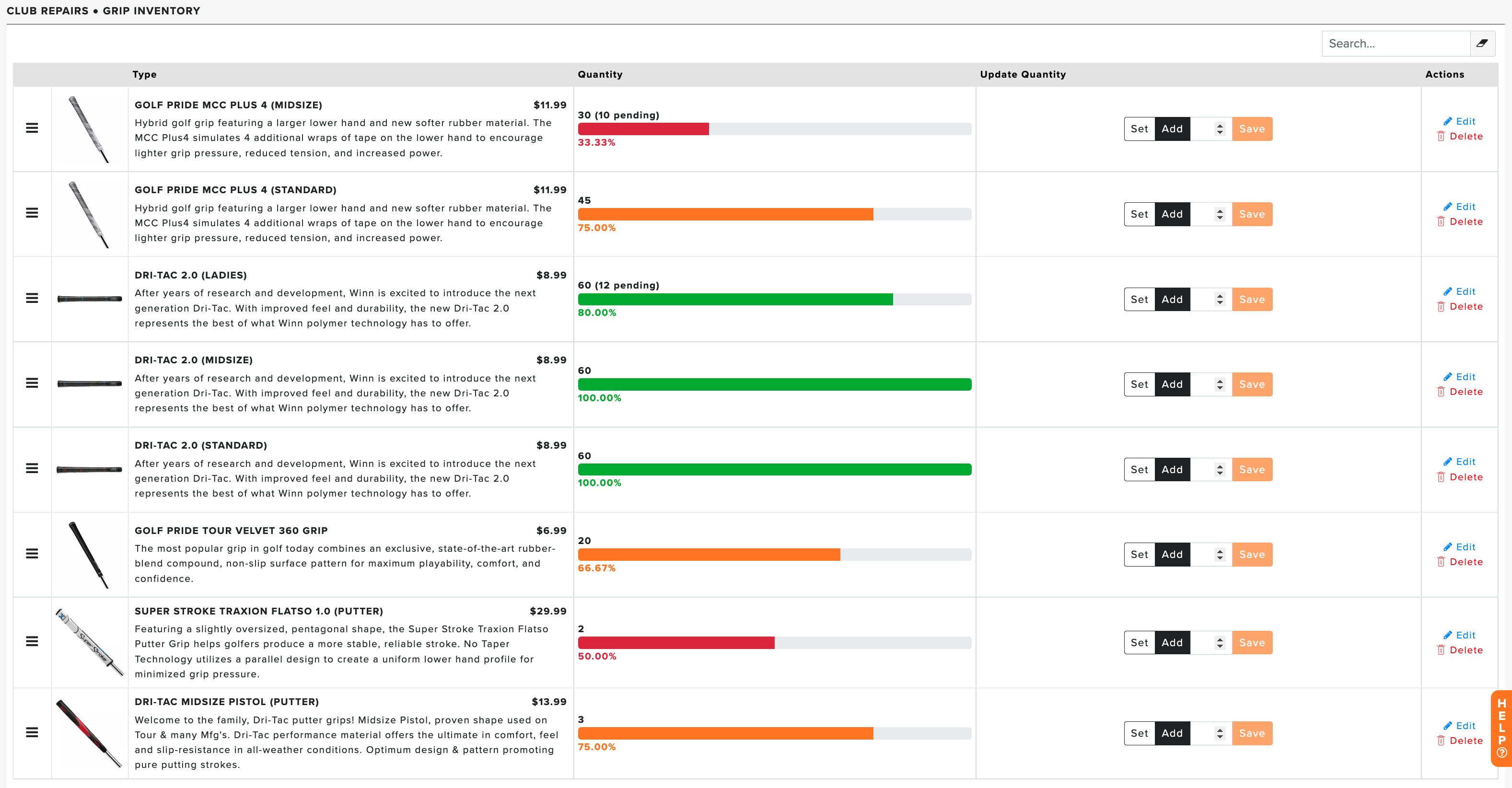
On the Dashboard, your grips display order determines how grips are ordered in grip selection on club repair forms and in Member Portals, allowing a quick selection of the most common grips.
The Dashboard features a table of the available grips and the following details:
Sort Order Dragger: On the Dashboard, your grips display order determines how grips are ordered in the grip selector on club repair forms and in Member Portals, allowing a quick selection of the most common grips. To reorder grips, click and drag the grip using the "Three bar" icon, and drop it in the correct place.
Grip Image: A static image of the grip that will be seen in the grip selector in the club repair forms and Member Portals, allowing for easy recognition of the grip.
Type: This includes the grip name and a short description.
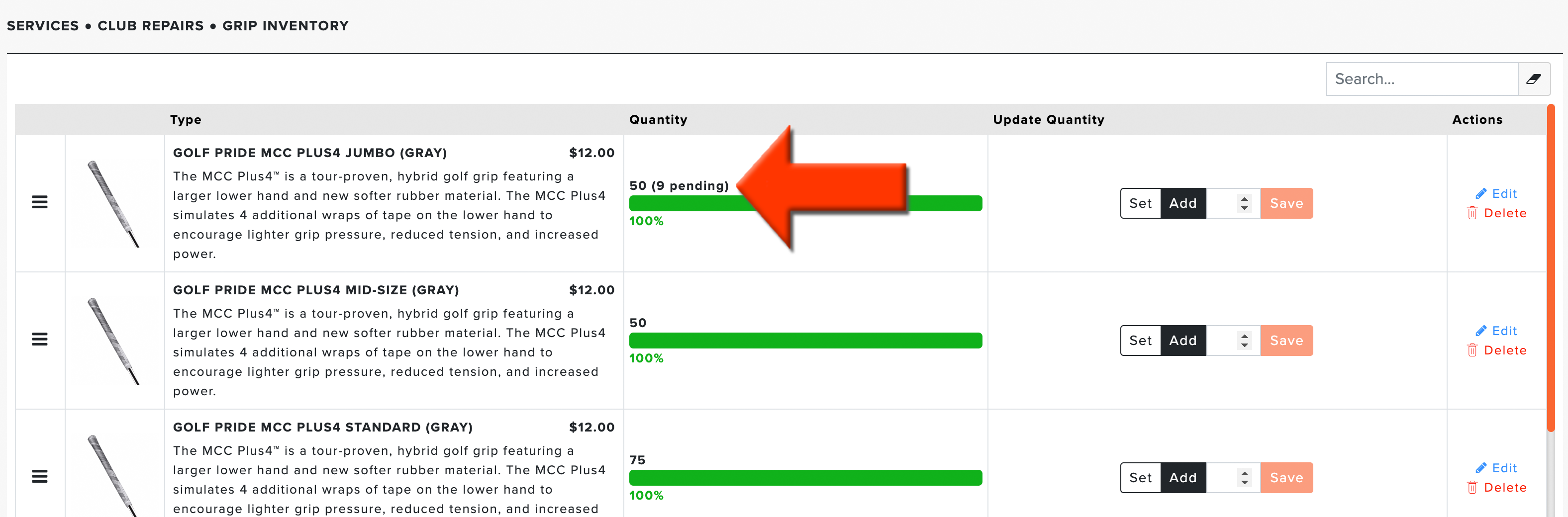
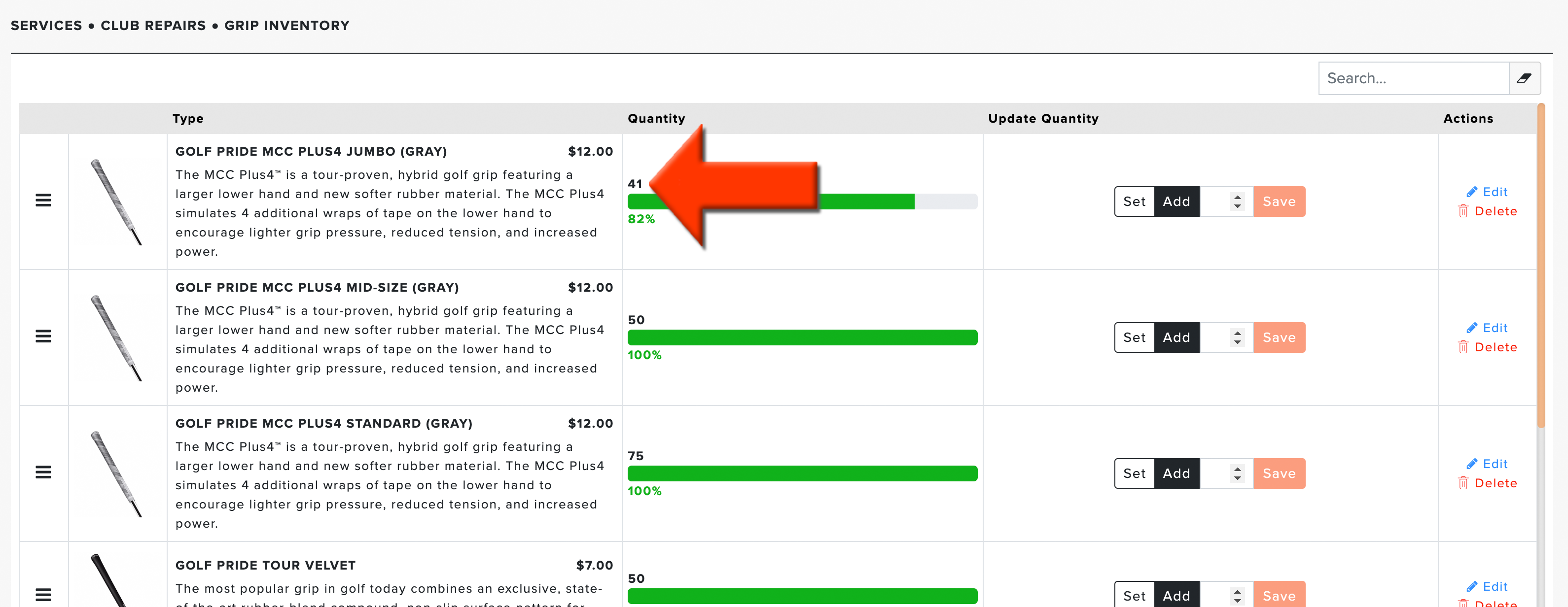
Quantity: The quantity column shows the current inventory and, in parentheses, the number of grips requested in repairs in the entered stage. The column also includes a quantity meter to visually represent the grip's availability. The meter will indicate the percentage of the current inventory relative to the PAR value specified for each grip. Note: PAR Level notification can be managed from the Club Repair General Settings. The meter will display the following colors based on a percentage of availability / PAR value, indicating when grips are getting low:
Green: 76-100% availability.
Orange: 51-75% availability.
Red: 0-50% availability.
Update Quantity: This feature lets you quickly update the grip quantity with fewer clicks. Choose between one of two methods to update the inventory:
Set: Sets the grip inventory to a specific value
Add: Adds the specified number of grips to the inventory.
Type in the value, and choose between the two methods. Click " Save" to update the quantity for that grip.
Actions: You will have the following available actions that can be taken on a grip:
Edit: Edit details for an existing grip.
Delete: Delete the grip.
Adding New Grips
(Note: For details on adding new grips in bulk via spreadsheet, Click Here.)
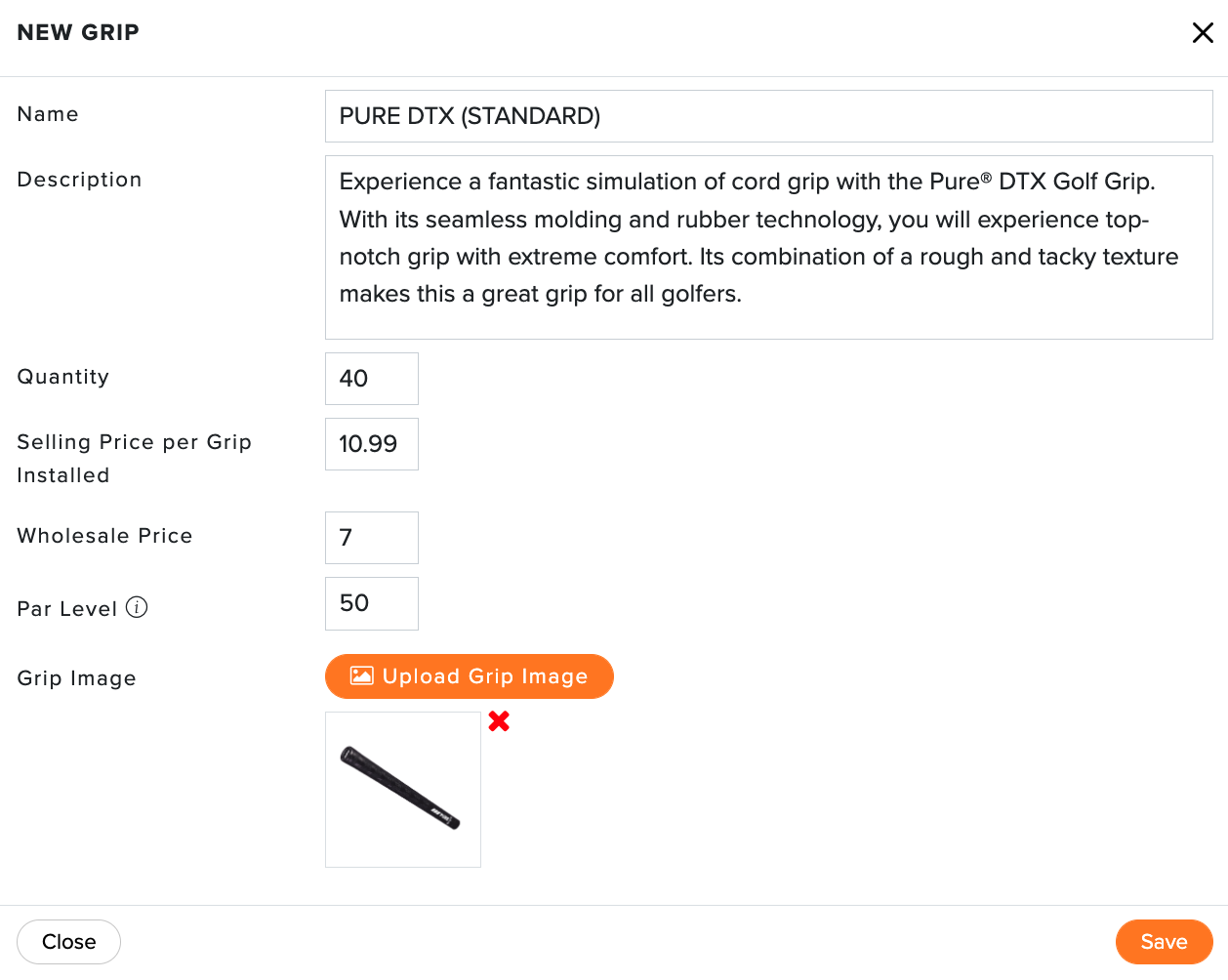
Your grip inventory includes a preloaded set of the most popular and commonly requested grips to help you get started. You can add additional grips to your inventory at any time. To add a new grip, follow these directions:
Go to Services > Club Repairs > Grip Inventory > New Grip (as shown below).

Fill in the following details:
Name: Name of the grip.
Description: Short description of the grip.
Quantity: Available inventory.
Selling Price per Grip Installed: The retail price of the grip to your members and guests.
Wholesale Price: The price for the grip when purchased from a manufacturer.
PAR Level: Periodic Automatic Replacement (PAR) is the minimum (and optimal) level of any given inventory item that should be on hand. Note: PAR Level notification can be managed from the Club Repair General Settings.
Grip Image: A visual representation of the grip. To load an image, click "Upload Grip Image," navigate to and select the image of the grip, and click "Open.
Click "Save" to add the grip to your inventory.
Selecting Grips for a Repair Order
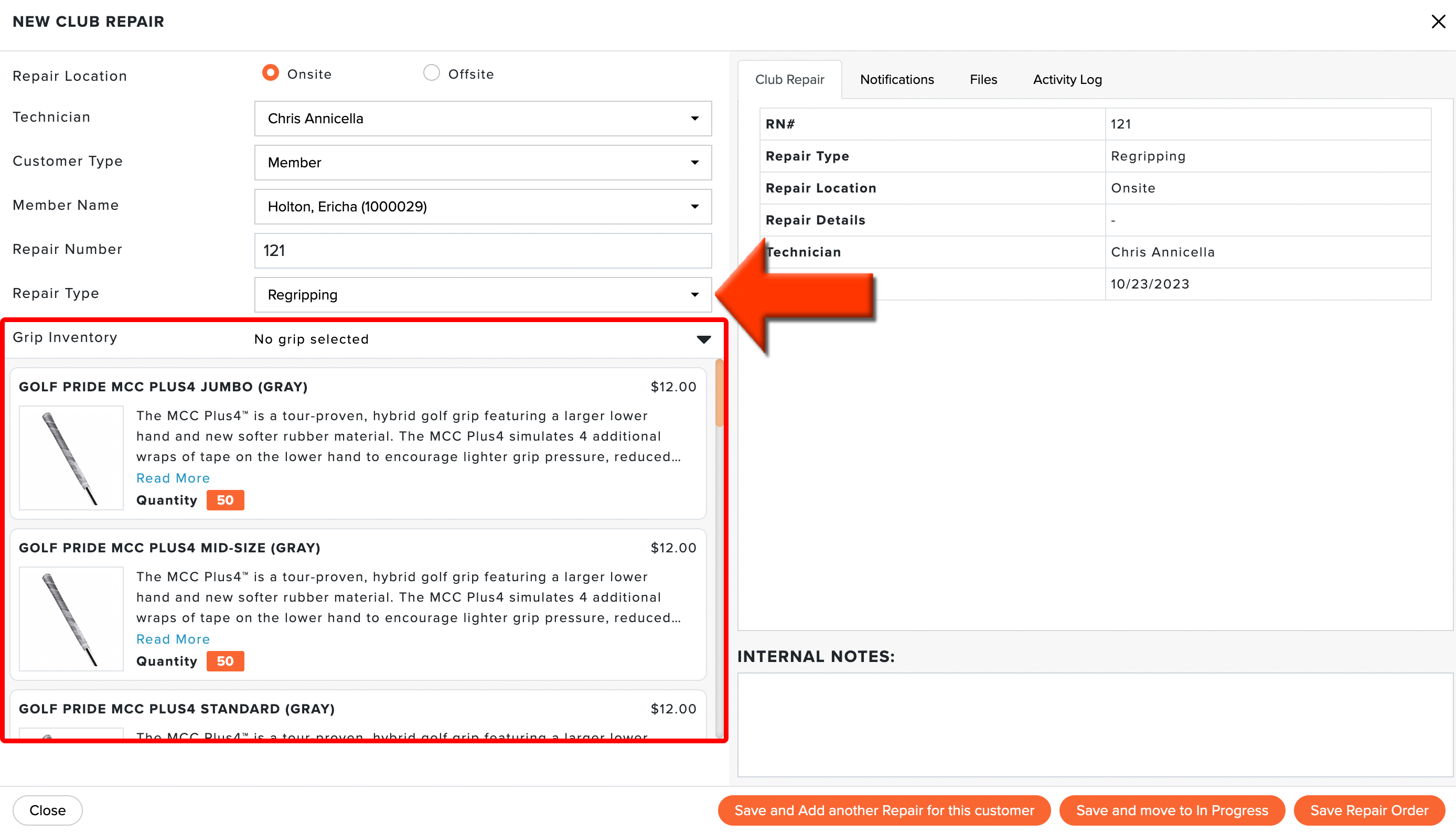
When entering a club repair order, you can select the club repair type "Regripping," which allows you to select a grip from your entered inventory (as shown below).
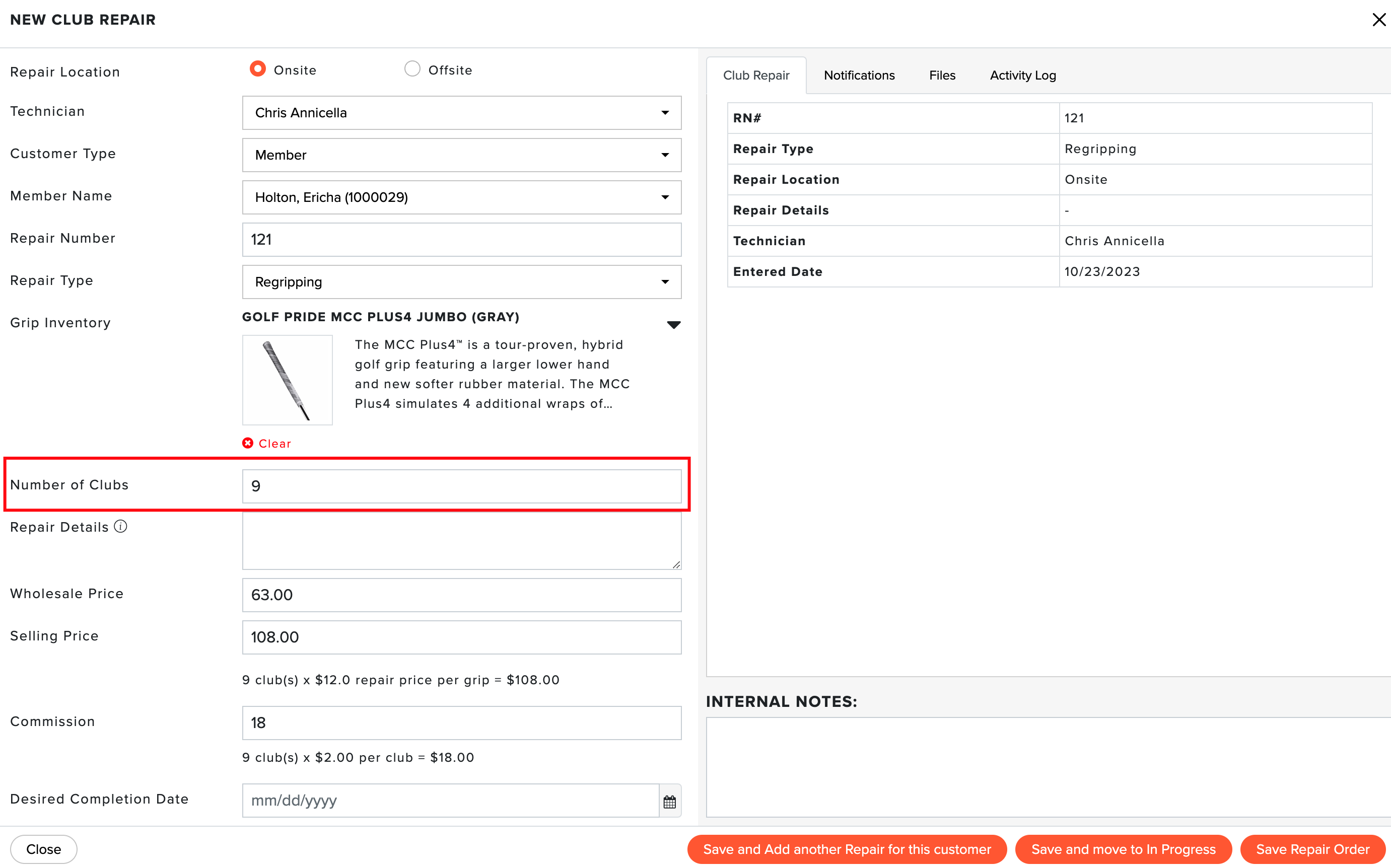
When selecting a specific grip from the inventory, you will want to define how many clubs will use that grip (as shown below).
Once a repair order for regriping has been entered and is in the "Repairs Entered" stage on the Club Repair Dashboard, the grips will be marked as pending on the Grip Inventory page (as shown below). As you can see below, since the order was for 9 grips, 9 grips have been marked as pending but have not been removed from inventory.
Once a repair order for regripping has been moved to the "Repairs In Progress" stage on the Club Repair Dashboard, the grips will be removed from inventory on the Grip Inventory page (as shown below). As you can see below, since the order was for 9 grips, the inventory has dropped from 50 to 41.
Editing Existing Grips
(Note: For details on editing grips inventory quantities in bulk via spreadsheet, Click Here.)
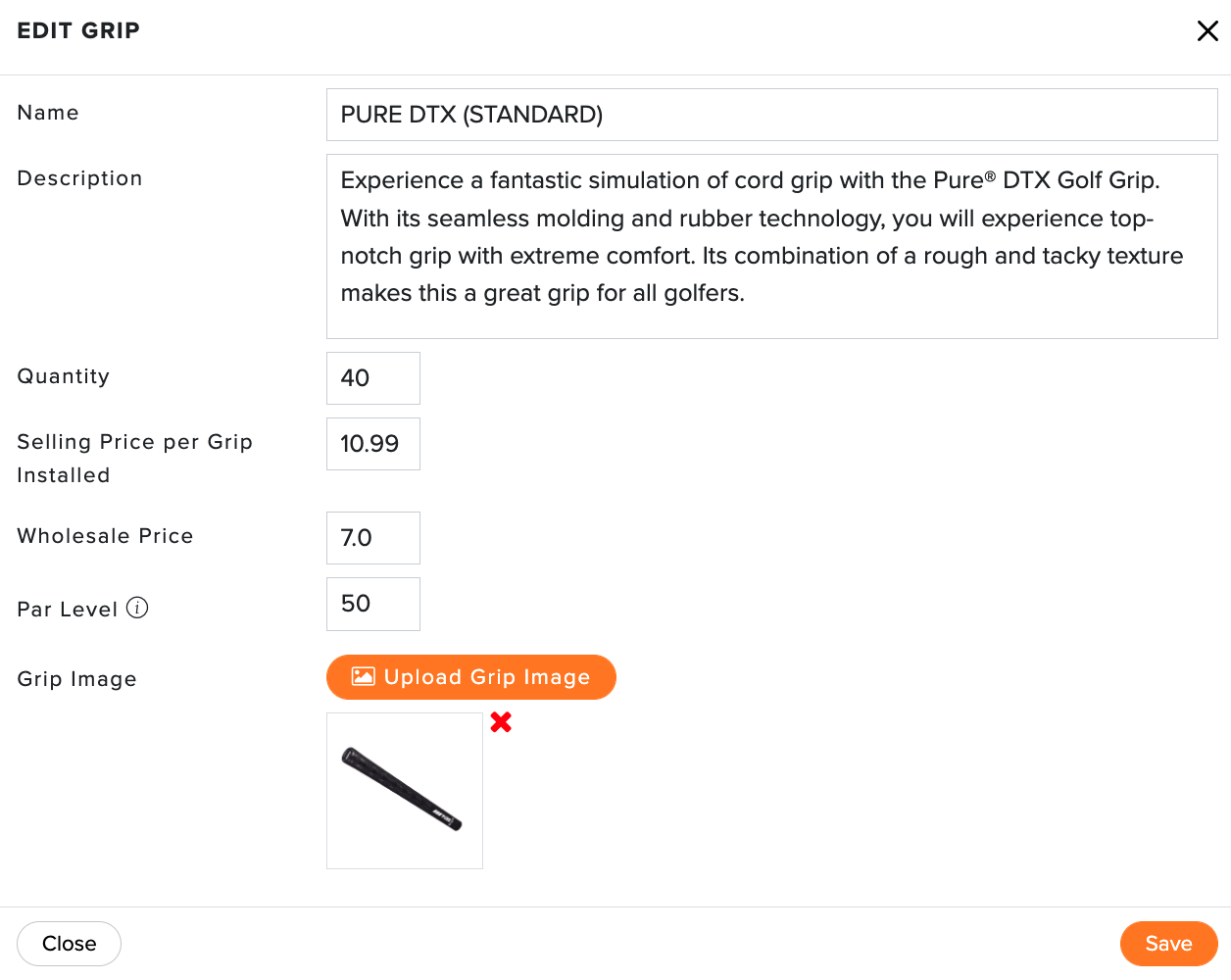
Occasionally, you may need to make changes to your existing grip details. To update details for your grips, follow these directions:
Go to Services > Club Repairs > Grip Inventory.
For the grip you wish to edit, click the action for "Edit" (as shown below).

Make the necessary adjustments.
Click "Save," and the updates to details will be saved for your grip.
Grip Inventory Settings
Several default settings can be updated to assist with grip management in the Club Repair Settings (as shown below).
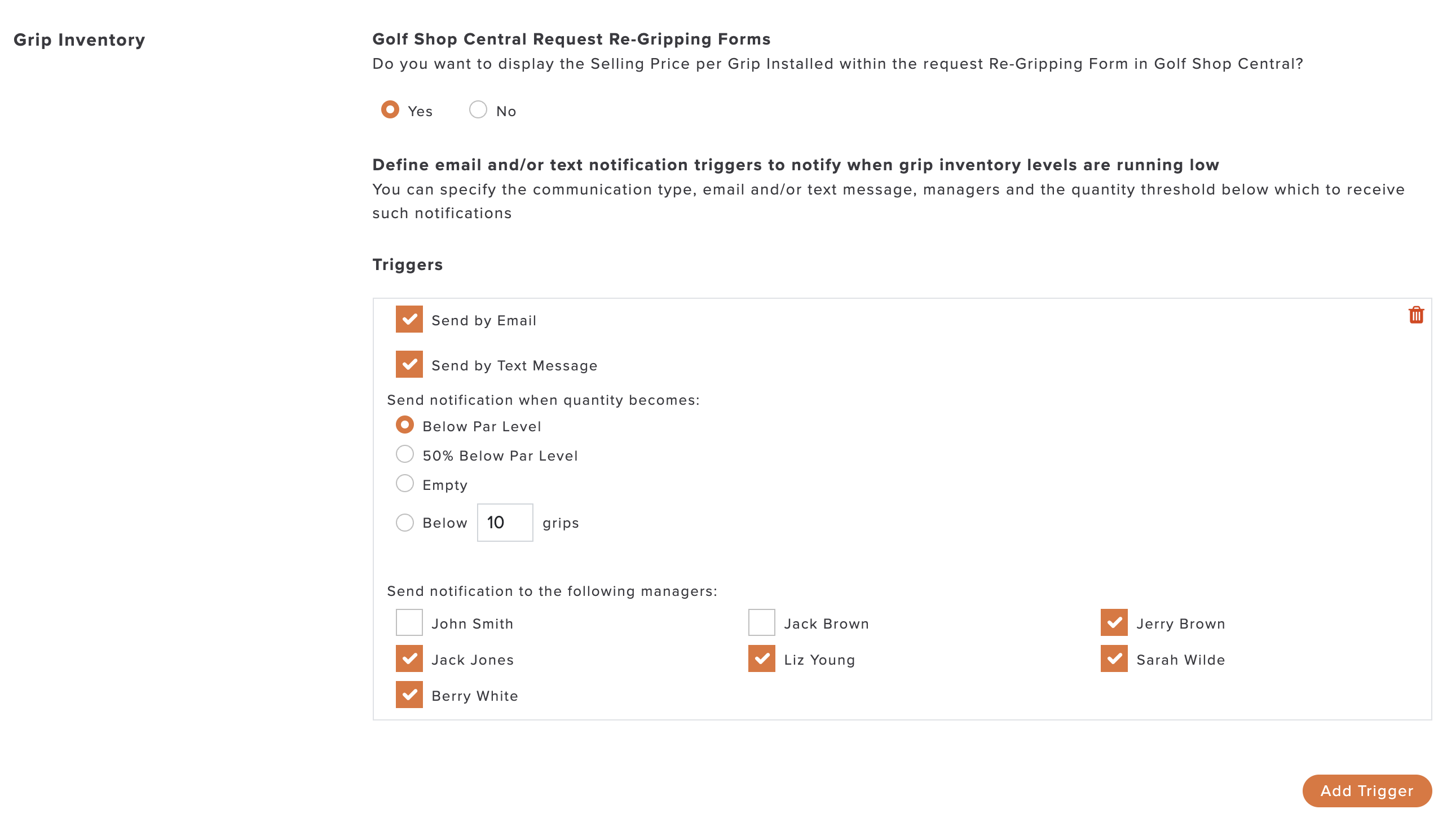
For complete details on managing grip inventory settings, Click Here.