The Club Repair General Settings comprise the default settings for Club Repairs. When creating a new club repair order, these settings are used as the defaults to:
Assign repair order numbers.
Set Default technicians.
Set the dashboard layout view.
Set the Finalized Repair Definition.
To define these defaults go to Services > Club Repairs > Settings.
Repair Number:
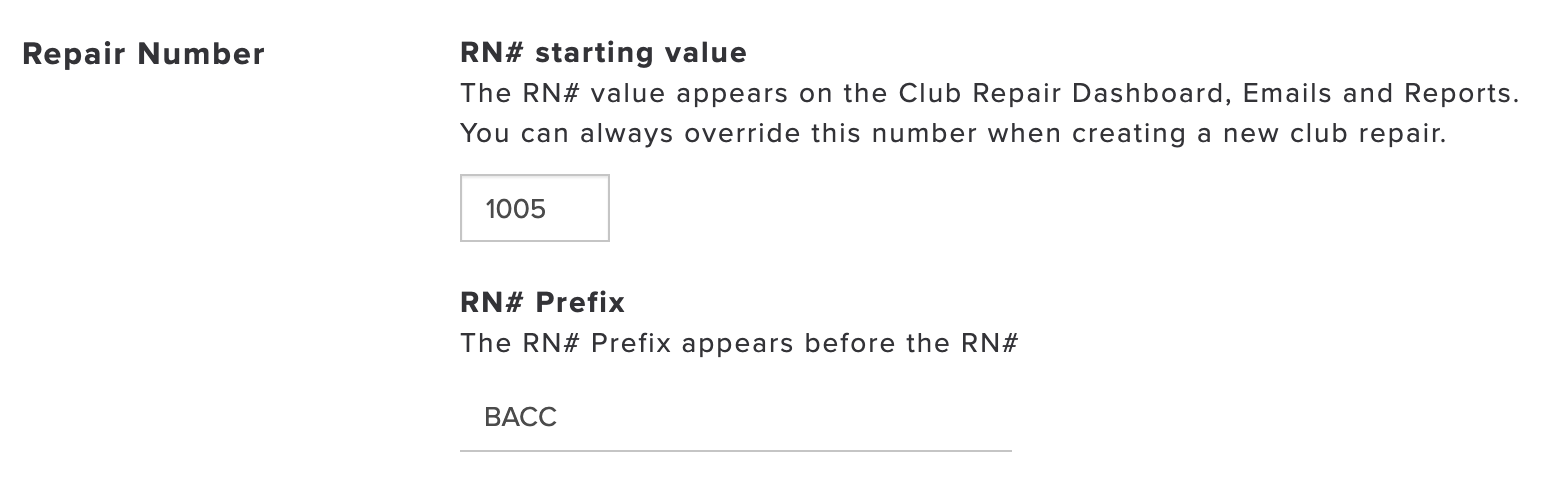
By default, the Club Repair number (RN#) start value is set to 100. However, when transitioning to Golf Genius - Golf Shop, you may already have a running value.
To align the value with your previous system, enter the RN# starting value for the first club repair to be placed in Golf Genius - Golf Shop. Optionally, you can enter a prefix to be included in the RN#. For instance, the first club repair placed in the example account below will be assigned the RN# of "BACC1005" (as shown below).
Technicians:
During the flow of a club repair order, you can leave the technician unassigned or assign a specific technician as the default for all new club repair orders. If you want to define a default onsite technician, select that technician from the drop-down (as shown below) or leave it as unassigned to notify technicians of a new club repair order that can be picked up on a first-come basis.
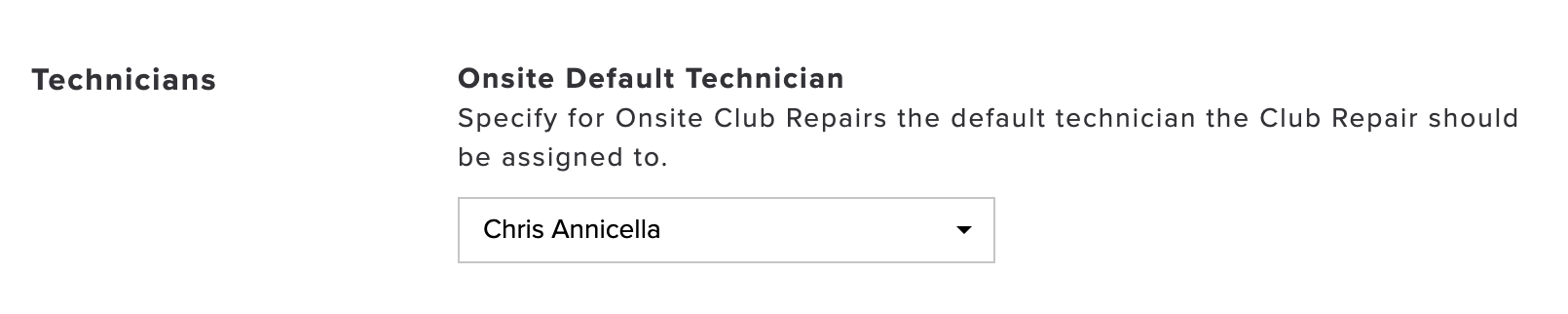
If a specific technician is defined, any new club repair will automatically be assigned to this technician by default. You can always select a new technician during the club repair entry process if you need to change technicians.
Dashboard Tile Layout:
If you have a large volume of club repair orders, you may prefer to see your club repair dashboard in a condensed tile layout so you can see more club repairs at once in each stage. When using the condensed view, only the Customer Name, Vendor/Technician Name, and Alerts will be displayed in each tile.

Finalized Club Repair Definition:
When finalizing a club repair order, certain conditions must be met for the order to be considered finalized. You can define what is regarded as a finalized order and align it with your actual club repair process. Only the checked options will be required to finalize a club repair order. These options will be shown in the "Repairs In Progress" and "Completed" stages of the club repair process.
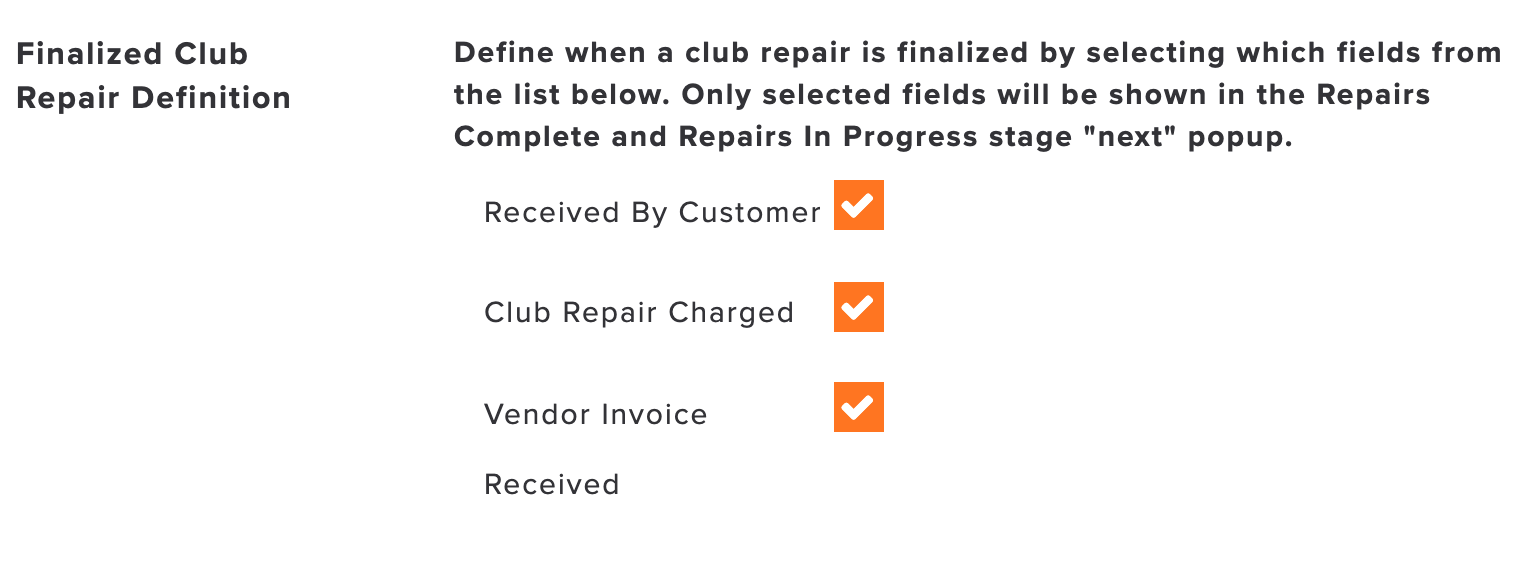
By default, a club repair is considered finalized when the customer receives the order, the club repair is charged, and the invoice is received. To change the defaults check or uncheck the boxes.
Once changes are made and saved, the new definition for a finalized order will be applied to the following:
Orders not already finalized. Orders that qualify as finalized by the new definition will be marked finalized.
Orders finalized in the last 24 hours are still visible on the dashboard. Orders not qualifying as finalized under the new definition will be marked as not finalized.
Grip Inventory:
You will have several options when managing your grip inventory (as shown below).
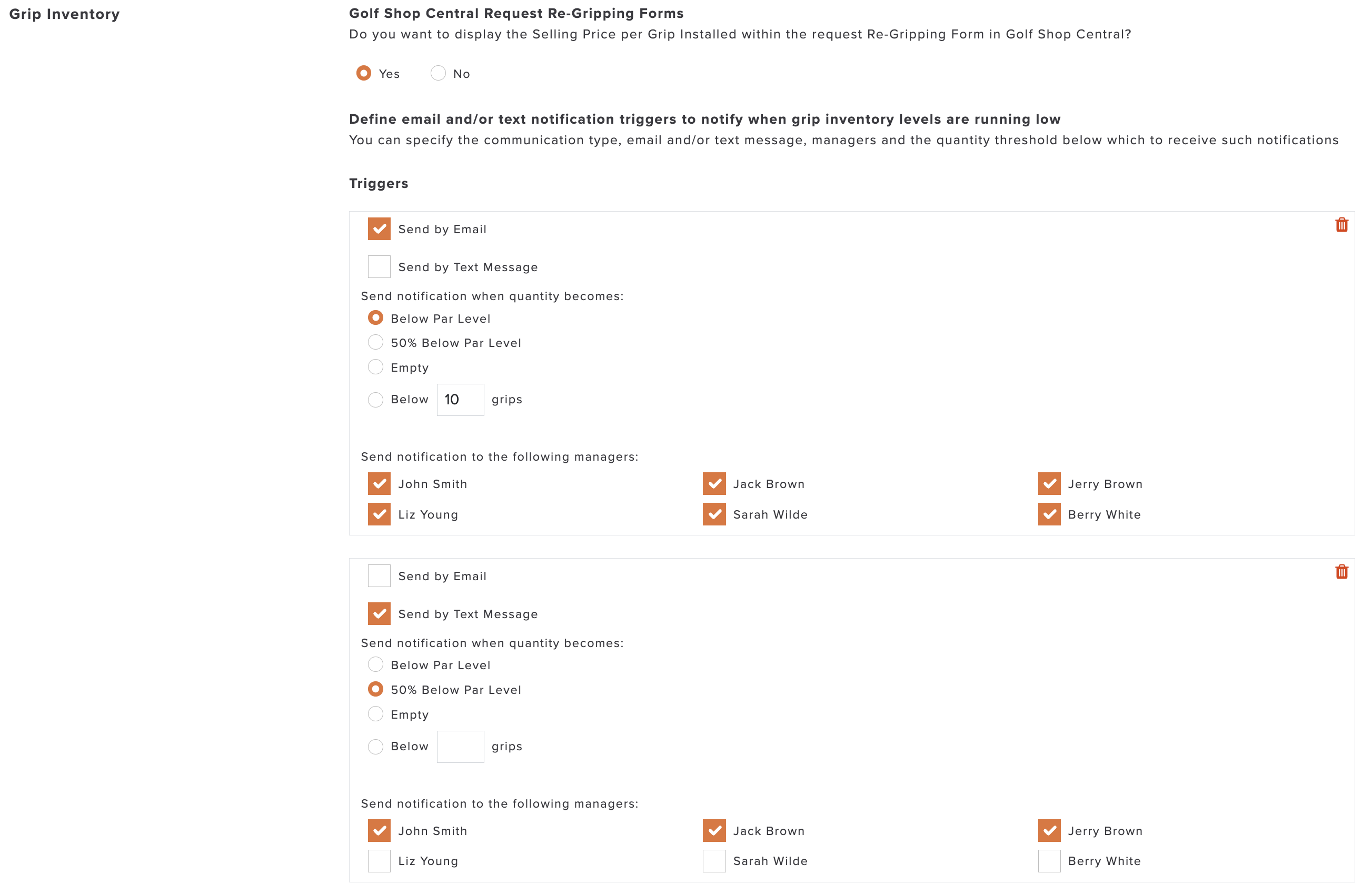
You can make adjustments to the following features to match your club's needs:
Member Portals Request Re-Gripping Forms: Define if you want to display the Selling Price per Grip Installed within the request Re-Gripping Form in Member Portals.
Define email and/or text notification triggers to notify when grip inventory levels are running low: Specify the communication type, email and/or text message, managers, and the quantity threshold below which to receive notifications.
To add additional triggers: Click "Add Trigger." Note: You can send triggers to email and text messages or one or the other. As a best practice, send an email when inventory gets low and later send a text when inventory gets critically low.
To remove a trigger: Click the "trash" can in the box for that trigger. Note: Remove all the triggers if you do not want to send these communications.
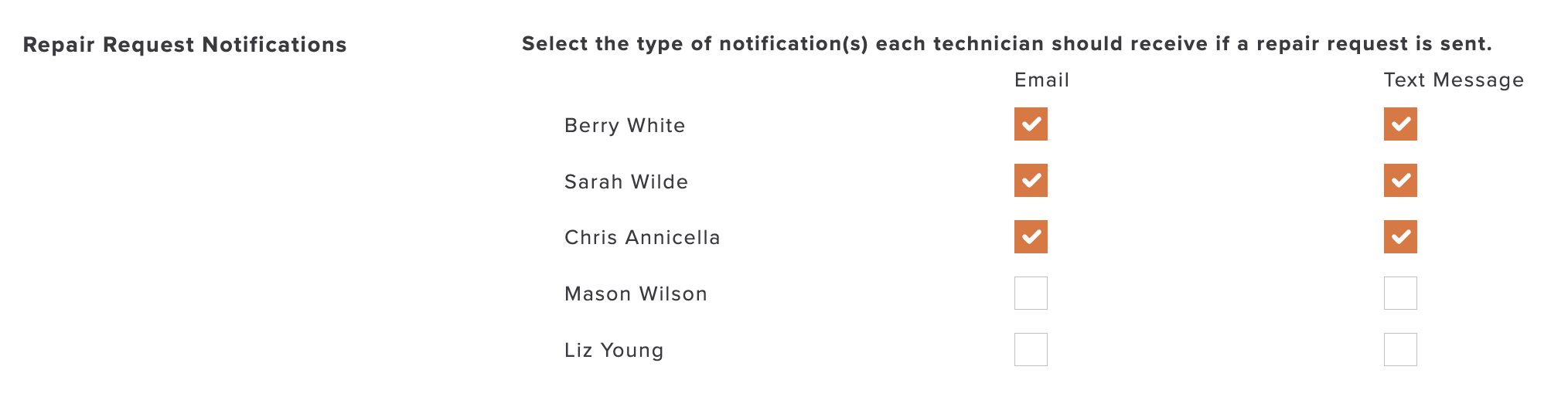
Repair Request Notifications
When creating a new club repair order and leaving the technician unassigned, you will be able to select technicians to be notified of the new repair order that can be picked up on a first-come basis. In the repair request notifications section, you can select the type of notification(s) each technician should receive if they are to be notified of a new repair request (as shown below).