
This feature is available for the following products:

Note: Stripe charges a small fee per transaction. Please visit www.stripe.com to see their current pricing.
When collecting payments via Stripe, you can invoice your players for anything you'd like. Typically used in independent leagues and tours, these invoices can be used to collect membership fees, lunch fees, or any other miscellaneous fee.
Contact your Golf Genius Account Manager to enable this feature.
In this article, we will discuss how to send player invoices, how players pay them, and how to view payments and print receipts.
Invoicing Players
To send player invoices, follow these directions:
Navigate to Event/League > Payment Center.
Make sure your Stripe account is connected.
Click "New Invoice Group."
Select or enter the following in the "Description" tab:
Name: Name the invoice. The name of the invoice will show up in the Event Payment Center and on receipts.
Payment Account: Select the Stripe account that you'd like to send the payments to.
Optionally configure the invoice email using Email Configuration.
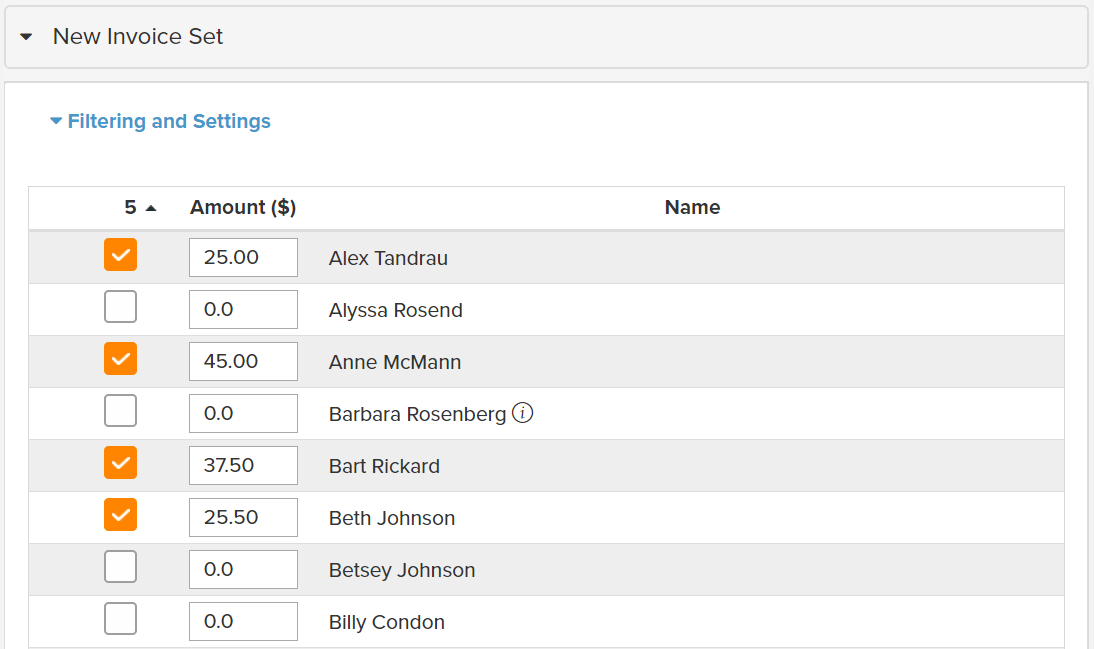
Click the "Amounts" tab to select who is invoiced and for how much. You can select the players individually and enter the fee (as shown below).

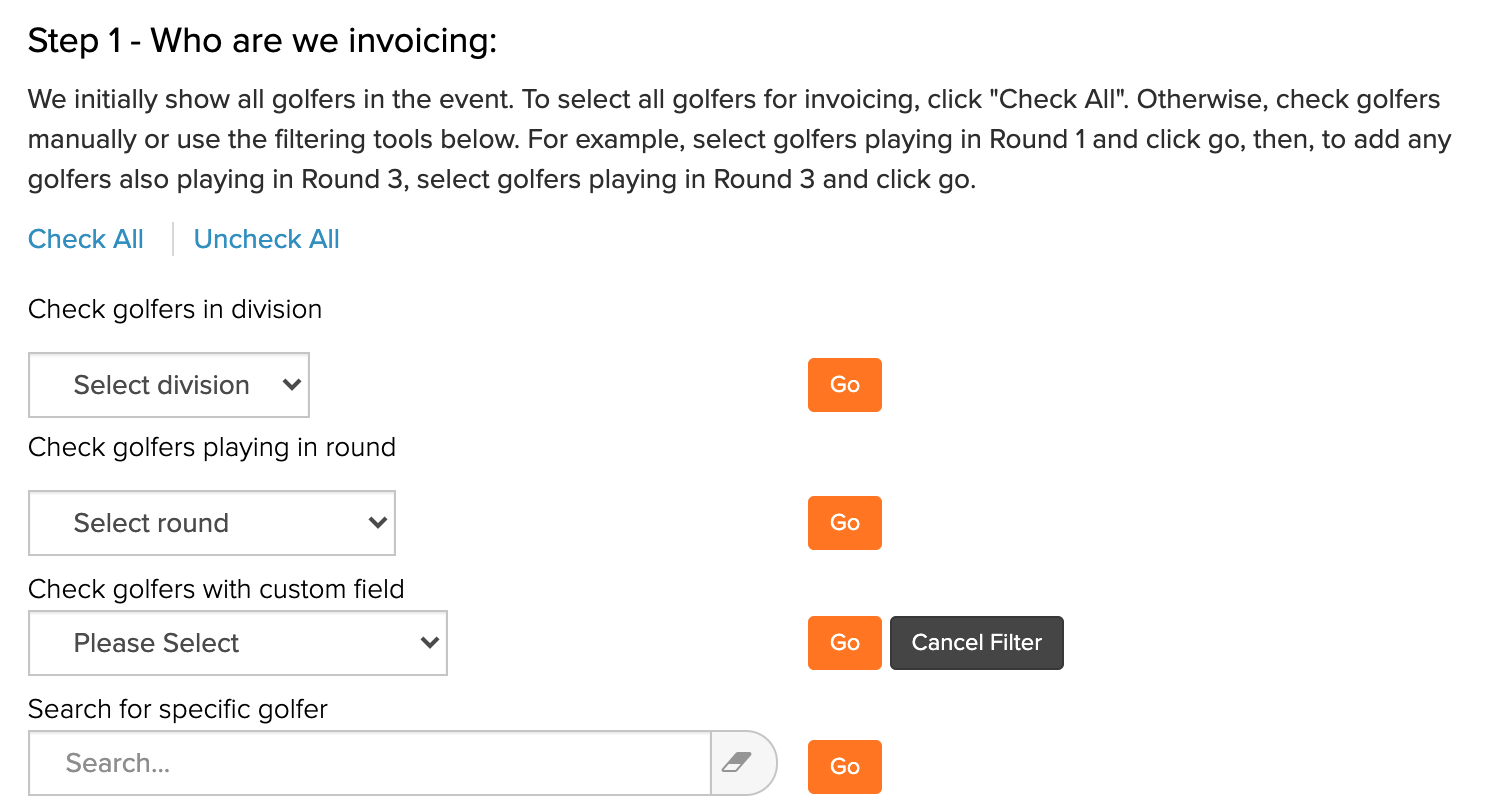
Or you can click "Filtering and Settings" to select players using other methods (as shown below).

Click "Check All" to invoice all players in the event/league. You can also filter by division, round, or custom field, or search for specific players and select them one at a time.
Determine who pays the transaction fees (as shown below). Note: This feature is not available in all regions.
Add credit card fee to invoice amount (gross up): In this case, the players will pay the credit card fees.
Do not add credit card fee to invoice amount: In this case, the credit card fees will be taken out of the invoice total.

Note: All transaction fees are determined by Stripe. Please visit www.stripe.com for the current pricing.
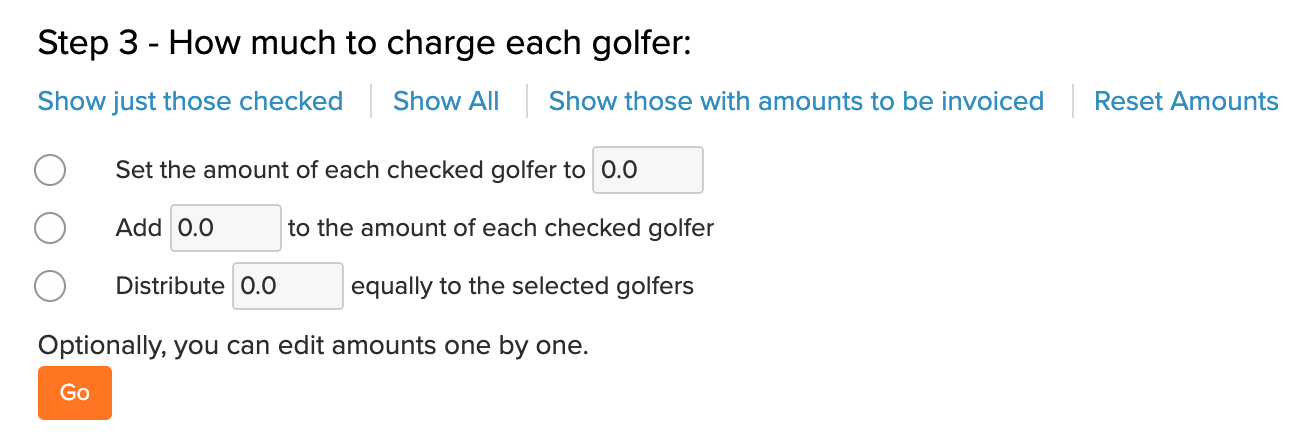
After selecting the players to invoice and who pays the transaction fees, select how much to charge each player (as shown below).

In the screenshot above, the amount is set to $25.00 for each player. If some players need to be charged an additional amount, re-check them and add the extra amount. To distribute a sum evenly among the selected players, use the third option. For example, if a banquet dinner costs $800 to host, you can split that cost among the selected players.
Click the "Reporting" tab and select the following:
Contact Person: The manager who will receive the email confirmations when a player pays the invoice. Available managers are grouped into Communication Officers, Customer Managers, Event Managers, and Tour Managers. By default, a single manager is selected in the following order:
Communication Officer: Selected when one is assigned to the event/league.
Tour Manager: Selected when no Communication Officer is assigned.
Manager Creating the Invoice: Selected when no Communication Officer or Tour Manager is assigned and the invoice is created by an Event Manager or Customer Manager.
None: Selected when none of the above applies.
You can change the Contact Person selection as needed.
Reporting Field: Optionally select a current (or create a new) custom field that will indicate whether the player has paid the invoice.
Click "Save." You will be prompted to email the invoices to players immediately. If you don't send them right away, you can send them later from the Payment Center by clicking "Actions" > "Send Email Invoices."

How Players Pay the Invoice
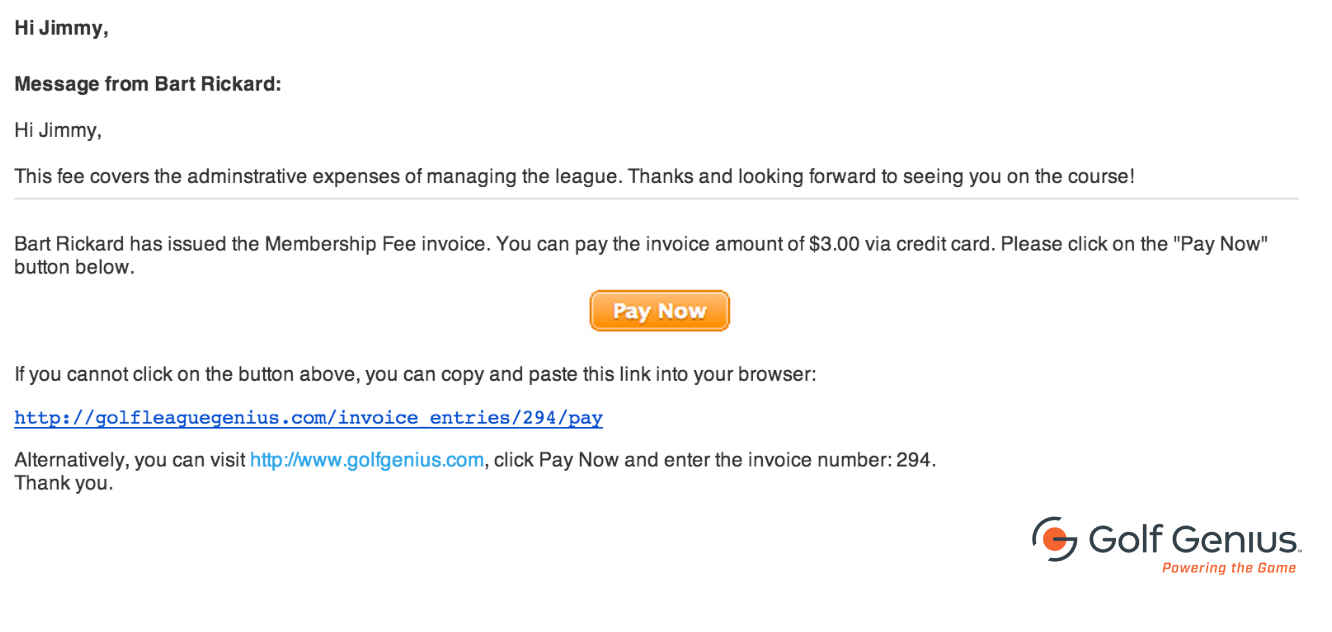
The invoice email players receive includes a link to pay (as shown below).
When players click "Pay Now," they are taken to the payment screen (as shown below).
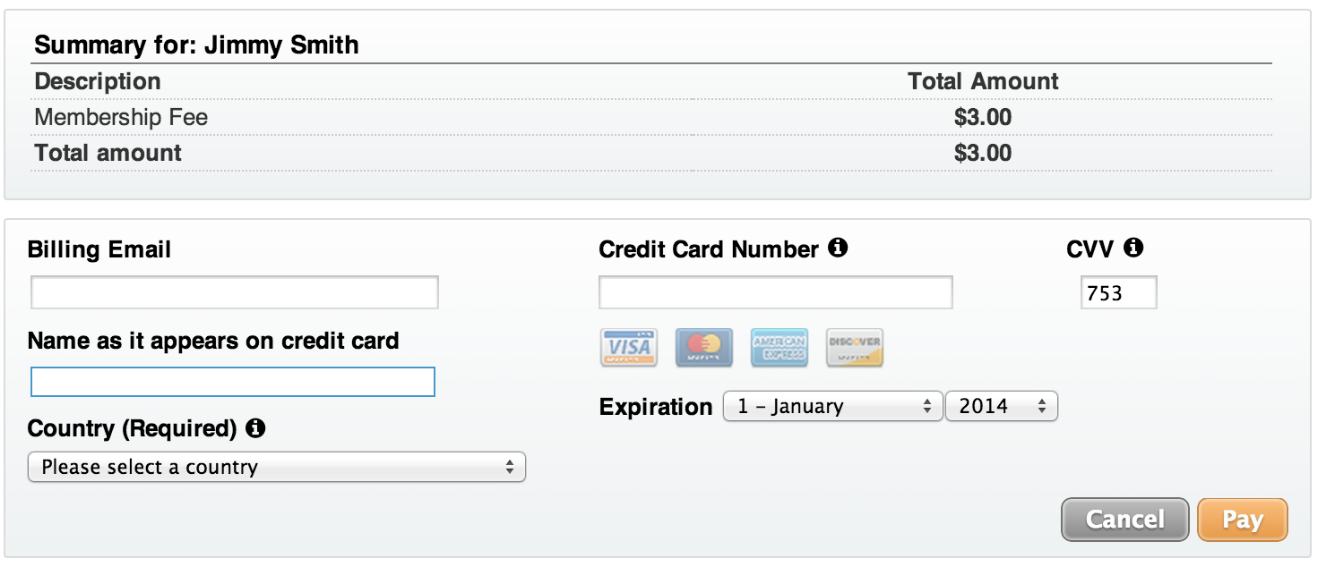
The player can then enter their credit card information and pay the fee. After payment, a confirmation email is sent to the Contact Person.
Note: The payment page is secure. No credit card information is stored on our servers, and all credit card information is transmitted via SSL to Stripe, our payment gateway.
Viewing Invoice Payments
To view an invoice group and its payments, navigate to Event/League > Payment Center and expand the invoice group (as shown below).
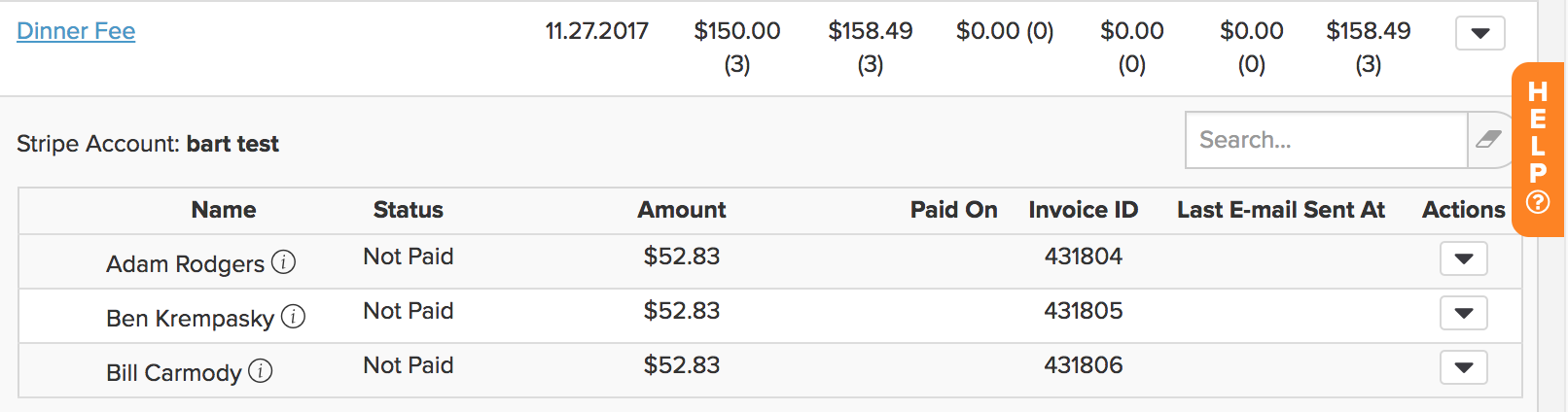
You'll see a summary of who was sent an invoice and who has or hasn't paid. Click the dropdown arrow next to a player to take action (as shown below).
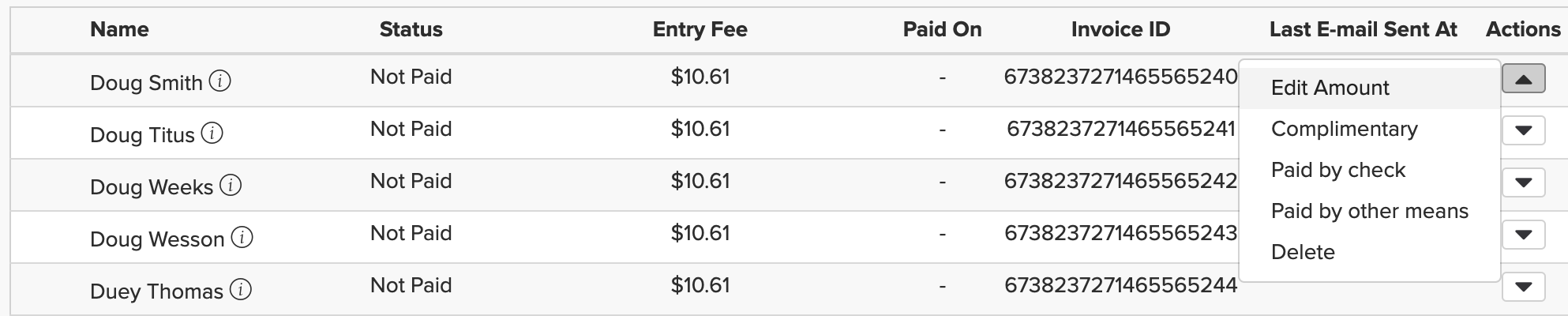
You can:
Email Invoice: Resend the invoice via email (if it has already been sent).
Edit Amount: Edit the amount.
Complimentary: Waive the fee by making it complimentary.
Paid by Check/Other Means: A player may pay you in person or by mail with a check or cash. If so, you can mark the player as "Paid by check" or "Paid by other means."
Delete: Delete the invoice.
Printing Invoice Receipts
Once a player has paid their invoice, a receipt can be printed from the following locations:
By the Manager
Payment Center: Navigate to Event/League > Payment Center, locate the invoice group, expand it, and click the "Actions" dropdown for the player. Select "Print Receipt" to generate the receipt.
Transaction History: Navigate to Event/League > Transaction History, locate the invoice transaction, and click the "Actions" dropdown. Select "Print Receipt" to generate the receipt.
By the Player
Players who have paid via invoice can access their own receipt from the Player Dashboard Portal Page on the Transactions tab. The paid invoice will appear in the list of transactions with a "Print Receipt" option.
The receipt includes the following information: event name, recipient name, order number, description, total paid, and timestamps for when the payment was made and when the receipt was printed.
Note: If Billing Details have been configured for the event, they will also appear on the receipt.