
Create a regular product with the correct price, VAT, stock and visibility, then check it in the shop.
Regular products are available in Go, Plus and Pro, subject to each plan’s product limit. You need product-editing access in the correct shop. Packages, services and gift cards can have separate conditions and workflows; do not choose another type merely to bypass a requirement.
Open a new regular product
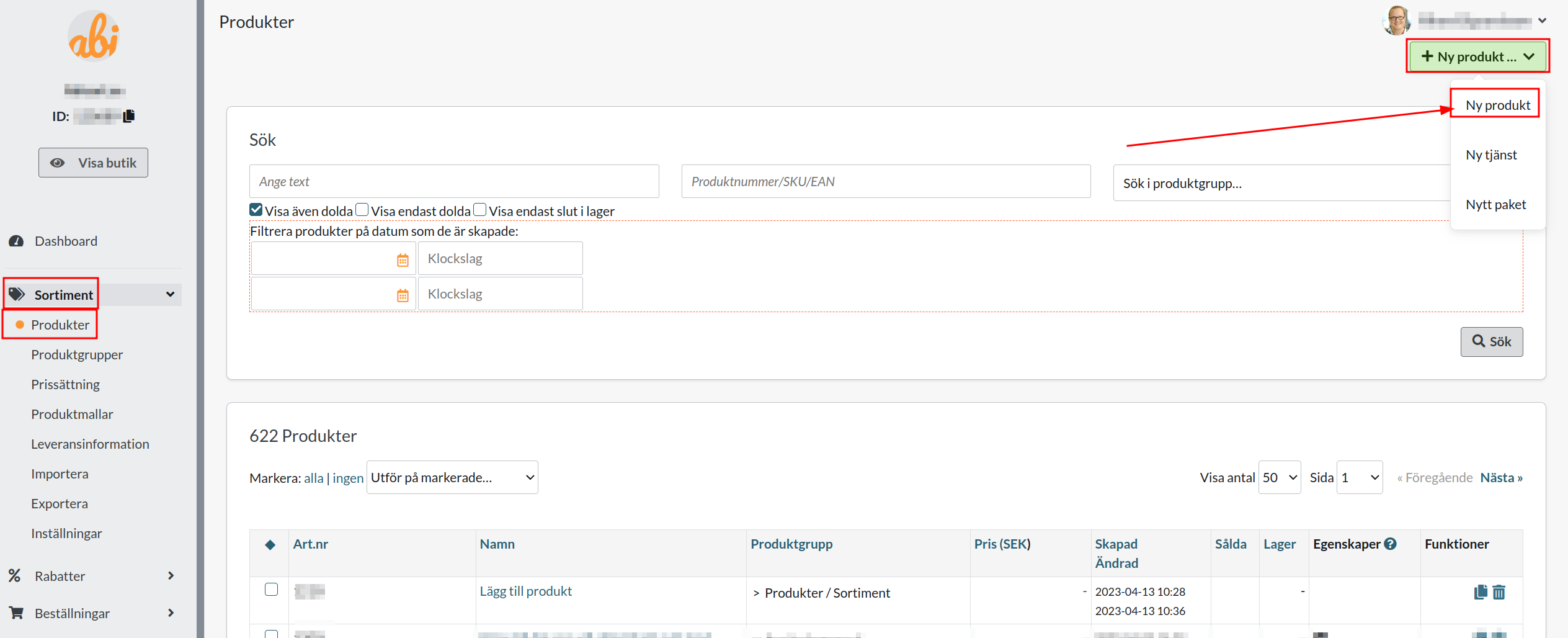
Open Catalogue → Products in the correct shop.
Select + New product and the regular product type.
Enter a clear name. Add a unique product number when the product needs identification in import, export or integrations.
Enter an introduction and accurate description of the actual variant, avoiding unsupported claims.
Check price and VAT
Enter the regular price and, where intended, a sale price. A sale price is a promotional price rather than an additional charge. Check whether shop prices are entered including or excluding VAT and select the correct default or product-specific rate. A price list or integration setting can affect the price the customer actually receives.
Set stock, delivery and quantities
Choose whether stock is managed, enter the correct balance and suitable stock messages. Check the shop’s rule for selling out-of-stock products. Enter the weight and other information required for shipping calculations. Incorrect weight or stock can cause wrong shipping charges or sales that cannot be fulfilled.
Check minimum and maximum purchase quantities and the quantity increment. An increment is not by itself a variant or a description of package contents. Use the appropriate variant model for sizes or colours rather than conflicting free-text instructions.
Choose group, template and visibility
Select the appropriate product group and, where relevant, product template and Google taxonomy. Product templates and customer-specific files can require particular access. Check the hidden setting and product type. Saving does not automatically place the product correctly in every shop or language.
Add clear images and relevant descriptions. Mark the product new only when intended. Check that import or integration data does not simultaneously overwrite your manual work.
Save and check the customer view
Save the product.
Open the correct shop and language and check its name, images, group and visibility.
Check the regular price, any sale price and VAT for the correct country and customer type.
Check quantity and any choices and that the product can be added to the basket as intended. Do not complete a real purchase merely to inspect product text.
Quick start
Choose the correct shop and regular product type.
Enter the name, identifiers, price and VAT.
Check stock, shipping, quantities, group and visibility.
Save and inspect the actual product page.
Regular products are available in Go, Plus and Pro within the plan’s product limit. Check specialized types, templates and add-ons separately.