
Get started with Kustom Checkout and choose the right action for reserved, charged, canceled, and refunded purchases.
This guide is for store administrators on Go, Plus, and Pro plans. Kustom Checkout is available in all three current plans, but it requires an approved agreement from the provider and the correct payment method to be activated. Payment methods, markets, customer types, fees, and risk conditions are governed by your Kustom agreement. The theme does not replace these conditions.
1. Prepare and apply for the right store
Kustom Checkout gathers payment options at checkout, such as invoice, installment payments, card, and direct payment where the agreement and market support them. Do not assume that all options are offered to every customer. An approved purchase does not imply an unconditional promise of compensation in all situations; read the agreement's risk and delivery terms.
Connect your own domain. Do not use the demo store's automatic domain in the application.
Open Dashboard in Abicart Admin and start the Kustom application.
Fill in the company details for the company that will receive payments.
The application box may contain older Klarna terms in the screenshots. Verify that you are connecting the Kustom Checkout agreement and the correct store.
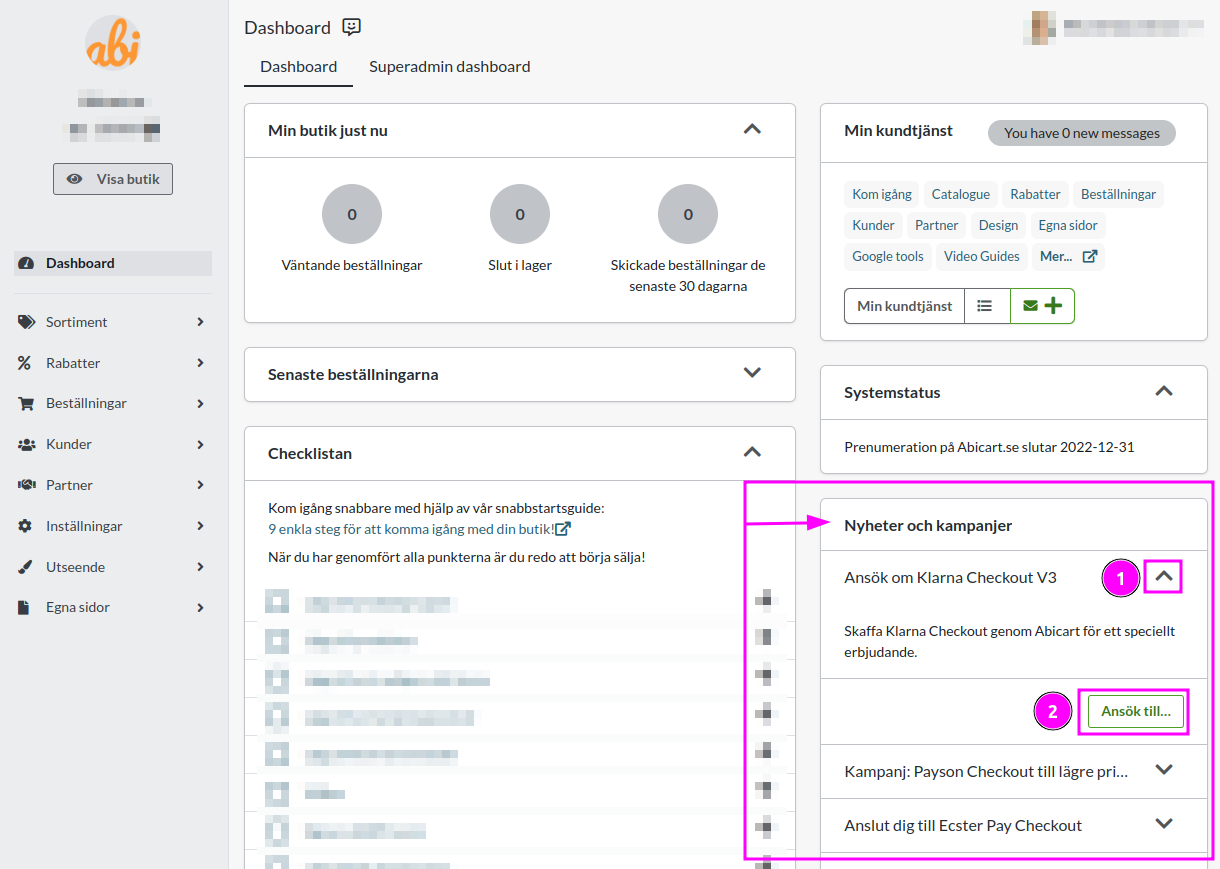
Complete the KYC/AML supplements in the application box and provide the requested bank details there.
Follow the status and supplement notifications in the admin. The processing time depends on the application; do not count on a general 24-hour promise.
When the connection is approved, check the method under Settings → Payment methods → Kustom Checkout.
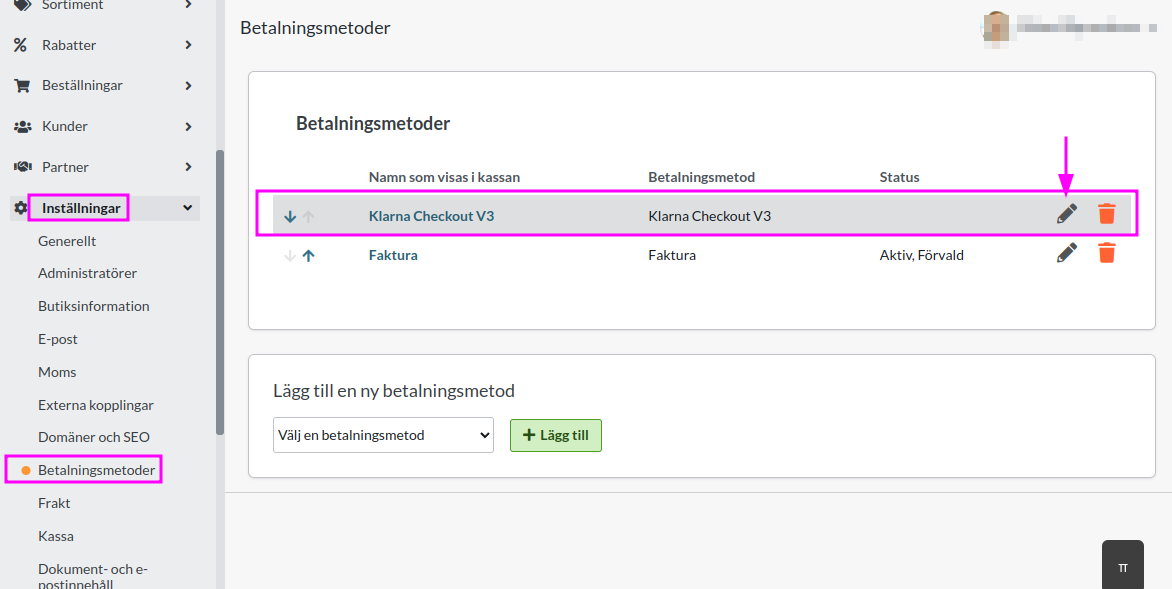
If the application box is missing: check that you are in the correct store and contact Abicart Support. Do not remove an existing payment method to make the box appear. Describe which box is missing and if the store already has a Kustom connection. Support can check the application link and how it should be handled along with the existing connection.
2. Activate and check the checkout
Check the agreement's approval and the method's settings for the correct store, customer type, and market.
Activate the method when it should be displayed in the store.
Follow the test procedure shown for your specific connection. Determine if it is a test or live environment before any order is placed; a live order can reserve or charge real money.
Check the provider's actual order/payment status. Simply marking an order as paid internally does not prove that the connection is approved or that payment has been made.
Do not reactivate a method just because a certain number of hours have passed. Go by the connection's current notification. Fees, payout days, and settlement are checked in your agreement and your settlement reports; they are not the same as the order's status in Abicart.
3. Charge when the order is ready to ship
Charge (Kustom Checkout) charges the entire remaining amount for the payment. The action does not automatically select the items included in a partial delivery. Follow the steps for partial delivery below if only part of the order is to be shipped.
Open the order under Orders and verify that it has actually been paid/reserved via Kustom Checkout.
When the entire remaining order is to be shipped: select Charge (Kustom Checkout) in Perform actions and select Perform selected actions.
Check the result in Abicart and the Kustom portal. In the order list, the lightning icon can open corresponding actions; check the selection before you perform it.
Mode/action | What to distinguish between |
Reservation | An approved payment reservation is not the same as a completed charge or payout. |
Charge/capture | The provider action activates the payment/invoicing. An internal 'Paid' or 'Shipped' marking does not replace it. |
Cancel | Use the correct action for an order that can still be canceled with the provider. Check the result. |
Refund | A payment that has already been charged needs the correct refund action; it is not enough to change an internal order status. |
For partial delivery
Open the correct order under Orders in the Kustom portal. Check the order reference and previous charges.
In the English portal view, select Capture and then Capture by item. Select only the order lines being shipped now.
Check the lines and amounts before you select Confirm.
Reconcile the charge in Kustom and document the corresponding handling in Abicart. Do not use Abicart's regular charge button to charge the same partial delivery again.
Charge the remaining items when they are shipped later. Do not use multi-order Full Capture or Abicart's regular Charge action as if they applied only to the partial delivery. Always reconcile previous captures before the next action.
4. Cancel, change, or refund without duplicate action
To cancel an entire order that can be voided: open the order and use the cancel action. Verify that the Kustom payment has also received the correct result. A denied or uncertain provider action should be investigated before a new attempt.
Partial cancellation may need to be handled in the Kustom portal. Plus/Pro may have order editing in Abicart, but a changed total amount is not in itself proof of an updated payment. Check reservation, charge, or refund separately. If you make the change in the portal, it is not generally transferred back to Abicart: reconcile and document both systems without charging/refunding a second time.
The Kustom portal contains new Kustom orders; older Klarna history may need to be read in the Klarna portal. Use the correct portal and reference for the current order.
5. Multi-store and business customers
In a multi-store setup, the application is made for the correct sub-store, not the main level. Check Store system → Settings → Custom payment methods are set for each store before you connect.

Selling to businesses requires that the connection supports that customer type. A customer account or B2B package in Abicart does not automatically activate businesses as a customer type with Kustom. Check with Kustom which agreement and market conditions apply to your specific connection.
Quick start
Connect your own domain and apply for the correct store.
Complete the company/bank verification and await actual approval.
Activate the method and follow the correct test/live procedure.
Charge when shipping and reconcile each provider action separately from the internal order status.
Subscription and access
Kustom Checkout is available in Go, Plus, and Pro. Provider agreement, approval, market, and customer type determine the actual payment access. Order editing and multi-store have their own conditions; a Kustom agreement does not automatically provide access to all other Klarna/Kustom products.
