As your list of current and past (i.e., finalized, deleted) club repair orders grow, it is important to be able to find and access the repair information quickly. You can do this by searching for repairs on the Club Repair Dashboard. When searching, you can use one of the two methods to search for and filter club repair orders:
Quick search
Advanced search
In this article, we will provide instructions on using quick search and advanced search to filter and find club repair orders.
Quick Search Club Repair Orders:
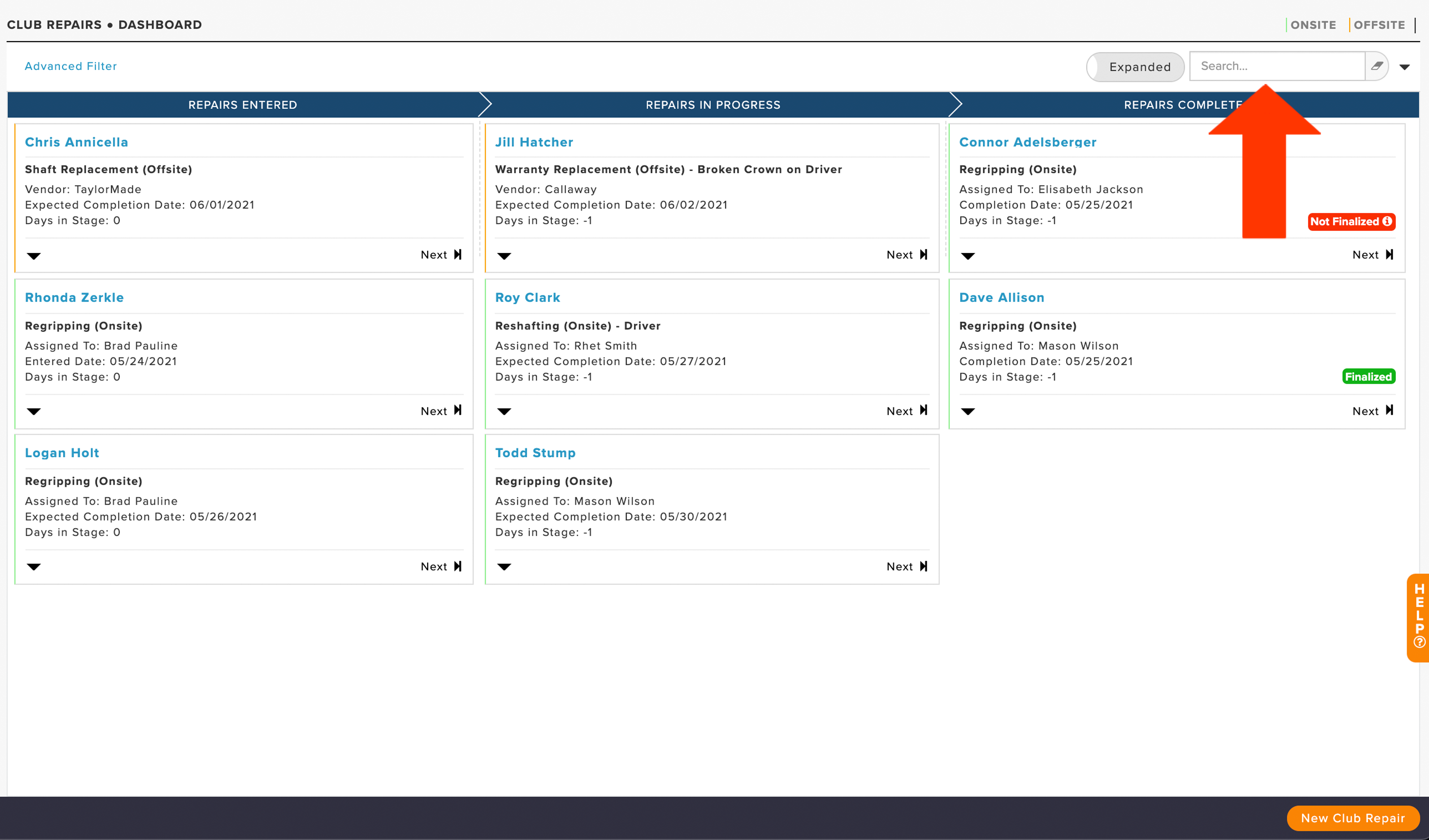
If you are looking for a club repair order currently on the Dashboard, use the "Search Dashboard" box at the top of the Dashboard by navigating to Services > Club Repairs > Dashboard. The quick search looks only at repairs on the Dashboard and allows you to search by member/guest name, vendor, repair type, repair number, or other information (as shown below).
Advanced Search/Filter:
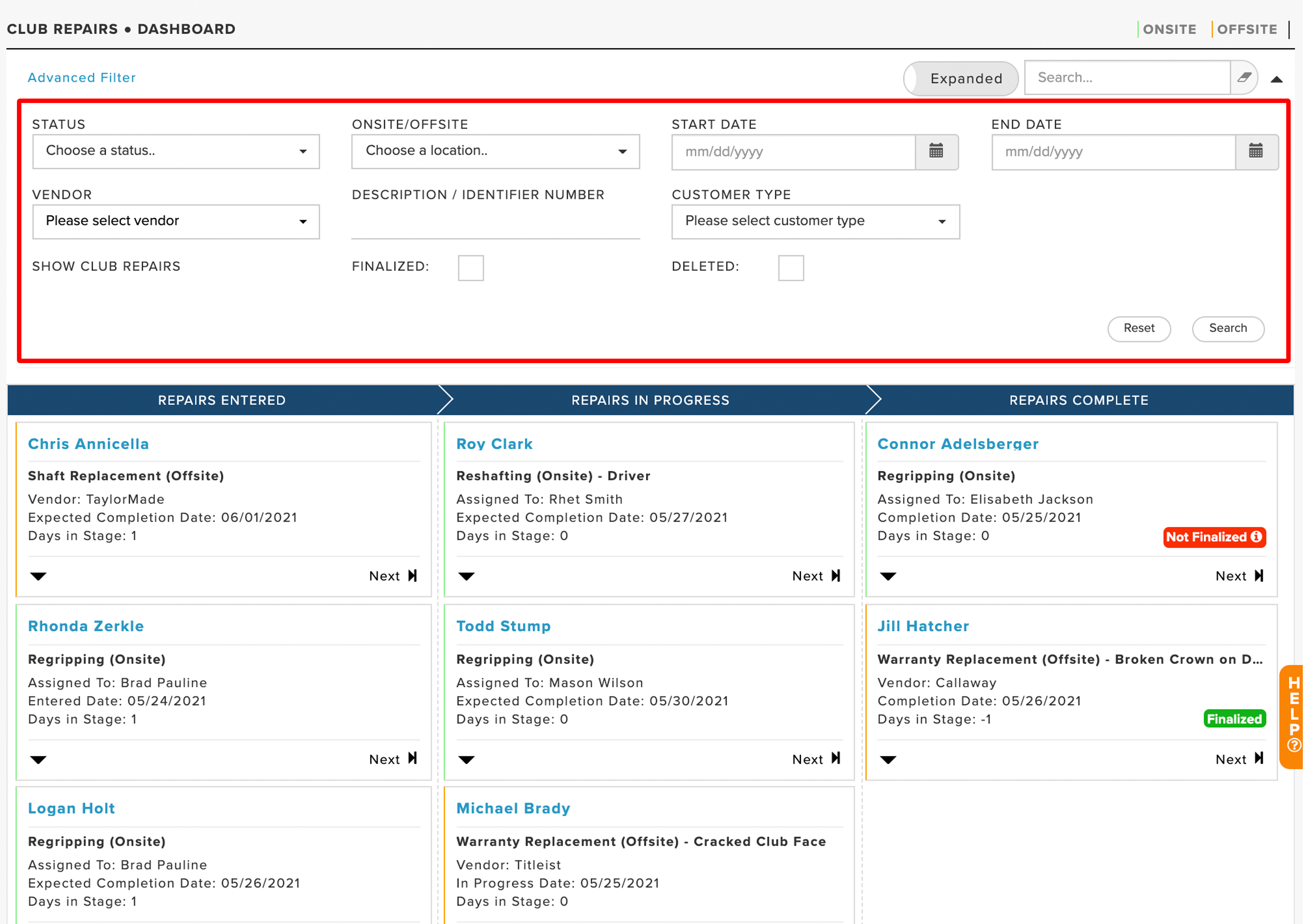
When using the advanced filter, you will also be able to search for finalized and deleted repair orders. To search all club repair orders, current and archived, follow these directions:
Navigate to Services > Club Repairs > Dashboard > Advanced Filter.
Select one or more search filters:
Status: Filter by order status (e.g., Repairs Entered, Repairs Complete, etc).
Onsite/Offsite: Filter more specifically by the location the repair was made. For instance, if filtering by "Offsite," only orders that were sent to your repair vendors will be displayed.
Start Date: Filter by repairs created within a date range.
End Date: Filter by repairs created within a date range.
Vendor: Filter by one of the vendors on your club repair vendor list.
Search Club Repairs: Search by repair details, RN#, and more.
Customer Type: Filter by customer type (member or guest).
Show Finalized Club Repairs: Display repair orders that are completed and finalized (archived repairs).
Show Deleted Club Repairs: Display repair orders that have been deleted.
Click "Search".
The filtered repair order results will then be displayed (as shown below).