
The club repair dashboard allows you to place, manage, and view all your club repair orders. It is important to review the club repair dashboard before going through the club repair process. To access the dashboard, go to Services > Club Repairs > Dashboard.
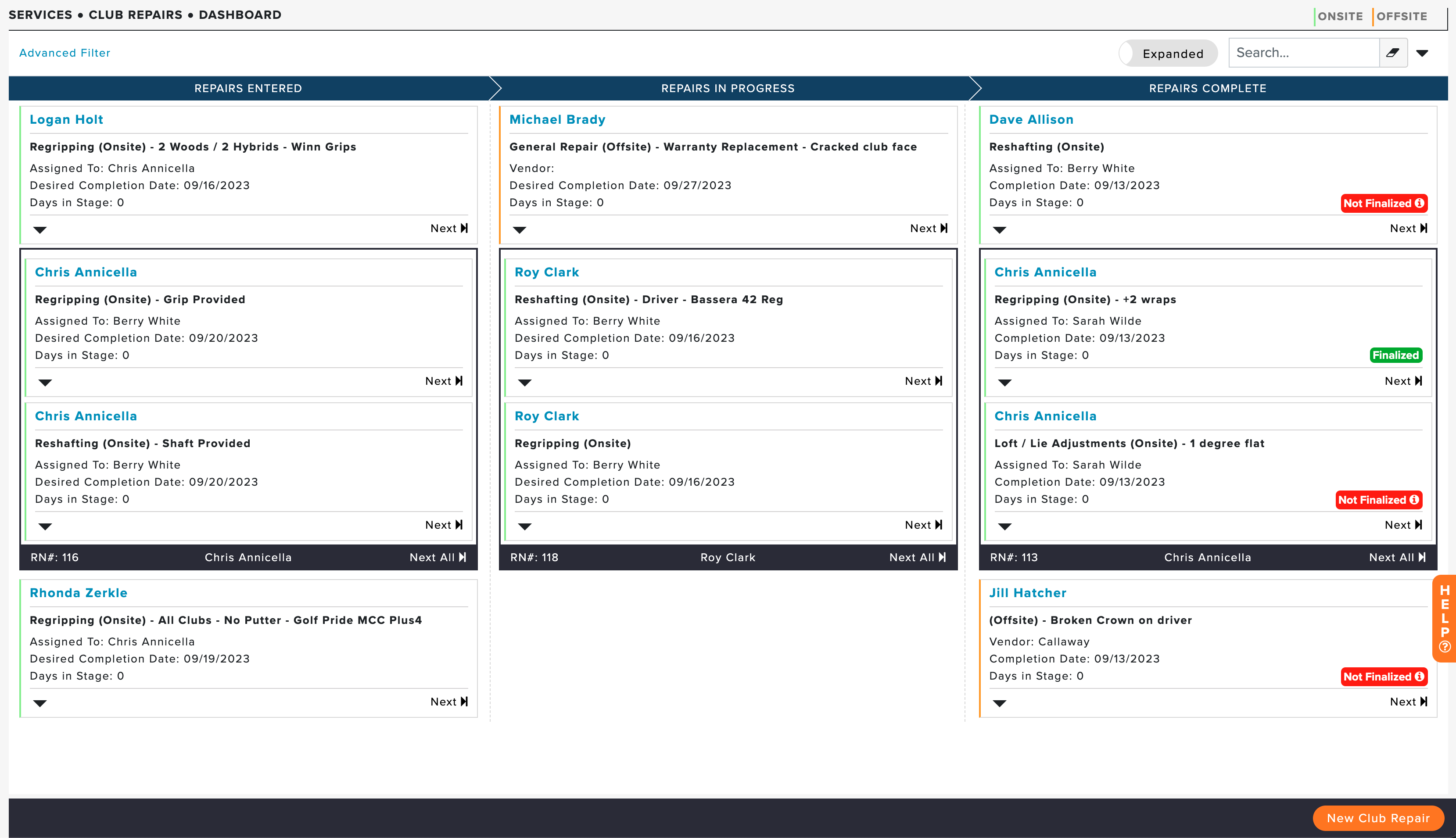
On the dashboard, your club repair orders will be organized into the following stages:
Repairs Entered: Club repair information entered but not yet started by a technician/vendor.
Repairs in Progress: Club repair is in progress with a technician/vendor.
Repairs Completed: Club repair has been completed by the technician/vendor.
In this article, we will discuss dashboard views, repair order action options, alerts, quick searches, and more.
For more details on the club repair process, Click Here.
Dashboard Views
Pipeline View (Default)
The club repair dashboard is organized in a pipeline view, showing the club repair orders in stages sorted by RN# (as shown below).
Condensed Pipeline View
The Condensed Pipeline View of your Club Repair Dashboard displays more compact tiles that list the member's name, vendor or technician, and any important alerts. If you want to make the condensed view the default, you can make that change by updating the club repair general settings. For more details about changing the default view, Click Here.
Clubs with a high volume of repair orders may prefer to change the Dashboard view options on the top right to a condensed view (as shown below).
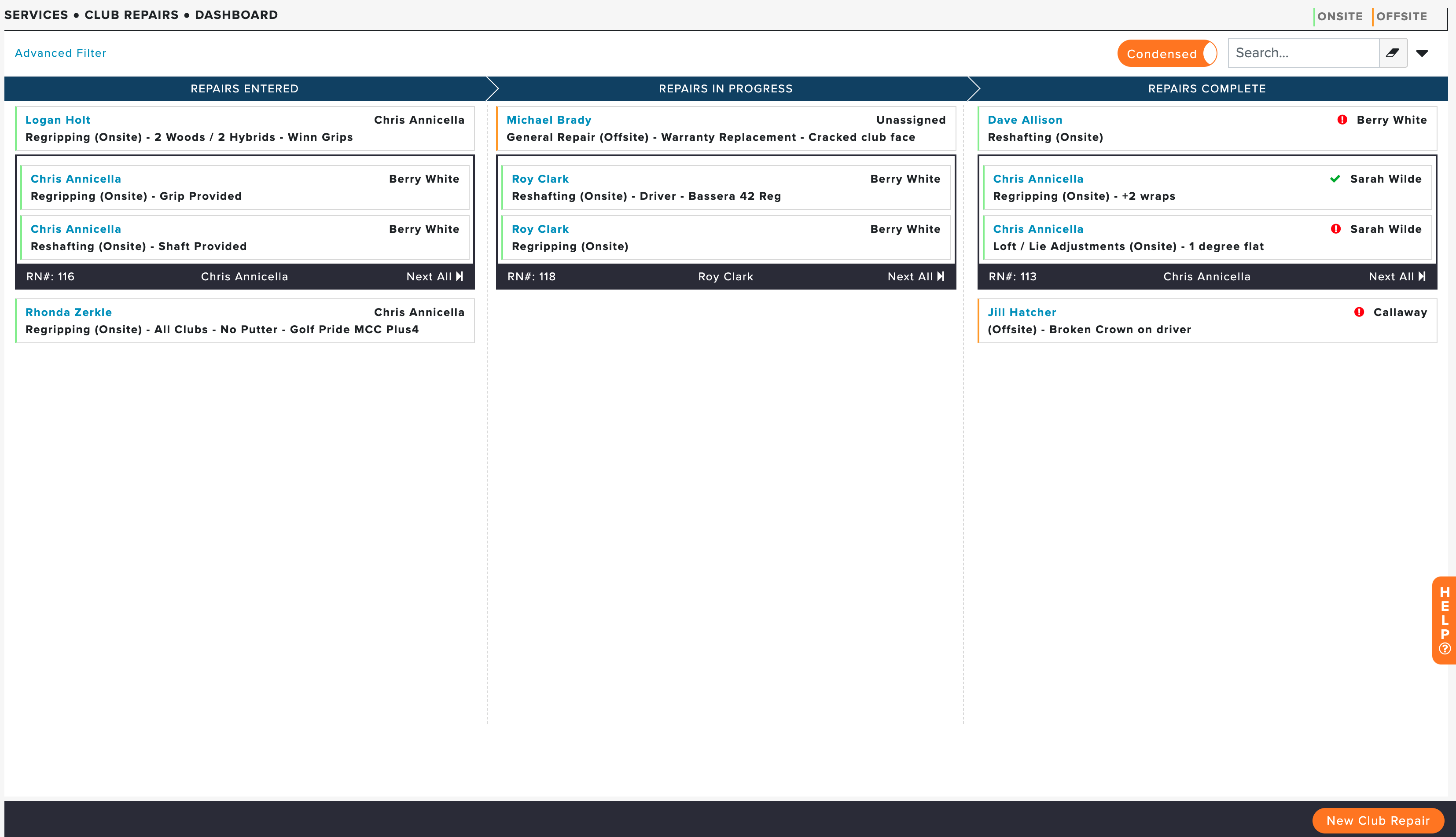
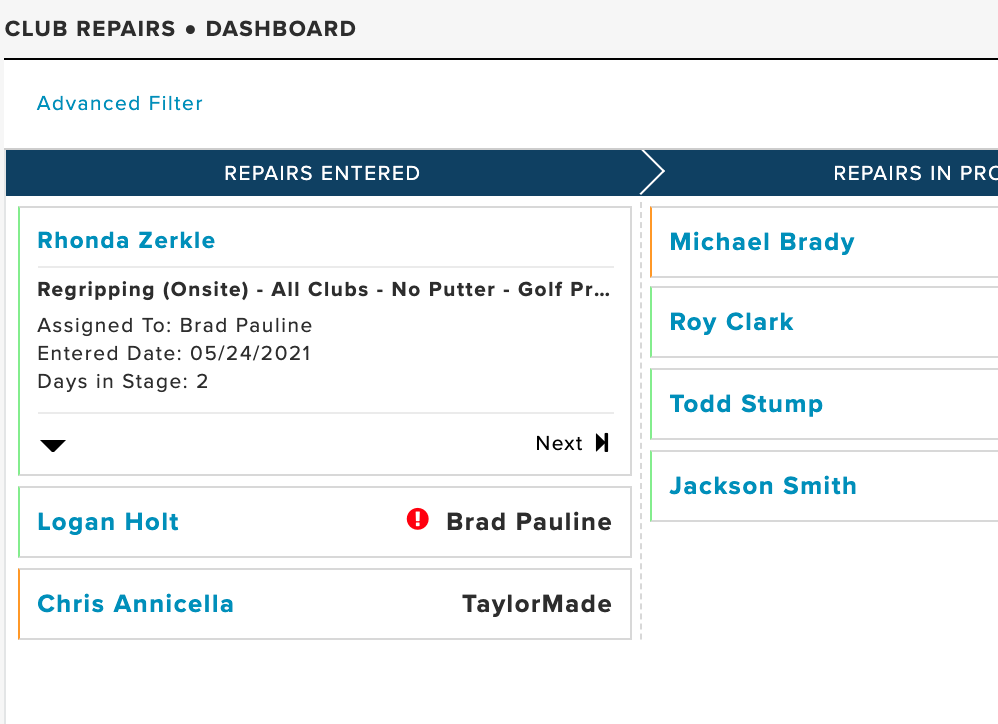
The screenshot above shows a condensed view of repair orders. When using the condensed view, you can view additional details about the order by clicking on the order tile (as shown below).
Club Repair Order Actions
Each repair order has a quick action options menu. Click on the action drop-down to edit, send an email, and more (as shown below).

Note: Depending on the view, the drop-down might be in a slightly different location but will have the same options.
The following quick actions are available:
Edit: Edit the Repair Order.
Add another Repair for this customer: Allows you to quickly create another repair order for the customer.
Print Repair Labels: Print a club repair label to attach to the repair items for easy identification.
Print Club Repair Report: Print a paper report of the club repair order.
Send Email: Email the member/guest regarding the repair order.
Delete: Delete the Repair Order from the dashboard.
Club Repair Alerts
In some instances, you may notice that a repair order is tagged with a purple, red, or green flag (as shown below).
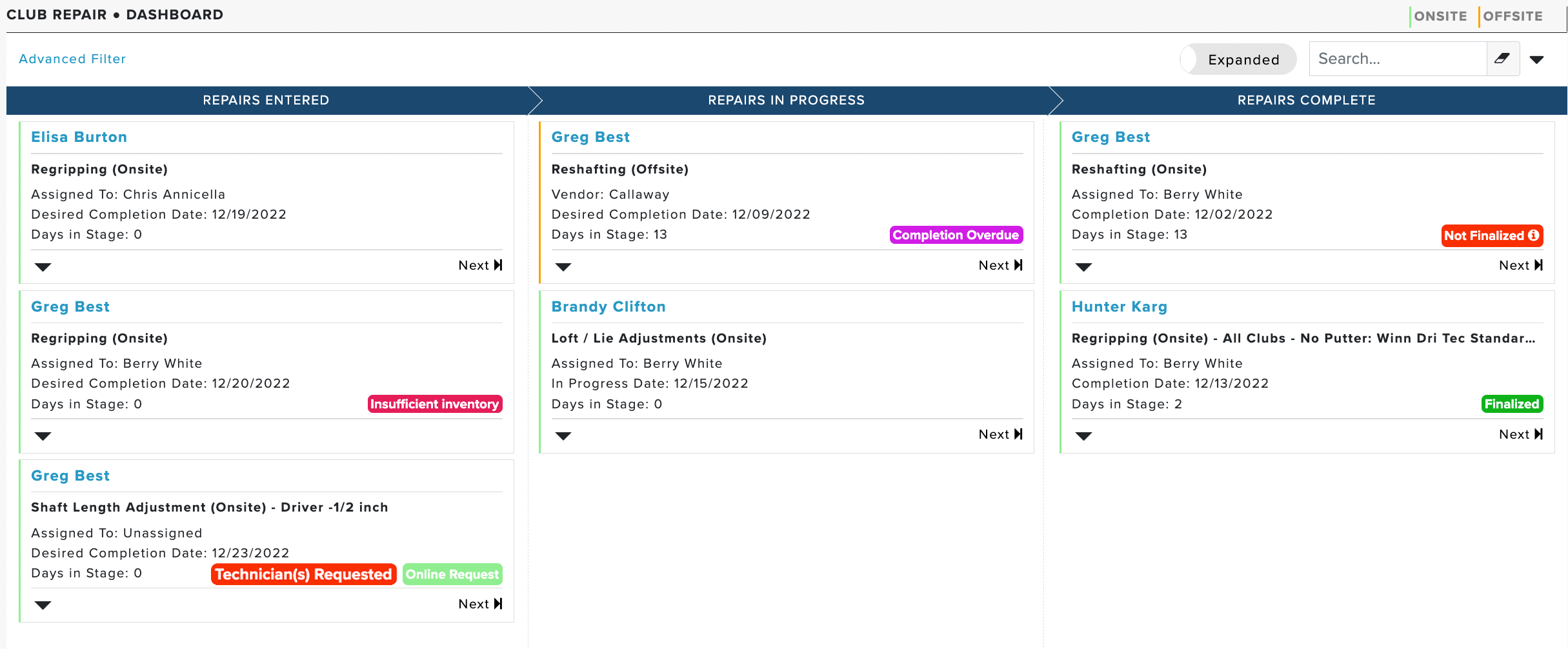
These flags signify an alert related to that particular repair. The following are flags you may see on the dashboard:
Online Request (Light Green): Repair requests made by members on Member Portals.
Insufficient Inventory (Fuschia): If using the Grip Inventory and the grip associated with the repair has insufficient grips to complete the order. Note: The "Next" button no longer displays until the inventory is updated and has a sufficient number of grips to fill the order.
Technician(s) Requested (Red): Club repair technicians have not been assigned to the repair order. Once a technician is assigned, this flag will be removed. Note: The "Next" button no longer displays until a technician has been assigned to the order.
Completion Overdue (Purple): The expected completion date of the repair has passed.
Outbound Shipping Overdue (Offsite Repair): The outbound Expected Ship Date has passed and the repair has not shipped to the vendor.
Outbound Delivery Overdue (Offsite Repair): The outbound Expected Delivery Date has passed and the repair has not been delivered to the vendor.
Return Shipping Overdue (Offsite Repair): The return Expected Ship Date has passed and the vendor has not shipped the repair back.
Return Delivery Overdue (Offsite Repair): The return Expected Delivery Date has passed and the repair has not been delivered back to your shop.
Outbound/Return Shipment Status (Offsite Repair): The latest carrier tracking status for the outbound or return shipment (e.g., "Outbound In Transit," "Outbound Delivered to Vendor," "Return In Transit," "Return Received"). Hover over the flag's info icon to view the full message from the shipping company.
Not Finalized (Red): The repair has been completed but not finalized.
Finalized (Green): The repair has been completed and finalized. Repairs that are finalized will be archived from the dashboard after 24 hours.
Outbound and return shipping flags can display on the same repair tile at the same time, so you can follow an offsite repair from your shop to the vendor and back. Additionally, you can hover the mouse over the info icon (if available) to see notes about the shipment (as shown below).

Quick Search Club Repair Orders
At the top of the Dashboard, use the "Search Dashboard" box to quickly search the club repair orders currently on the Dashboard by member/guest name, vendor, repair type, or other information (as shown below). To find repairs that are no longer on the Dashboard, such as finalized or deleted repairs, use the Advanced Filter. For more details and advanced search features, Click Here.
