
Before going through the stock order process, it is important to review the Stock Order Dashboard. Similar to Special Orders, this is where you will go to place, manage, and view stock orders. To access the Dashboard, go to Orders > Stock Orders > Dashboard.
On the Dashboard, your stock orders will be organized into the following stages:
Orders to Place: Stock order information entered, but not yet placed with the vendor.
Order Placed: Stock order placed with the vendor.
Delivered: Stock order received by the club.
In this article, we will discuss the available dashboard views and quick search options.
For more details on the stock order process, Click Here.
Dashboard Views
Multiple dashboard views are available so you can see the dashboard in a way that best suits your needs:
Pipeline View (default)
Condensed Pipeline View
List View
Calendar View
Each option will be discussed in greater detail below.
Pipeline View (Default):
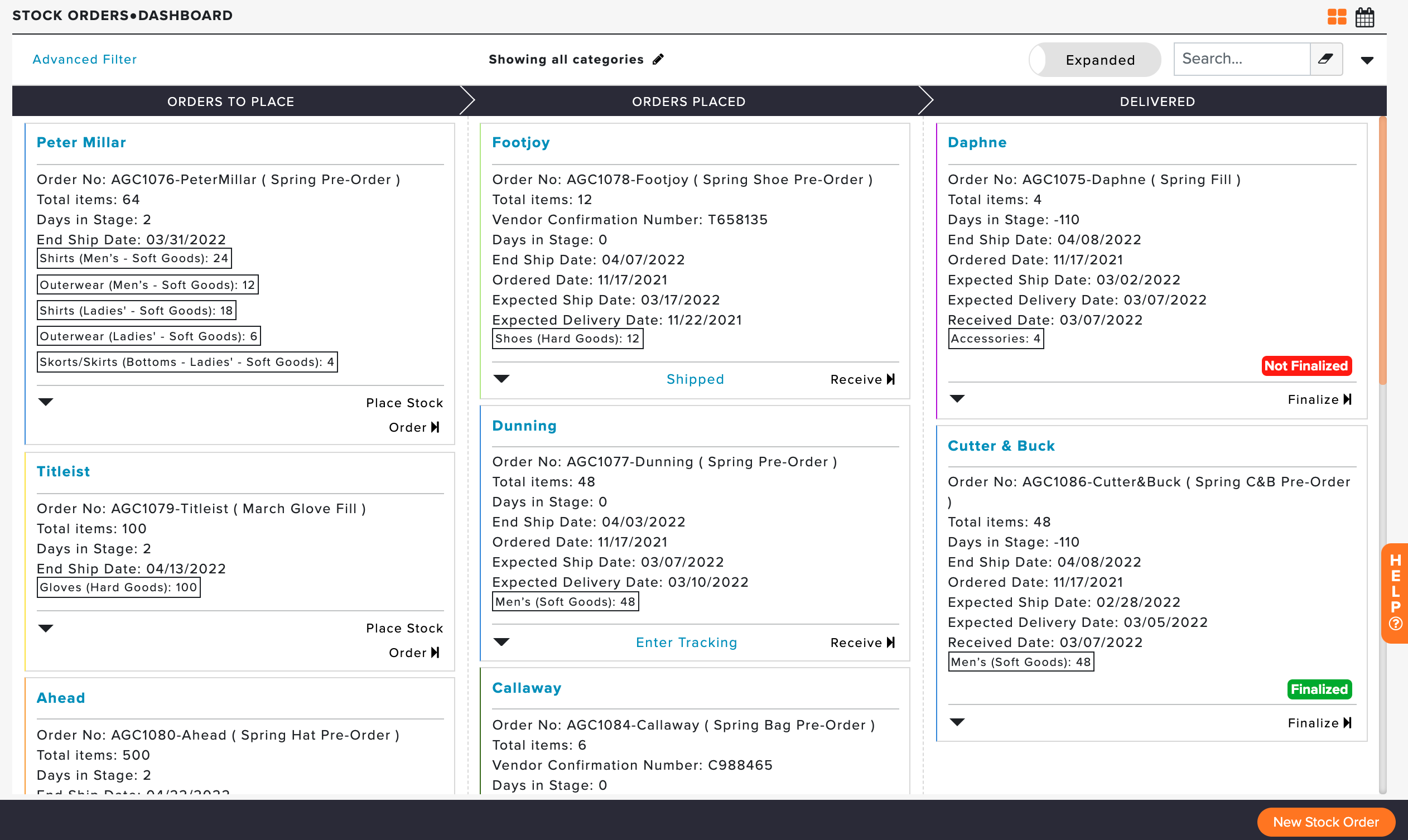
Pipeline View organizes the stock orders in stages and sorts them by order number (as shown below).
Condensed Pipeline View:
Clubs with a high volume of Stock Orders may prefer to change the Dashboard view options on the top right to a condensed view (as shown below). The Condensed View of your Stock Order Dashboard displays more compact tiles that list the order number, order nickname, vendor, item categories, and any important alerts.
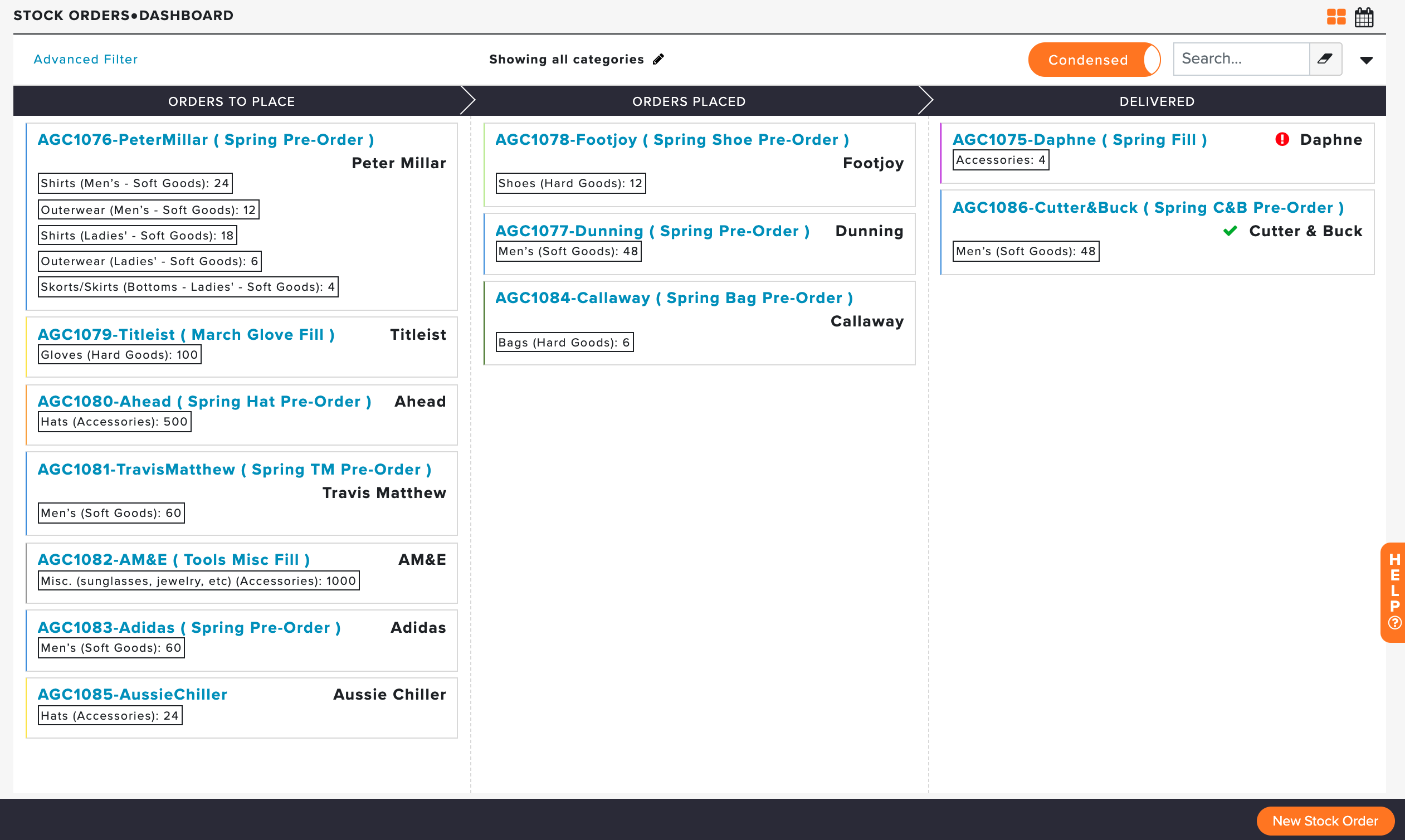
The screenshot above shows a condensed view of the stock order dashboard. When using the condensed view, you can view additional details about the order by clicking on the order tile (as shown below).

List View:
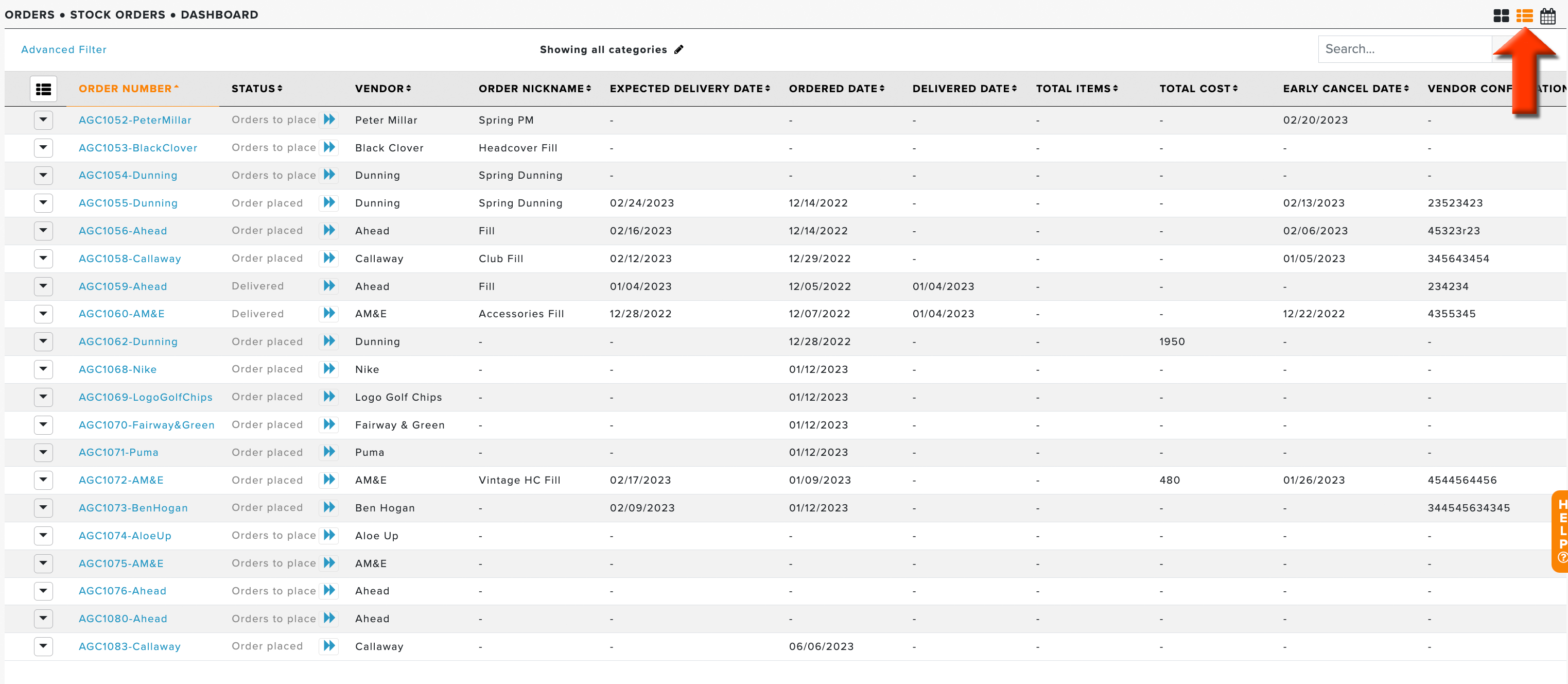
You can change the Dashboard view to see all your stock orders in a sortable list (as shown below). You can sort each column by clicking in the header, show orders in specific categories, search, and filter the orders.
Calendar View:
You can change the Dashboard view options in the top right to a calendar view of stock orders (as shown below). You can navigate the time period by clicking Next or Back, and quickly switch to the current date by clicking Today. Further, change the calendar view to display a week, month, or year.
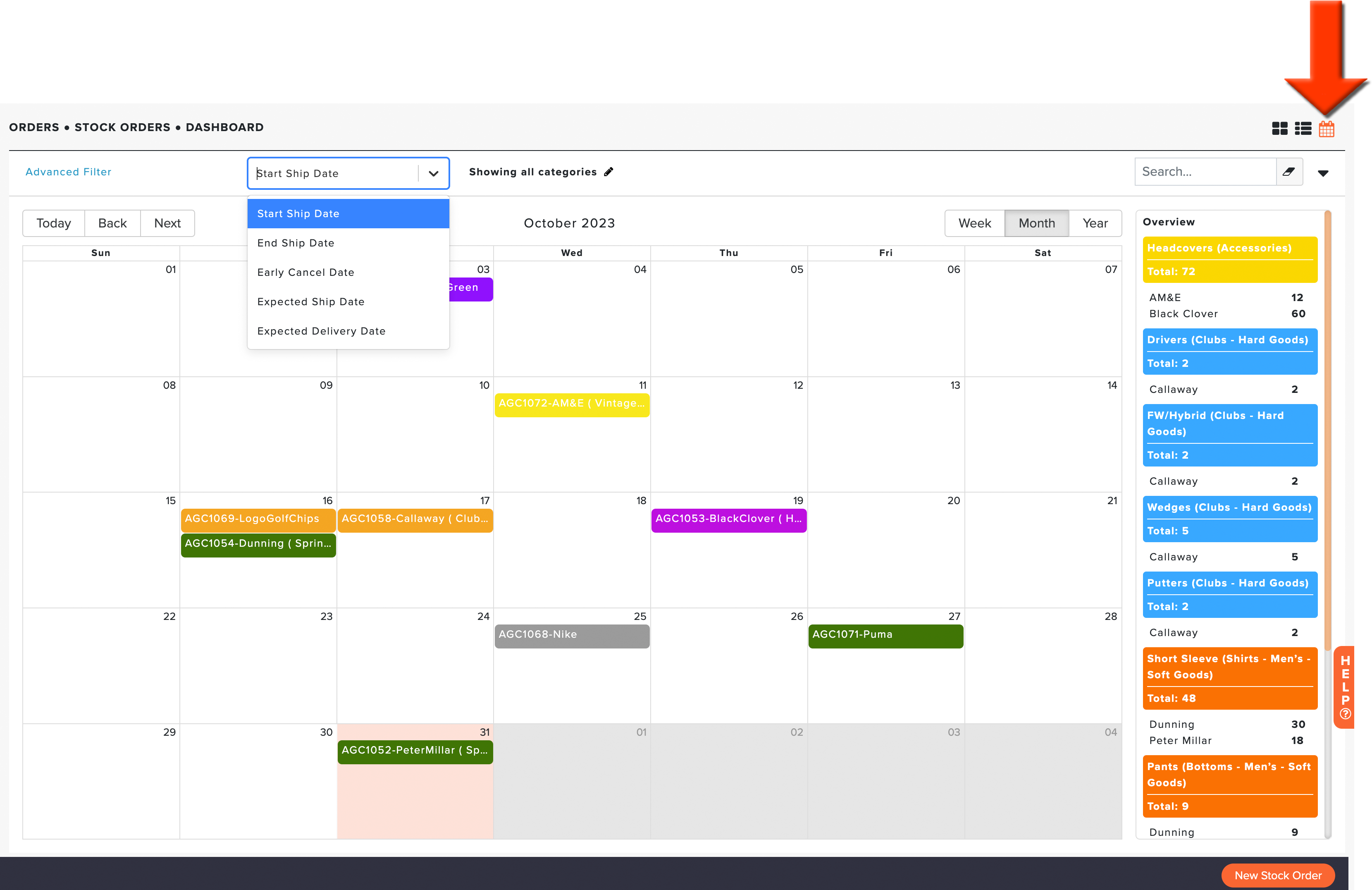
Additionally, when viewing the Calendar in Month or Week, on the right-hand side you will see an overview for that month/week of the categories, vendors, and quantities for those Stock Orders. The color coding of each overview item corresponds to its Merchandise Product Category.
Calendar View organizes the stock orders on a calendar by a specific date field, which can be changed using the dropdown selector (as shown below). The following date filter options are available:
Start Ship Date
End Ship Date
Early Cancel Date
Expected Ship Date
Expected Delivery Date
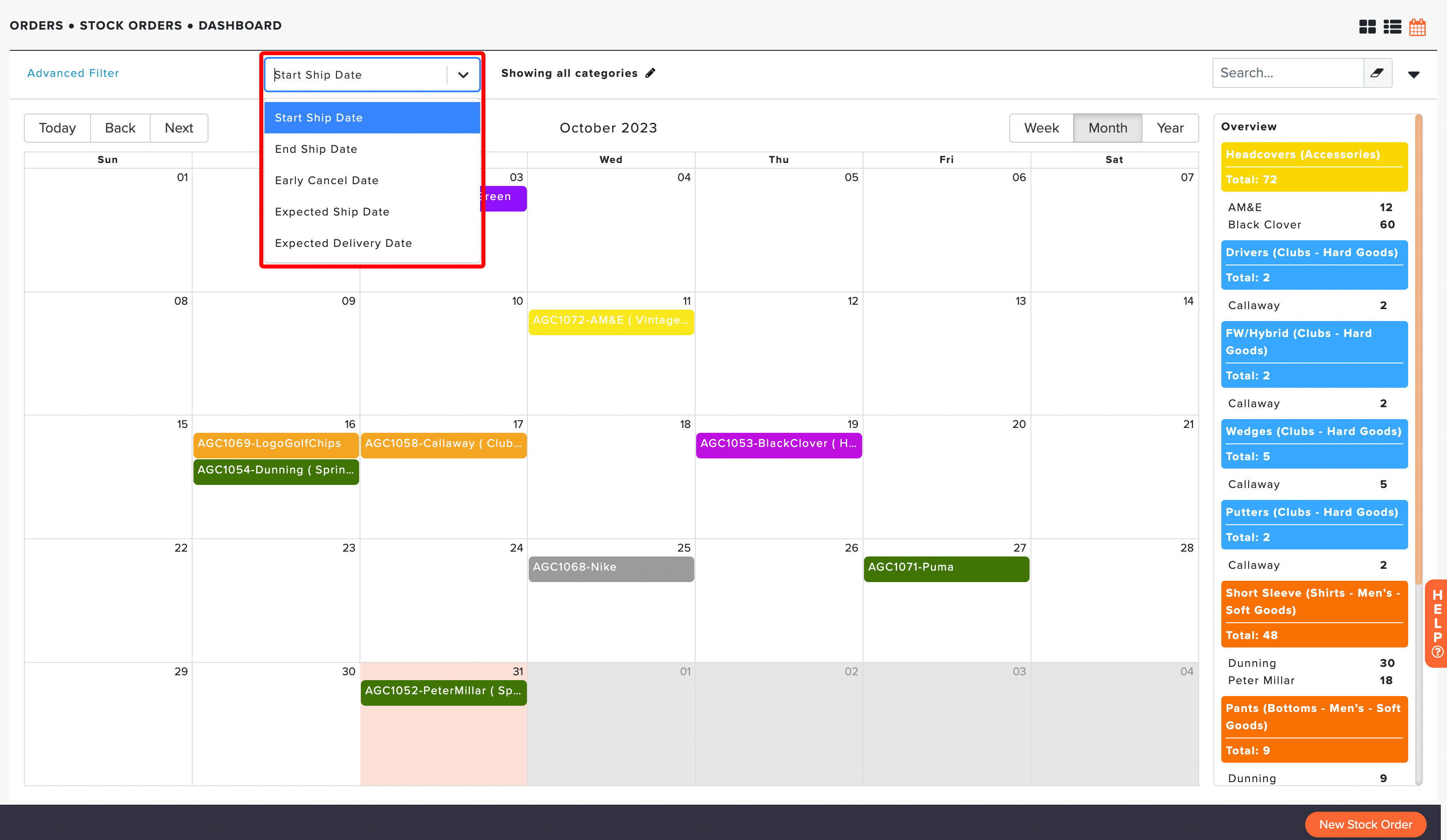
The screenshot above shows the calendar view of stock orders by the start ship date for March. You can view and edit the information of each stock order by clicking on the stock order bubble.
The default calendar format (Year, Month, or Week) and default date filter can be configured in Stock Order Settings, so the calendar opens to your preferred view each time. For more details on configuring Stock Order Settings, Click Here.
Stock Order Actions:
Each stock order has a quick action options menu. Click on the action dropdown, and you will be able to take additional actions on the stock order (as shown below).
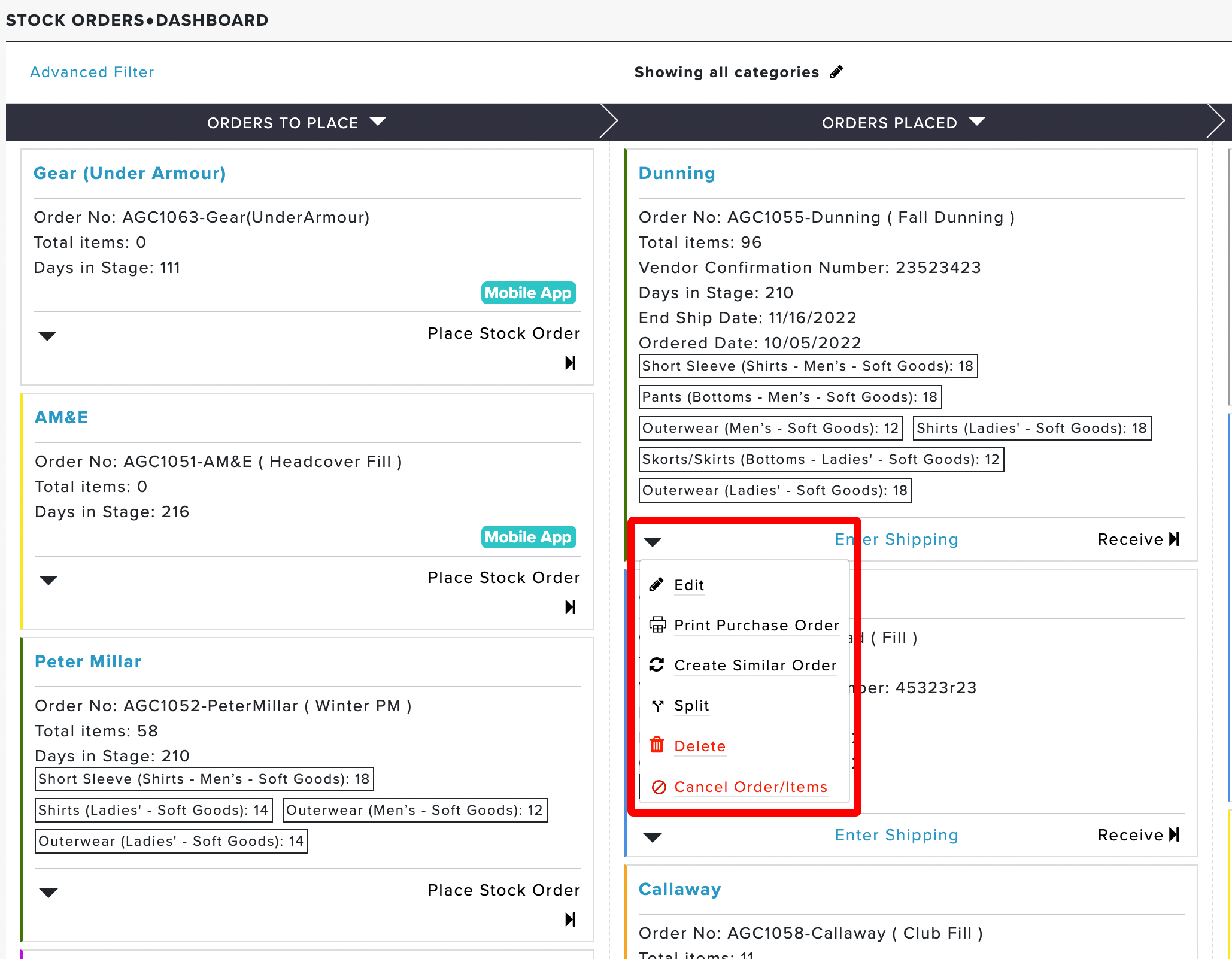
The following quick actions are available:
Edit: Edit the Stock Order.
Print Purchase Order: Print the Stock Orders PO.
Create Similar Order: Create a similar order that copies all stock order fields, including items/categories.
Split: Split items in the Stock Order into multiple Stock Orders.
Delete: Delete the Stock Order from the Dashboard.
Cancel Order/Items (Order Place Stage Only): Cancel the entire order or parts of the order.
Dashboard Stages Sort Order:
You can change the sort order of your stock orders by stage using the dropdown (as shown below). You can also set a default sort method in the Stock Order settings. For more details about setting the default sort method, Click Here.

Quick Filter Stock Order Dashboard:
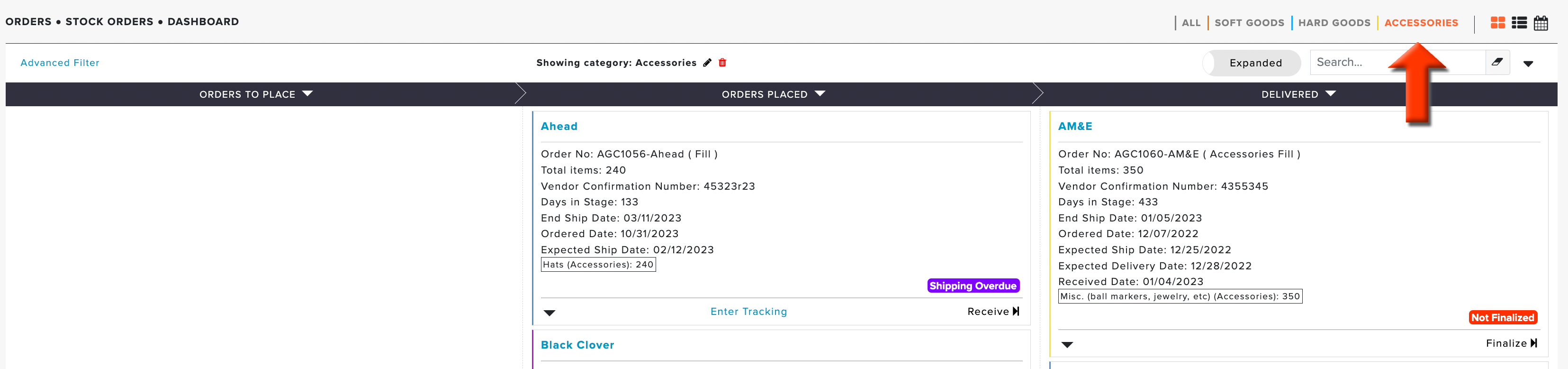
At the top of the Dashboard, you can quickly filter all the stock orders by top-level categories (e.g., Soft Goods, Hard Goods, Accessories, etc.). Just click on the category name (as shown below), and only the stock orders assigned to that category (or the child category of this category) will be visible. Revert the dashboard by clicking "All," which will remove any category filters.
Quick Search and Advanced Filter Stock Orders:
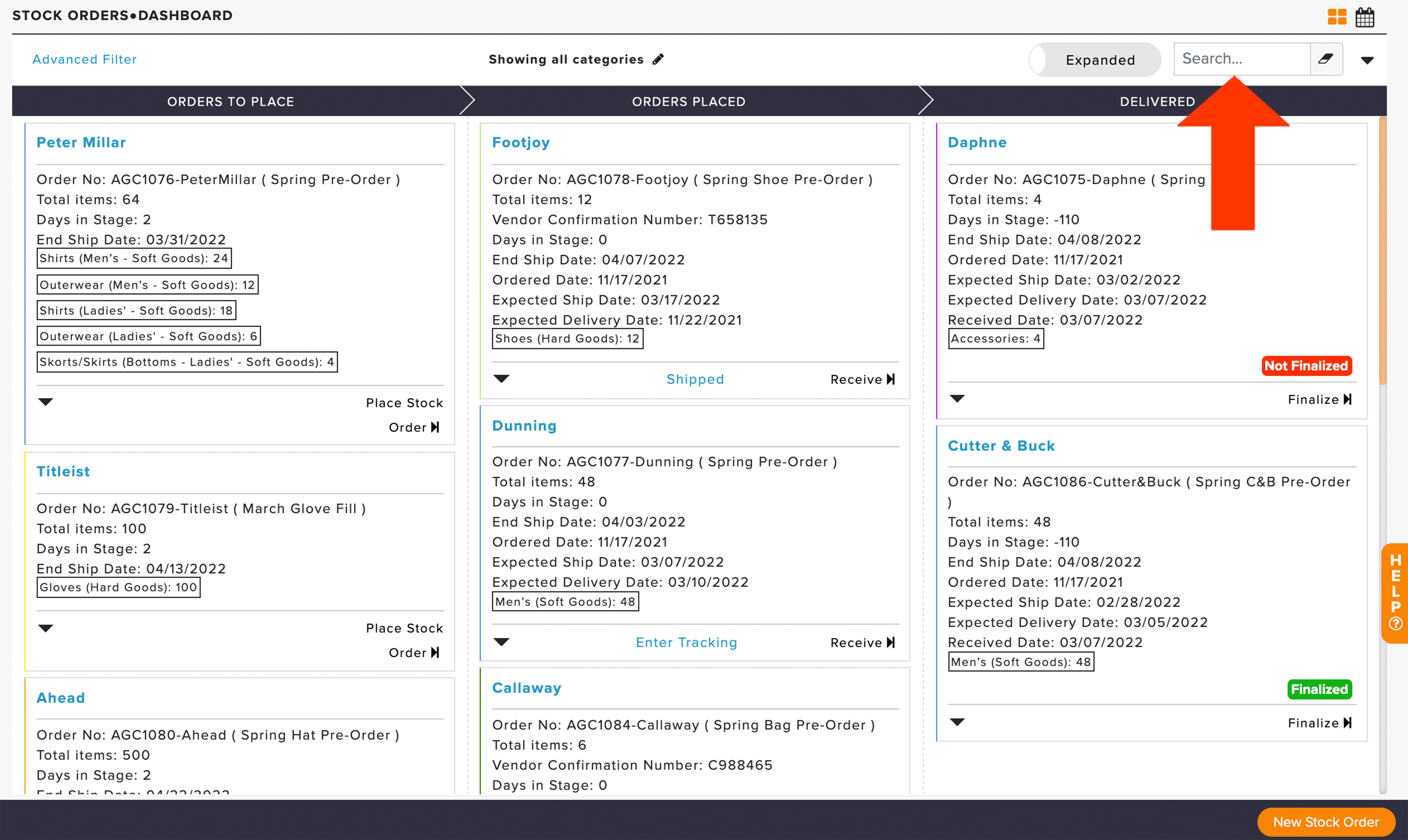
At the top of the Dashboard, you can quickly search stock orders by vendor, description, or other information (as shown below). For more details and advanced search features, Click Here.
Stock Order Alerts:
In some instances, you may notice that a repair order is tagged with a purple, red, or green flag. These flags signify an alert related to that particular order. The following are flags you may see on the dashboard:
Mobile App (Light Blue): Stock Order created with the Mobile App.
Vendor Email not opened (Red): When placing an order by email, this flag will be displayed until the vendor has opened the order email.
Delivery Overdue (Dark Pink): The expected delivery date has passed.
Shipping Overdue (Dark Purple): The expected shipping date has passed.
Not Finalized (Red): The order has been moved to the "Delivered" stage but not finalized.
Finalized (Green): The order has been "Delivered" and finalized. Orders that are finalized will be archived from the dashboard after 24 hours.
Partially Cancelled (Gray): A portion of the order has been canceled.
Cancelled (Black): The order has been fully canceled.