
FAQs - Connect Data Room
Q - What is Connect Data Room?
Connect Data Room is part of the Diligentsia Data Repository module.
It allows you to synchronise (“sync”) your Diligentsia Data Repository with a supported cloud storage provider:
Dropbox
SharePoint
Google Drive
The process involves two steps:
Connect – You connect your Diligentsia Data Repository to your chosen cloud provider.
Diligentsia duplicates your folder structure within that provider. This duplicated structure is called your Data Room.
Sync – You synchronise files between the Diligentsia Data Repository and your Data Room.
For Dropbox and SharePoint:
Files copied into the Diligentsia Data Room folder can sync back to the Diligentsia Data Repository (reverse sync supported).
For Google Drive:
Reverse syncing is not supported due to Google’s restrictions.
You can still edit and delete files within the Drive Data Room.
Q: How Do I Connect to a Data Room?
The following are steps to connect to a Data Room. This example is for a Google Drive connection, but the steps are the same.
Step 1 - Go to the "Connect Data Room" button in your data repository and click it. This opens up a popup.
Step 1 - Go to the "Connect Data Room" button in your data repository and click it. This opens up a popup.

Next popup

Step 2 - Choose your cloud provider where we'll duplicate your data repository. IMPORTANT NOTE: You need to have an existing account with the provider and provide your username and password. Rest assured, we don't access or store your login information, and Diligentsia cannot access your other files on that provider.
Step 2 - Choose your cloud provider where we'll duplicate your data repository. IMPORTANT NOTE: You need to have an existing account with the provider and provide your username and password. Rest assured, we don't access or store your login information, and Diligentsia cannot access your other files on that provider.
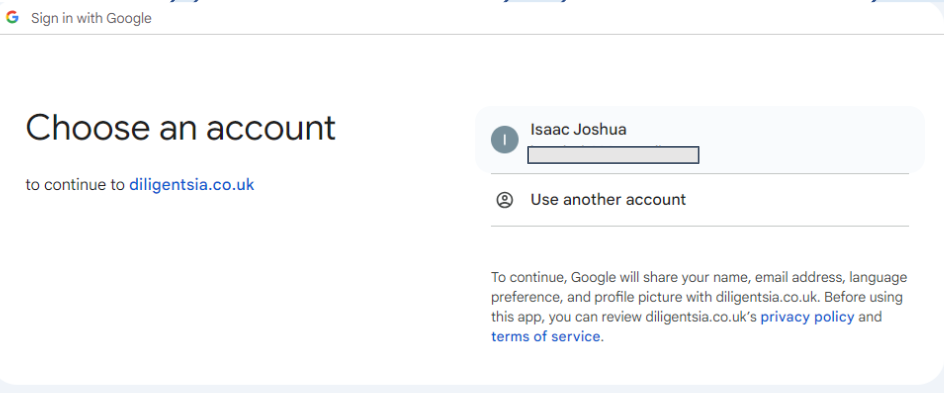
Step 3 - You will be asked to give Diligentsia API permission to set up a mirror folder within your cloud provider.
Step 3 - You will be asked to give Diligentsia API permission to set up a mirror folder within your cloud provider.

Step 4 - It will take a few moments for Diligentsia to access your cloud provider and set up the mirror data repository folders within it. This is your data room.
Step 4 - It will take a few moments for Diligentsia to access your cloud provider and set up the mirror data repository folders within it. This is your data room.

Once this process is completed, you will see a message confirming that the setup has been successful.

Step 5 - Your data repository button "Connect Data Room" is now replaced with Data Room". Your chosen cloud provider's logo also appears in your dashboard header so that your colleagues are aware of the connection.
Step 5 - Your data repository button "Connect Data Room" is now replaced with Data Room". Your chosen cloud provider's logo also appears in your dashboard header so that your colleagues are aware of the connection.


When you hover on the "Data Room button", you can see, Sync Data Room, View Data Room and Disconnect.

Step 6 - When you click "View Data Room" button you are then automatically taken to the Diligentsia Data Room in your chosen provider's cloud:
Step 6 - When you click "View Data Room" button you are then automatically taken to the Diligentsia Data Room in your chosen provider's cloud:

You can now sync your data repository with your data room. For further instructions on how to do this you can click here - but in fact the process is automatic.
Q: Can I connect to more than one Data Room?
No. You can only sync with one Data Room at a time.
Q: Do I need an account with Drive/SharePoint/Dropbox?
Yes. You must have an existing account with one of the supported providers and grant Diligentsia permission during setup.
Q: Can Diligentsia or its employees access my other folders?
No. Diligentsia only has access to the mirrored Data Repository folder created during setup.
Q: Can I schedule automated syncing?
No. Syncing must be done manually so that you remain in control of what is transferred and when.
Q: Can I change the Data Room I am connected to?
There is currently no self-service option to switch providers.
Please contact support@diligentsia.co.uk for assistance.
Q: I already have a Data Room. What are my options?
If your Data Room is with Drive, Dropbox or SharePoint:
Manually upload files into the Diligentsia Data Repository.
Copy and paste files between your existing Data Room folders and the mirrored Diligentsia Data Room folder.
Use the Filing Assistant to assist with importing files.
If your Data Room is with another provider (e.g. Seedlegals, Datasite, Ansarada, iDeals):
Use the Filing Assistant to import files into the Diligentsia Data Repository.
Manual uploads are also possible.
Support for additional providers is planned.
All features can be accessed via: Company Dashboard → Data Repository
Q: Why would I use Diligentsia’s Data Room if I already have one?
Diligentsia provides a standardised folder structure designed to be comprehensive and familiar to advisors and investors.
Additional platform features (e.g. reporting, audit logs, scoring) operate within this structure.
You can import your existing Data Room using the Filing Assistant.
Q: Is a record kept of synced changes?
Yes. All changes are recorded in the Audit Log, including:
What changed
Who made the change
When it was made
Q: Can I link Diligentsia to non-supported providers?
Not currently. Additional integrations are planned.
Disconnecting a Data Room
To disconnect:
Click the Data Room button.

Select Disconnect Data Room and confirm.

Data Room is disconnected.

Your Data Room will then be disconnected.
Troubleshooting
Q: Why can’t I see the “Connect Data Room” button?
Ensure your subscription plan includes the Data Room feature. If it should be available and is not visible, contact support.
Q: Can I connect to multiple Data Rooms simultaneously?
No. Only one Data Room can be connected at a time.
Q: Why does syncing not work with Google Drive?
Google does not allow reverse syncing of external files. You can edit and delete files, but reverse sync is not supported.
Q: What should I do if syncing fails?
Check your internet connection.
Ensure your cloud provider credentials are valid.
Reinitiate the sync.
Contact support if the issue persists.
Q: How do I disconnect my current Data Room?
Click Data Room → Disconnect Data Room → Confirm.
Q: How long does setup take?
Typically a few minutes, depending on repository size.
Q: What happens if I change my cloud provider credentials?
You may need to reconnect or re-authorise during the next sync attempt.
Q: What if the folder structure is not replicated correctly?
Ensure you granted full API permissions during setup.
If the issue continues, contact support.
Q: Can I edit files directly in the cloud provider?
Yes. Reverse syncing back to Diligentsia is supported only for Dropbox and SharePoint.
Q: Is there a limit to the number of files I can sync?
There is no specified limit. Large volumes of files may take longer to sync.
Q: How do I contact support for Data Room issues?
Use the support bot on the website or email: support@diligentsia.co.uk